Support desk and SLA management for IT vendors and consultants
Prove every SLA you signed.
G8Desk ties each ticket to your client's contract, starts the right response and resolution clock, pauses it while you wait on the client, and escalates before a deadline slips. At month-end the compliance report goes to your client automatically.
- Client portal and ops dashboard
- Business-hours or 24/7 clocks
- Pause on pending client
- Cloud or on-prem
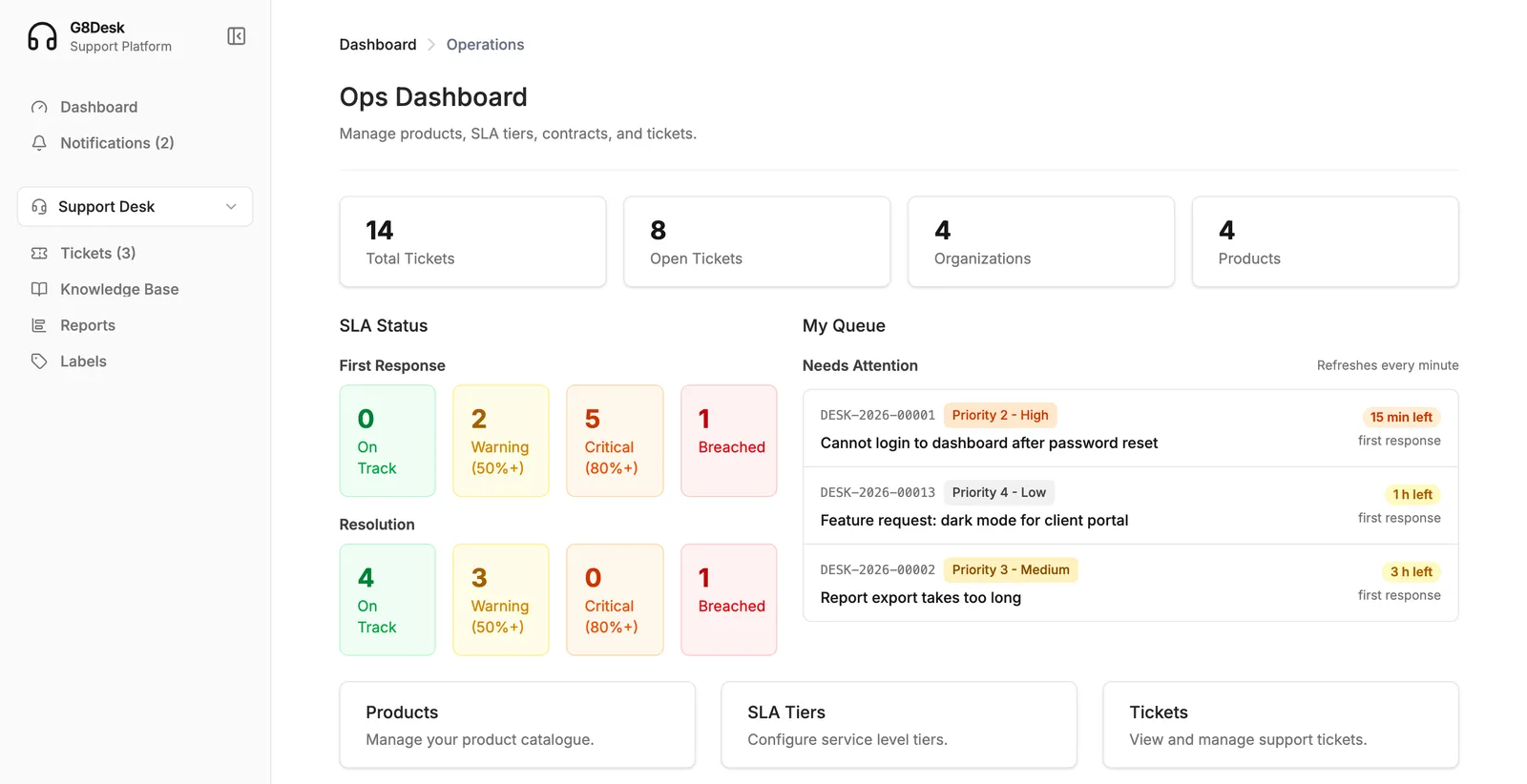
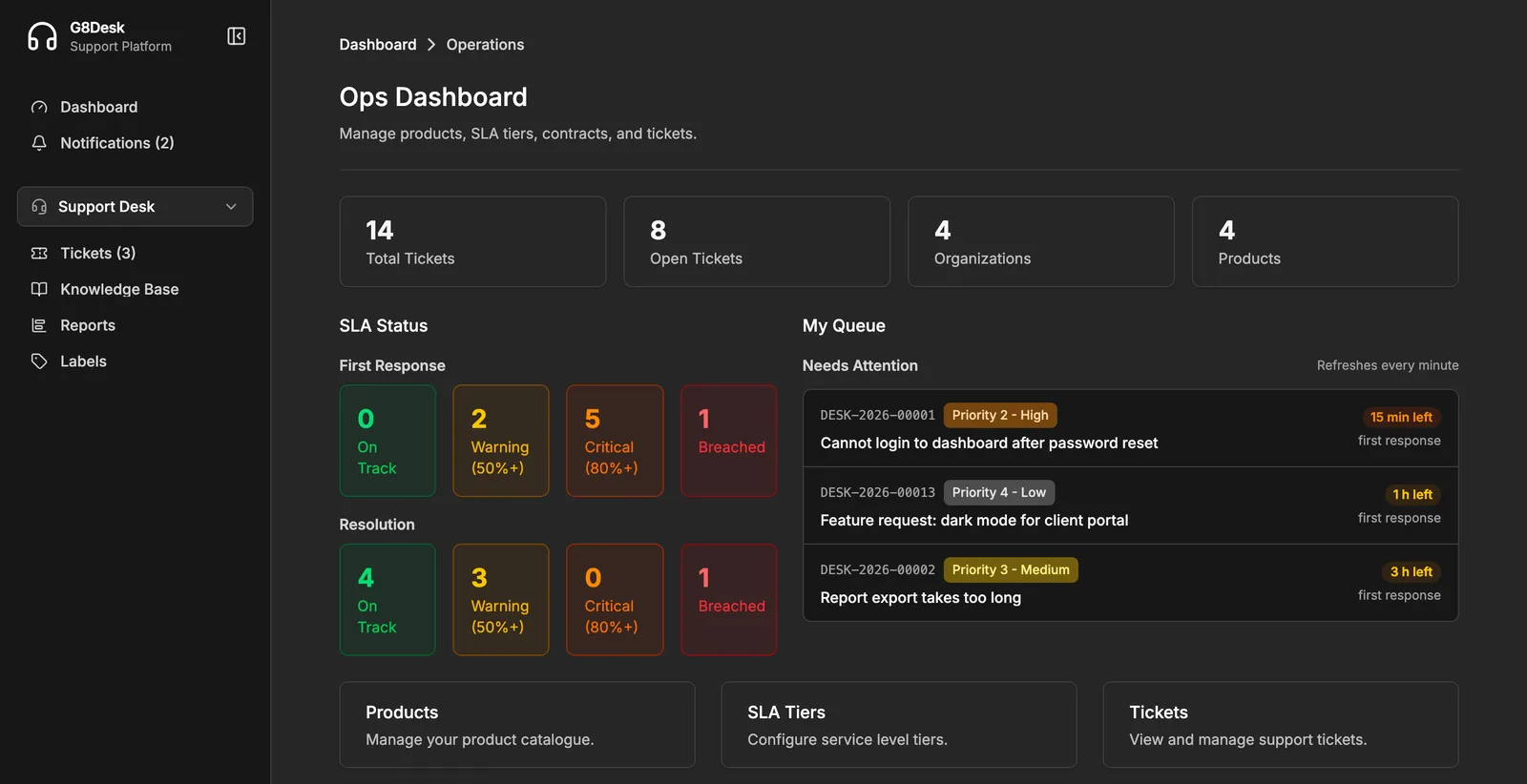
How the SLA clock works
One clock per ticket, set by the contract, fair to both sides.
Your client sees a deadline they agreed to. Your team sees how much of it is left. Waiting on the client doesn't count against you.
- Clock running
- Paused: pending client
- Running again, past the first threshold
- Escalation thresholds
-
01
Contract sets the target
The ticket's organisation and product resolve to an active contract, its SLA tier and the policy for that severity. No contract, no ticket.
-
02
Deadlines are pinned
First-response and resolution deadlines are written to the ticket on creation, counted in business hours or around the clock.
-
03
Pending client pauses it
Move a ticket to pending client and the clock stops. When the client replies, both deadlines move out by exactly the time paused.
-
04
Escalation fires early
At each threshold of the target, the policy's escalation rules run. A breach is flagged on the ticket and counted in the report.
Two portals, one record
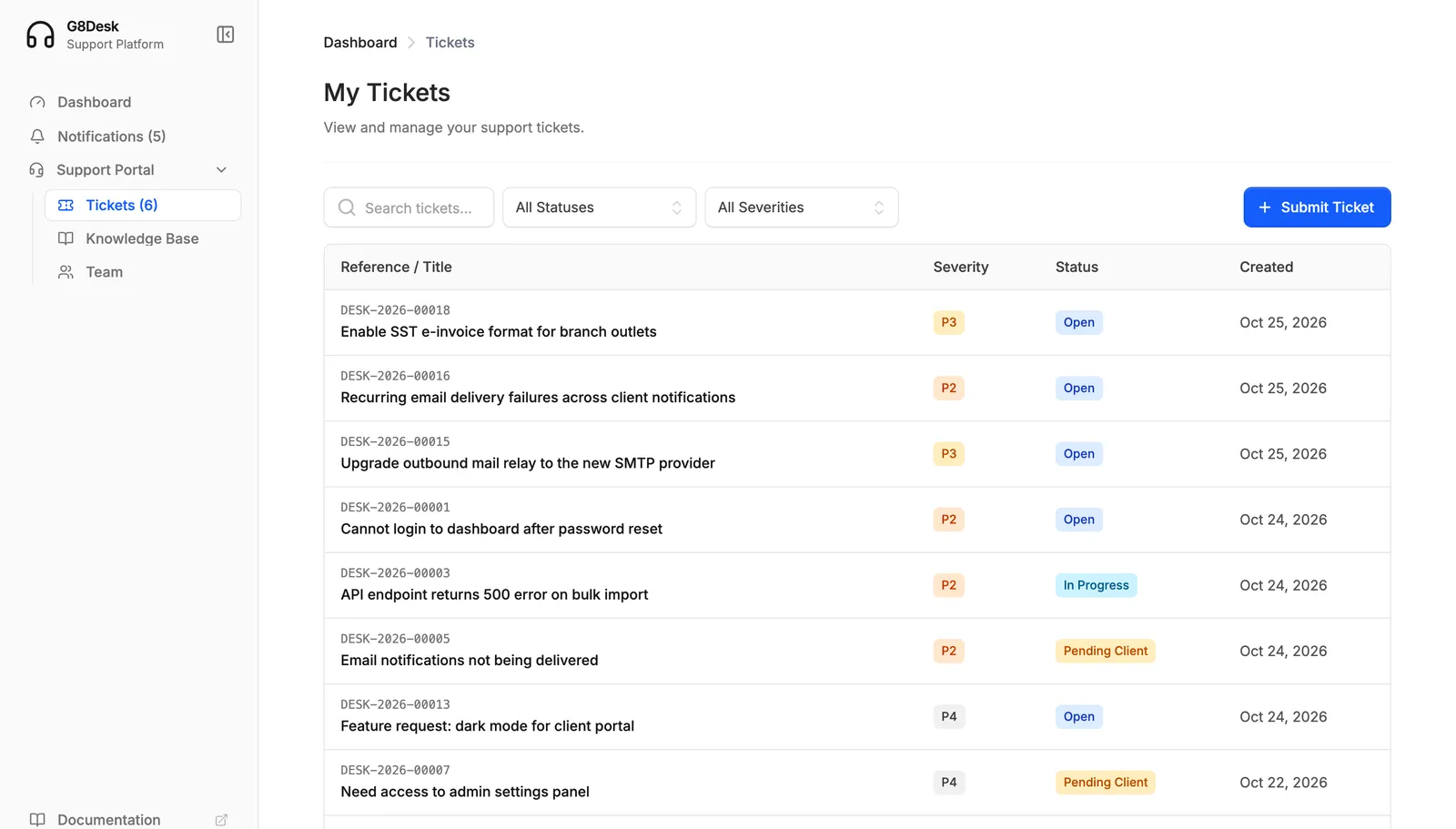
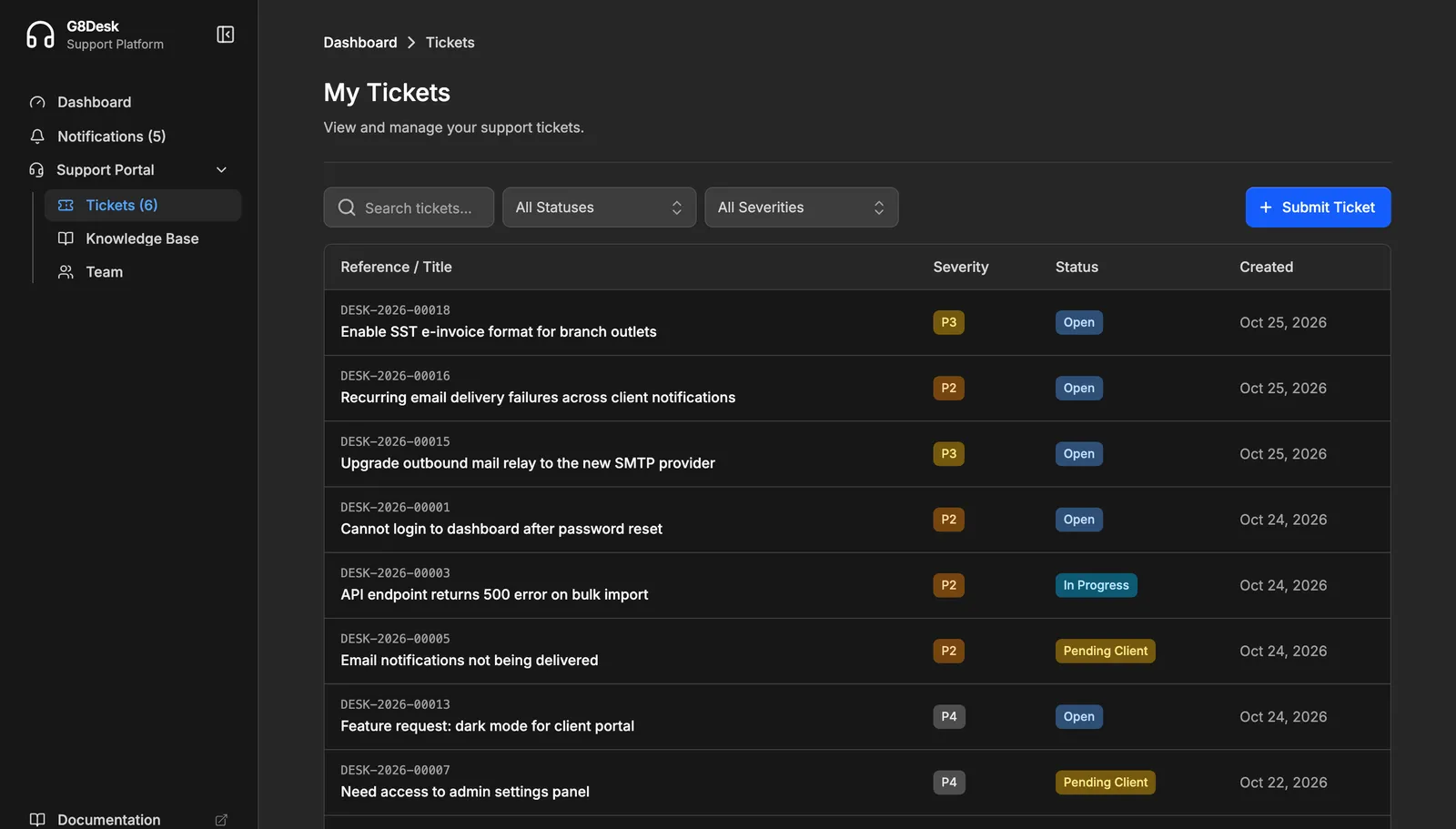
Your team works the queue. Your client sees their own tickets.
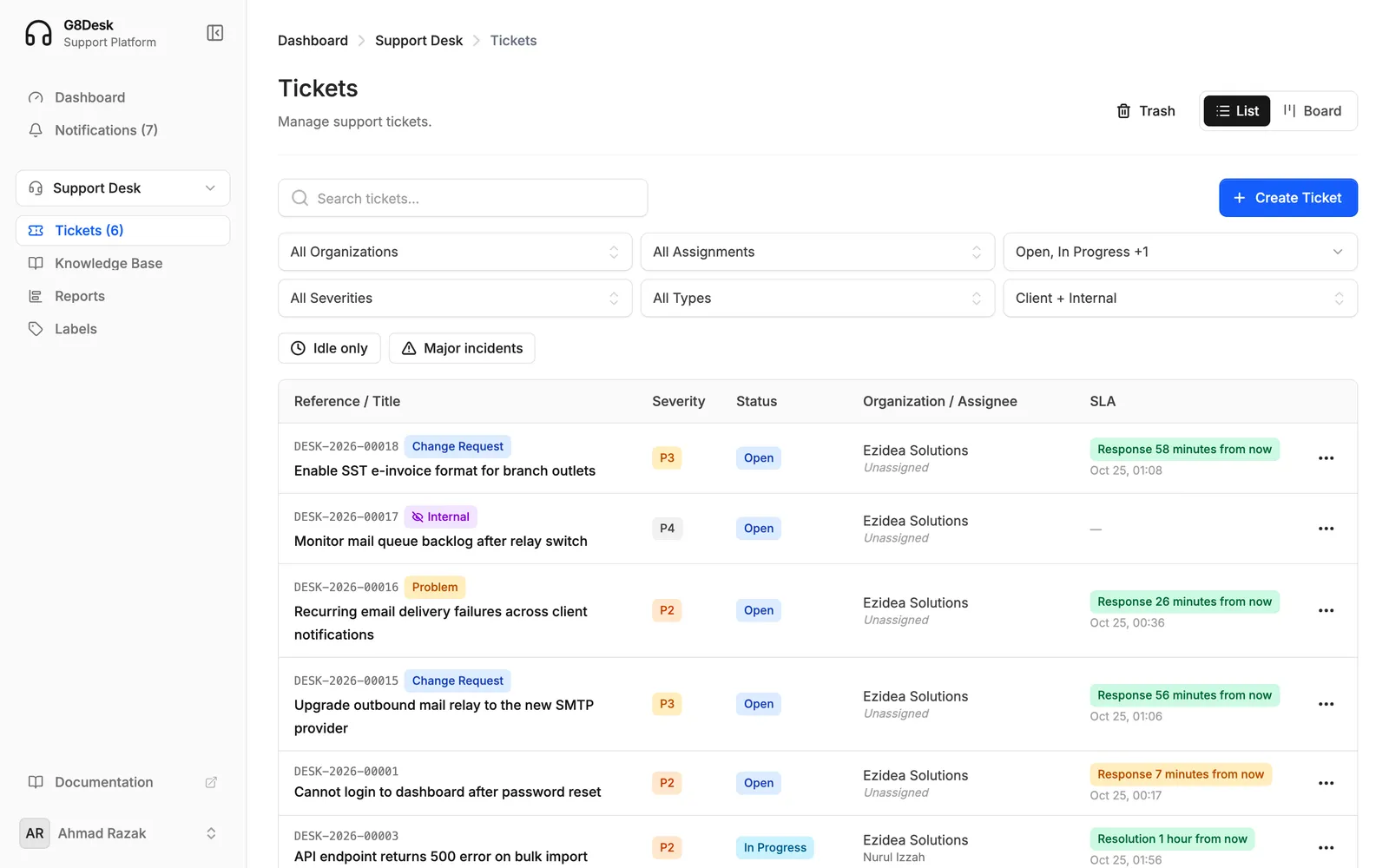
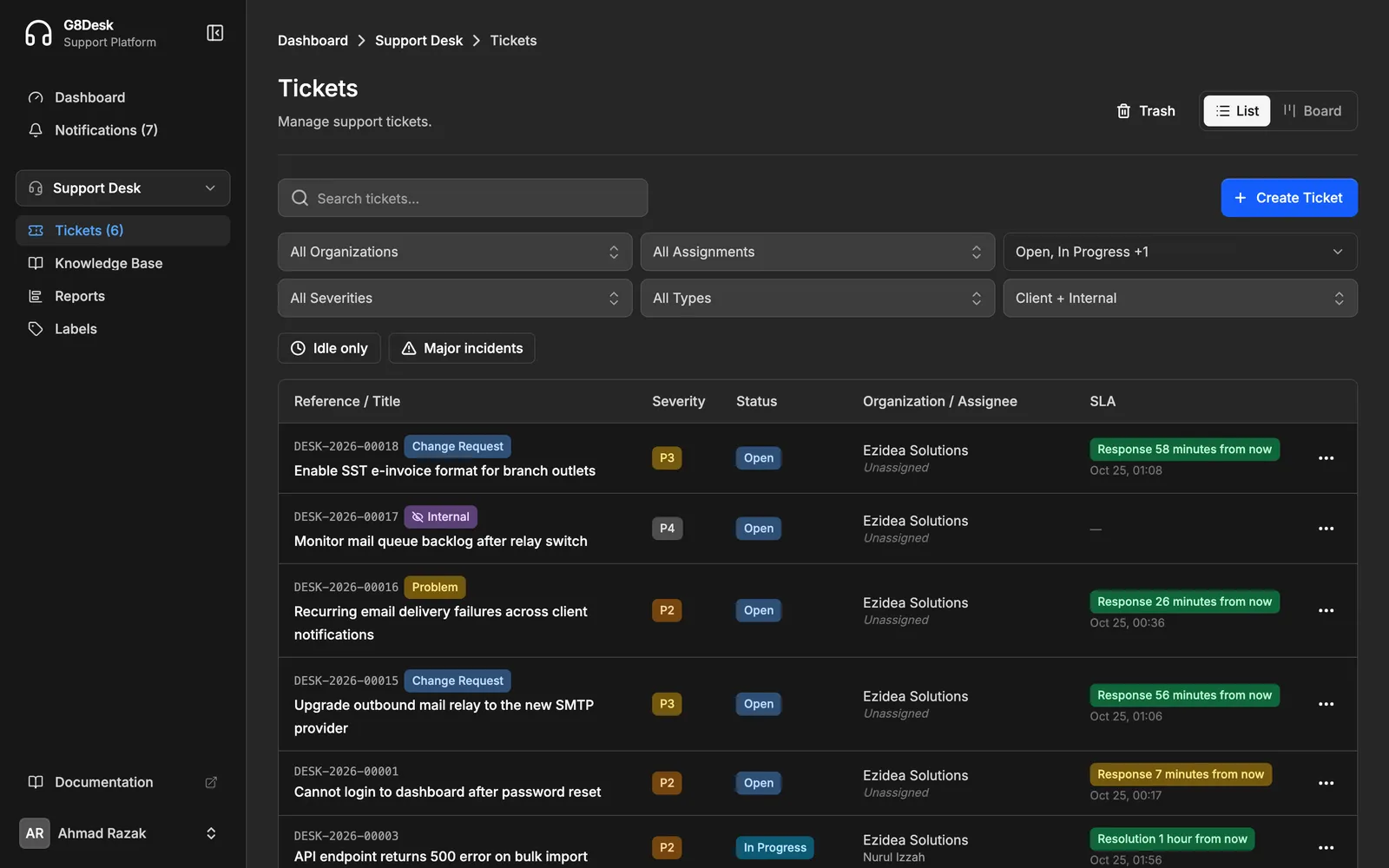
The ops dashboard covers every client you serve, scoped to the organisations each agent is assigned. The client portal shows one organisation's tickets, knowledge base and team, and nothing else.

Features
Built for contracts, not just conversations.
Everything below ships in the product today.
-
SLA tiers and policies
Name tiers the way your contracts do. Each tier sets response and resolution targets per severity (P1–P4), on business hours or 24/7.
-
Contracts per client and product
A ticket only opens against an active contract, so every deadline traces back to something your client signed.
-
Multi-level escalation
Up to four levels per policy. Notify, reassign, bump priority or add a note when a ticket crosses its threshold.
-
Incidents, problems, change requests
ITIL ticket types in one queue. Change requests carry risk, window and plans, and need an approver before work starts.
-
Major incident reports
Declare a major incident, then download an internal post-incident PDF with SLA impact, chronology and participants.
-
Knowledge base
Publish articles to the client portal so clients can find answers before they raise a ticket.
-
Intake channels and widget
Take tickets from your own apps through a token-based API or an embeddable widget, with per-channel rate limits and signed webhooks.
-
Analytics
Ticket behaviour, knowledge base, organisation and user dashboards, each exportable to CSV.
-
Engineering handoff
Draft GitHub or GitLab issues from a ticket. A second ops admin approves before anything is pushed to the repository.
-
MCP connector for AI assistants
Connect Claude or another MCP client over OAuth. It works within the same permissions as the web app.
-
Mobile app
A companion app lets clients raise tickets and follow replies from their phone, on Cloud or on-prem.
-
Audit trail and tenant isolation
Every client organisation sees only its own tickets. Changes are audited and each ticket keeps a timeline.
Reporting
The month-end report, already sent.
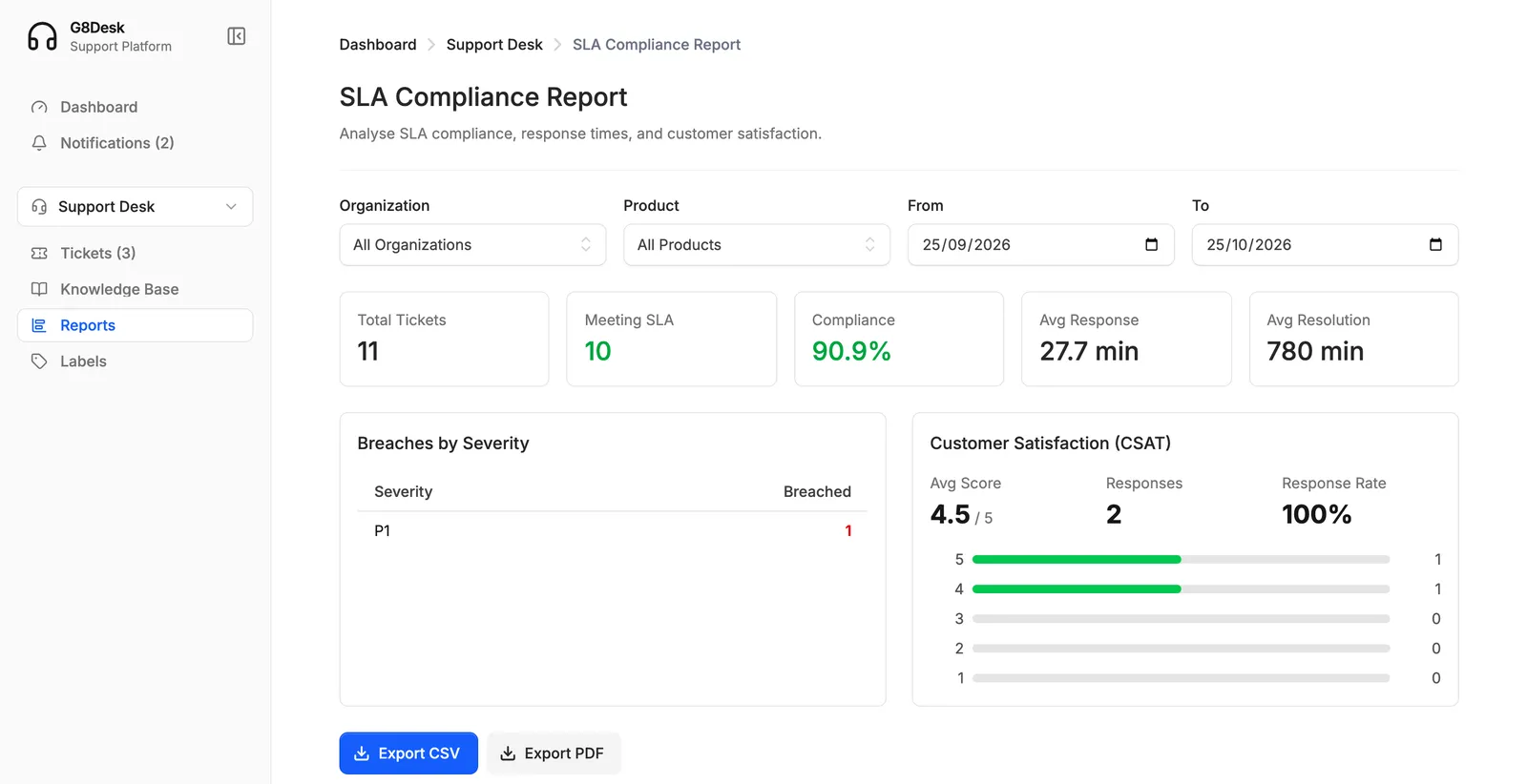
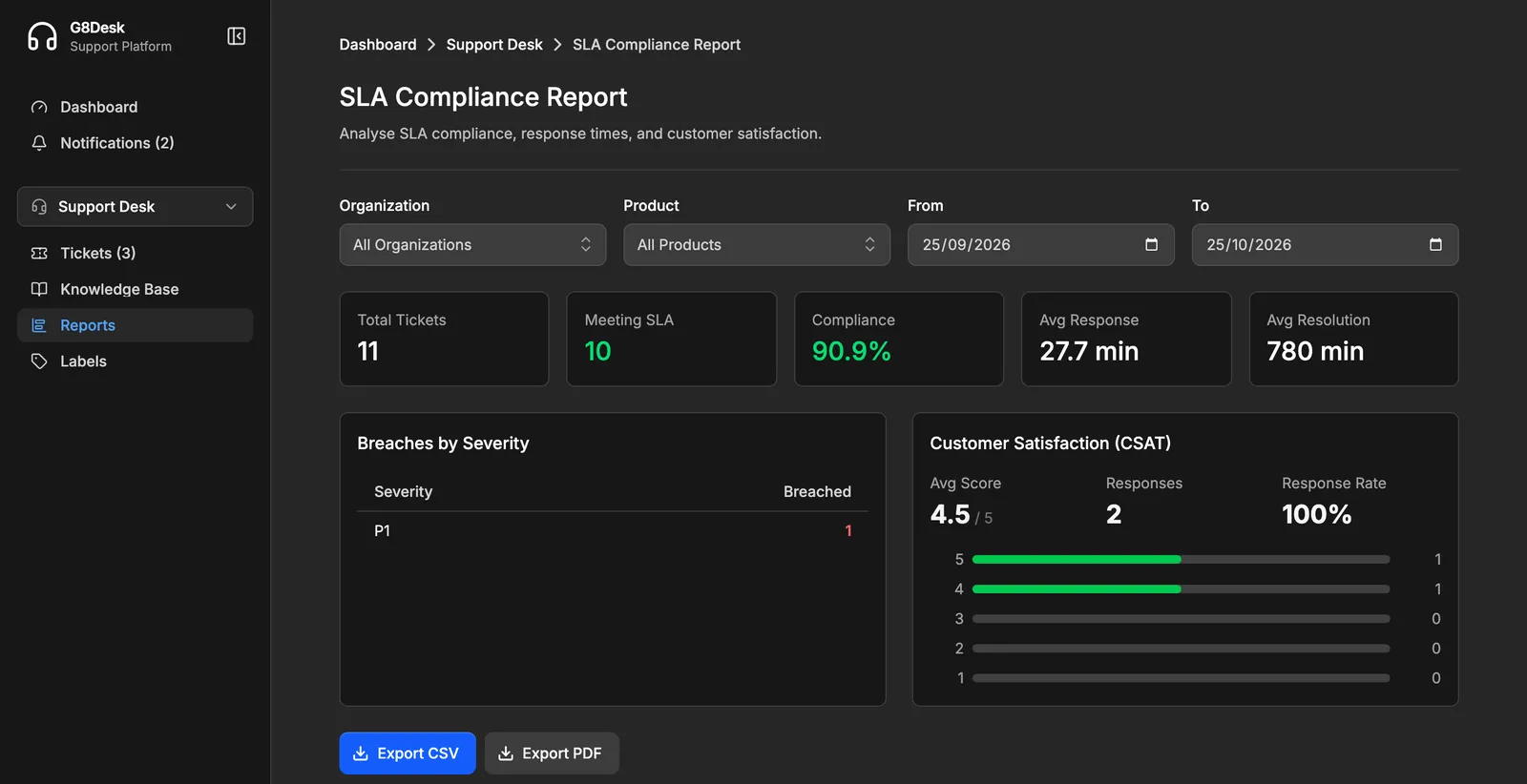
On the first of each month, Client Admins receive a ticket report by email with a PDF attached: totals, severity and status breakdowns, SLA compliance and average response and resolution times.
- Compliance report by organisation, product and date range
- Export to CSV or PDF whenever a client asks
- CSAT shown next to SLA numbers, so fast closes don't hide poor service
- Opt-out per organisation or per admin
AI assistants and engineering handoff
AI can draft. A person approves.
The MCP connector lets an AI assistant work your queue with the same permissions you have on the web. Decisions that leave G8Desk stay with your team.
Through MCP, an assistant can
- Read and search tickets you can see
- Reply, assign and change status
- Draft GitHub or GitLab issues
- Build monthly and major incident reports
It never
- Approves an engineering handoff
- Sees tickets outside your scope
- Receives ticket text before PII is scrubbed
- Skips a permission the web app checks


Who it's for
Teams who answer to a contract.
- IT vendors serving enterprise and government
- Several client organisations, each with its own contracts, products and SLA tiers, served from one ops team.
- Consultants on support retainers
- Show the client what was delivered against the agreement each month, without assembling it by hand.
- Product teams with on-prem customers
- Route engineering issues to the right repository and keep the client informed while the fix is verified.
Deployment
Run it with us, or on your own servers.
G8Desk Cloud
The hosted, multi-tenant edition with a subscription plan. Sign up and start on the free tier.
On-prem
The self-hosted edition, licensed with a signed offline licence file. Same product, deployed where your client's data rules require.
Plans and limits are on the pricing page.
Questions
Before you sign up
What happens if a client has no active contract?
G8Desk won't open the ticket. A client-facing ticket always needs an active contract for that organisation and product, so every ticket has an SLA behind it. Internal work items for your own team skip this and carry no SLA.
Does waiting on the client count against our SLA?
No. When a ticket moves to pending client the clock pauses. When the client replies, both deadlines are extended by the exact time it was paused.
Can clients see our internal notes?
No. Internal notes, internal work items, ticket links and engineering details stay on the ops side. Clients see public replies and status changes.
Can we use our own business hours?
Each SLA tier counts either business hours or calendar hours. The business-hours calendar is currently Monday to Friday, 9am to 6pm.
Where is the documentation?
The full guide for ops admins, agents, client admins and client users is in the docs. Open the docs
Set up your first client, contract and SLA tier.
The docs walk you from first login to first ticket.