

Managing Team Members
- Client Admin
Managing Team Members
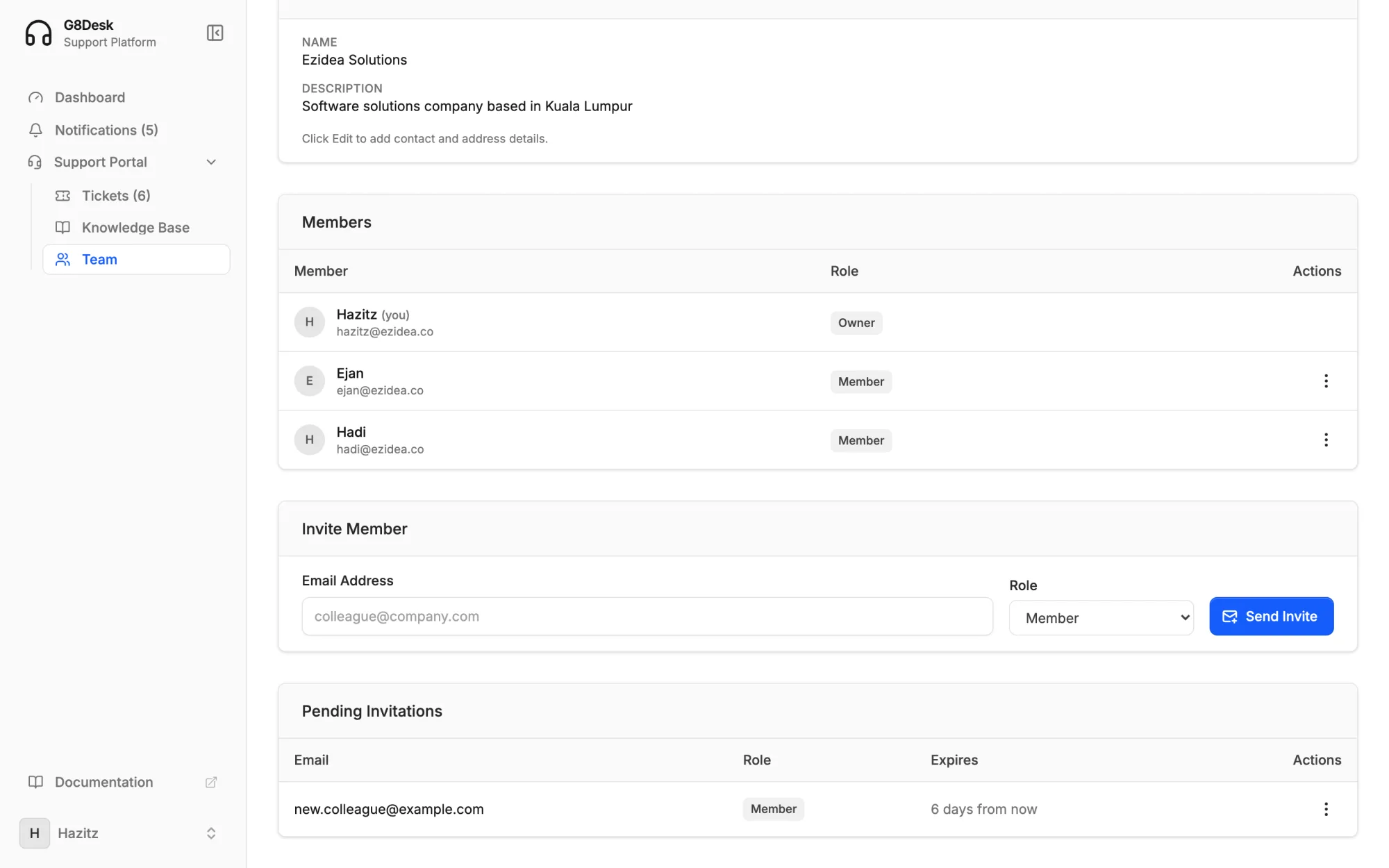
Invite colleagues, set their role and remove people who have left. All of this happens on Support Portal › Team.
Roles
| Role | Can do |
|---|---|
| Member | Submit and follow tickets, comment on any of the organisation's tickets, use the knowledge base |
| Administrator | Everything a member can do, plus edit the company profile, manage members and invitations, raise change requests, and edit or delete any comment on the organisation's tickets |
| Owner | An administrator who owns the organisation. The owner can't be removed or have their role changed |
Administrators also receive the monthly ticket report.
Invite someone
- Go to Support Portal › Team.
- Under Invite Member, enter the Email Address.
- Choose a Role: Member or Administrator.
- Click Send Invite.
The invitation appears under Pending Invitations with its expiry date. The person receives an email with a link to join.
Note: Invitations expire after 7 days. You can't send a second invitation to an address that already has a pending one, so resend the existing invitation instead.
Resend or cancel an invitation
In Pending Invitations, open the ⋮ menu on the row:
- Resend sends the email again and gives the invitation a new 7-day expiry.
- Cancel withdraws the invitation. The link stops working.
Change someone's role
- In Members, open the ⋮ menu on the person's row.
- Choose Make Admin or Make Member.
The change takes effect straight away.
Remove someone
- In Members, open the ⋮ menu on the person's row.
- Choose Remove and confirm.
They lose access to your organisation's tickets, team and knowledge base immediately. Tickets and comments they wrote stay in place.
Tip: You can't change your own role or remove yourself, and nobody can remove the owner.