

Handling Tickets
- Support Agent
- Ops Admin
Handling Tickets
As a Support Agent you work the ticket queue for the client organisations you cover: pick tickets up, reply to clients, move them through their statuses and resolve them before their SLA deadlines.
Which tickets you see
You only see tickets from the client organisations an Ops Admin has assigned to you. Ops Admins see every client organisation.
Note: If your ticket list is empty, or you receive no ticket notifications, ask an Ops Admin to assign you to the client organisations you support. A new agent account covers no organisations until they do.
The ticket list
Open Support Desk › Tickets. The list shows the newest tickets first, ten per page.
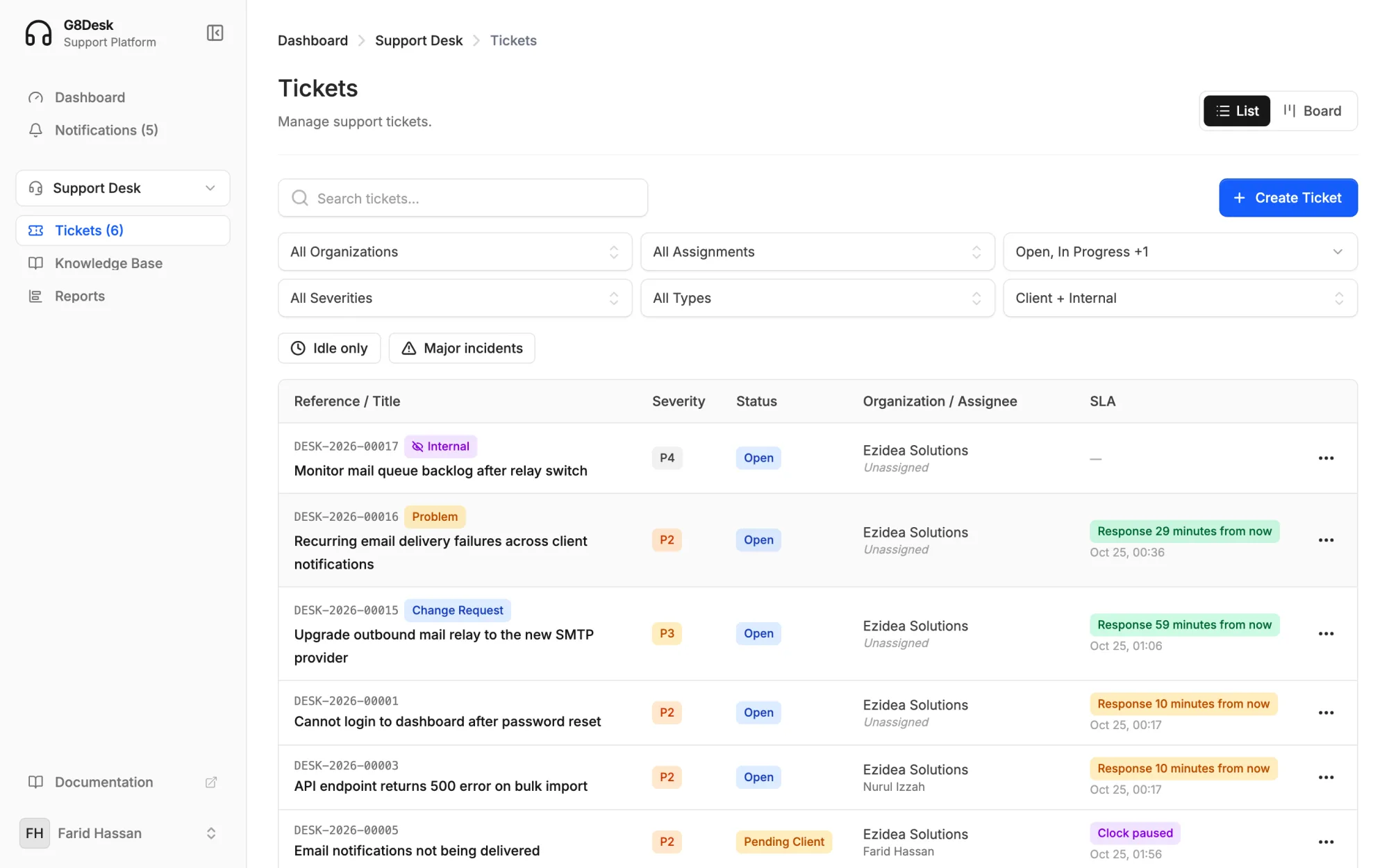
| Column | What it shows |
|---|---|
| Reference / Title | Ticket reference (for example DESK-2026-00016), the title, and badges for the ticket type, Internal and MI (major incident) |
| Severity | P1 (critical) to P4 (low) |
| Status | Open, In Progress, Pending Client, Resolved or Closed, plus an Idle badge when nobody has touched the ticket for a while |
| Organization / Assignee | The client organisation and who holds the ticket |
| SLA | The clock that matters right now: the response deadline until the first response, then the resolution deadline. Green is on track, amber means 80% of the time has gone, red means overdue, purple means the clock is paused |
Searching and filtering
- Search matches the reference or the title.
- The dropdowns filter by organisation, assignment (Unassigned or Mine), status, severity, type and Client + Internal / Client-facing only / Internal only.
- The status filter is a multi-select. It defaults to Open, In Progress, Pending Client, so resolved and closed tickets are hidden until you tick them.
- Idle only and Major incidents are one-click quick filters.
- Reset filters appears as soon as anything differs from the defaults.
Filtered views keep their status, severity, idle and major-incident filters in the page address, so you can bookmark or share them.
Row actions
Open the ⋯ menu at the end of a row.
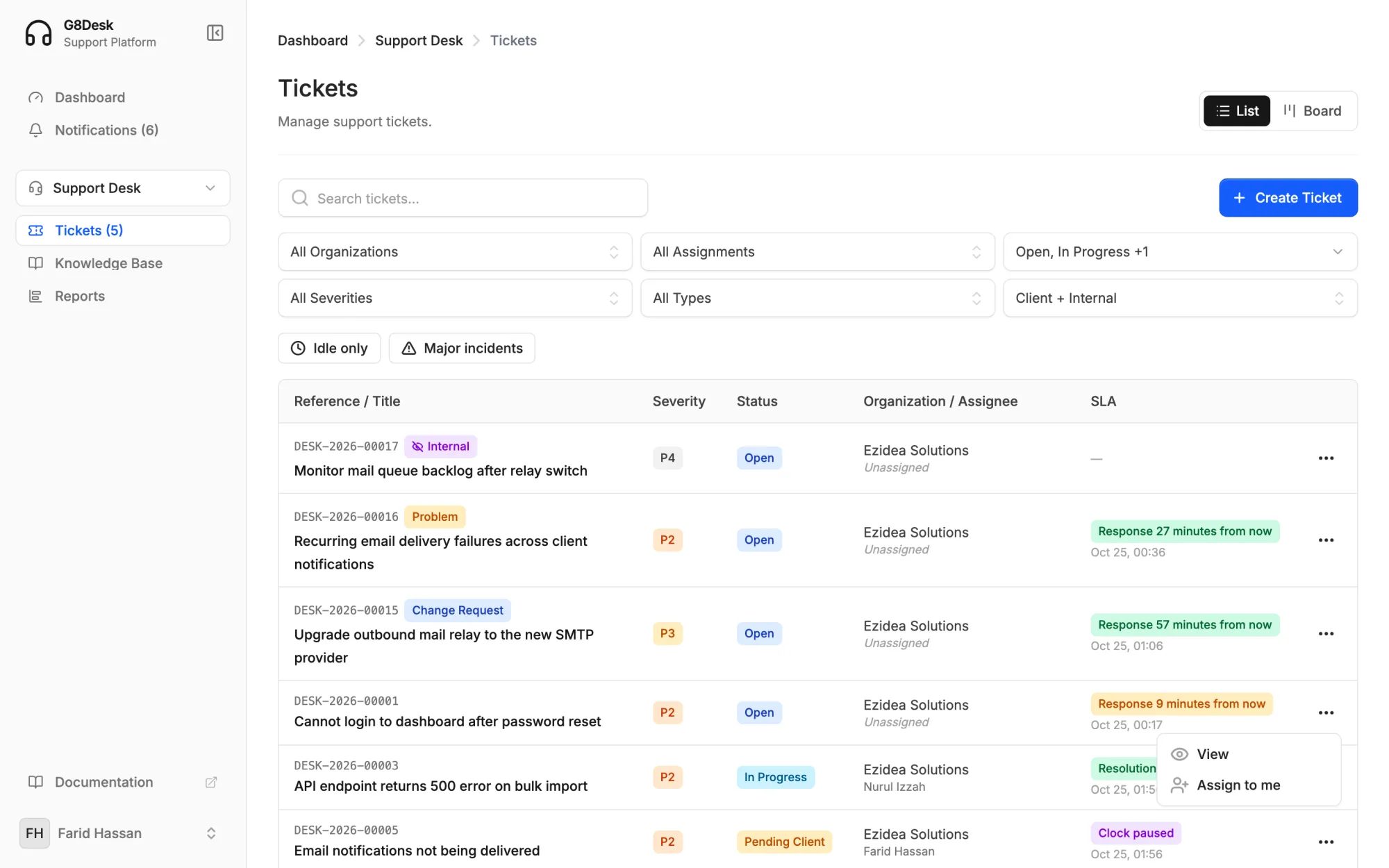
- View opens the ticket.
- Assign to me appears on unassigned tickets and assigns it to you in one click.
Tip: Use List and Board at the top right to switch views. G8Desk remembers your choice. See Ticket Board.
Ticket lifecycle
| Status | Meaning | Can move to |
|---|---|---|
| Open | Submitted, waiting to be picked up | In Progress, Closed |
| In Progress | Someone is working on it | Pending Client, Resolved, Closed |
| Pending Client | Waiting for the client. The SLA clock is paused | In Progress, Closed |
| Resolved | Fixed, waiting for the client to confirm | Closed, In Progress |
| Closed | Finished | Open (reopen) |
G8Desk only offers the moves in the right-hand column. Anything else is rejected.
Working a ticket
1. Pick it up
Assign the ticket to yourself (Assign to me, or the Assignee field on the ticket), then move it to In Progress.
Note: The first move to In Progress is what G8Desk records as the first response. Replying while the ticket is still Open does not stop the response clock. Move the ticket to In Progress when you start.
2. Investigate and reply
Read the description and attachments, check the Knowledge Base, and reply to the client. Use internal notes for anything only the team should see. See Replies and Internal Notes.
3. Wait for the client
When you need information, move the ticket to Pending Client. The SLA clock pauses.
Note: A client reply does not move the ticket back by itself. When the client answers, move it to In Progress yourself. That is what restarts the clock and extends both deadlines by the time spent waiting.
4. Resolve
When the issue is fixed, move the ticket to Resolved. The person who reported it gets an email. If engineering fixed the issue, you can ask the client to verify the fix first. See Engineering Handoff.
5. Close
Move the ticket to Closed when the work is done. The reporter and the assignee are both notified. A closed ticket can be reopened.
Tip: You can change the status while posting a comment. Pick Set to … next to the Comment button so the reply and the status change go out together.
Deleted tickets
Support Agents cannot delete tickets. Ops Admins can move a ticket to the trash, where it stays recoverable for 30 days by default before it is removed for good.