

Managing Your Profile
- Client User
- Client Admin
Managing Your Profile
Your personal settings are under Settings. To get there, click your name at the bottom of the sidebar, then Settings.
| Page | What you can change |
|---|---|
| Profile | Name and email, and delete your account |
| Password | Your password |
| Two-Factor Auth | Two-factor authentication. See Two-Factor Authentication |
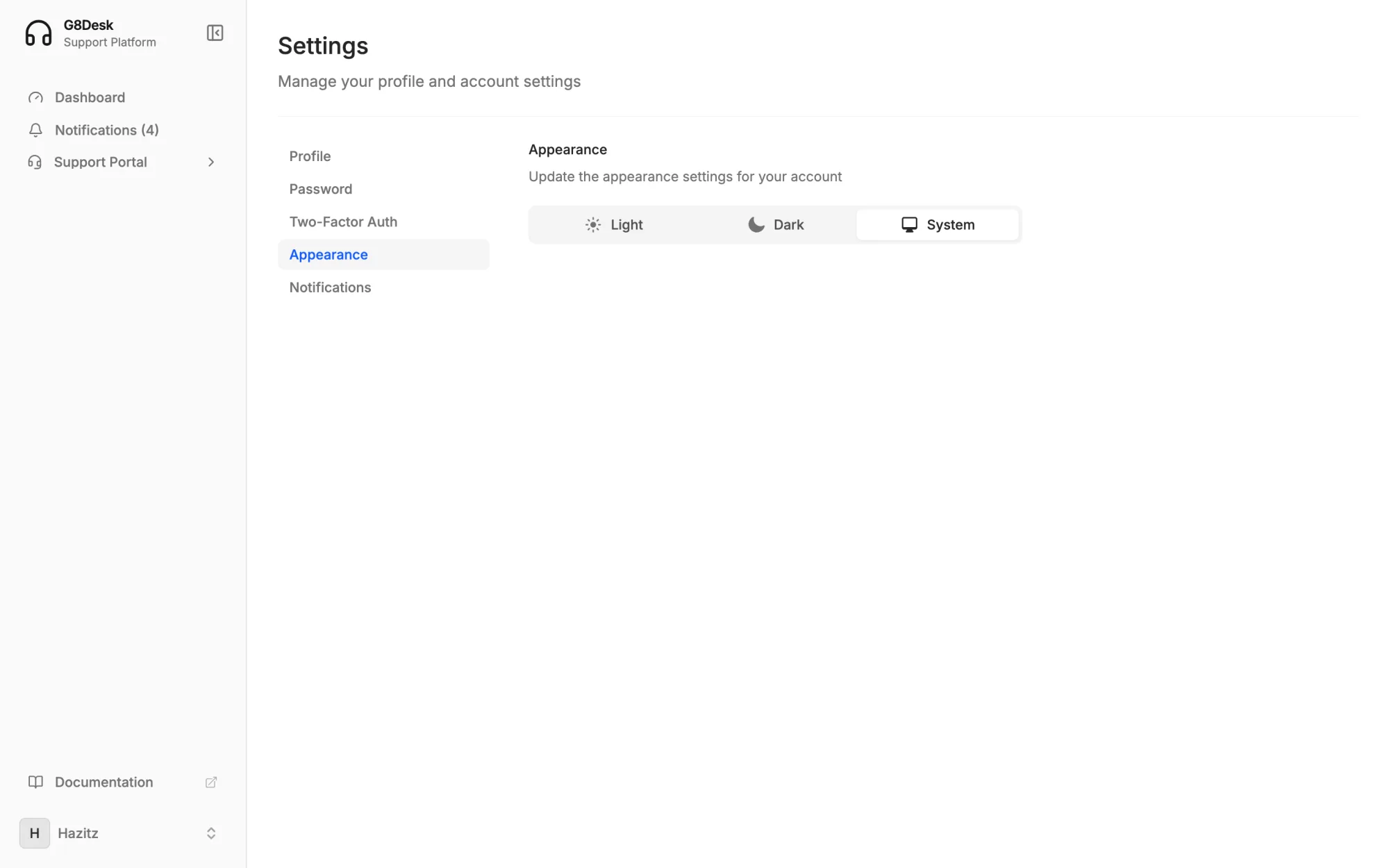
| Appearance | Light, dark or system theme |
| Notifications | Email and in-app channels. See Notifications |
Update your name or email
- Open Settings › Profile.
- Edit Name or Email.
- Click Save.
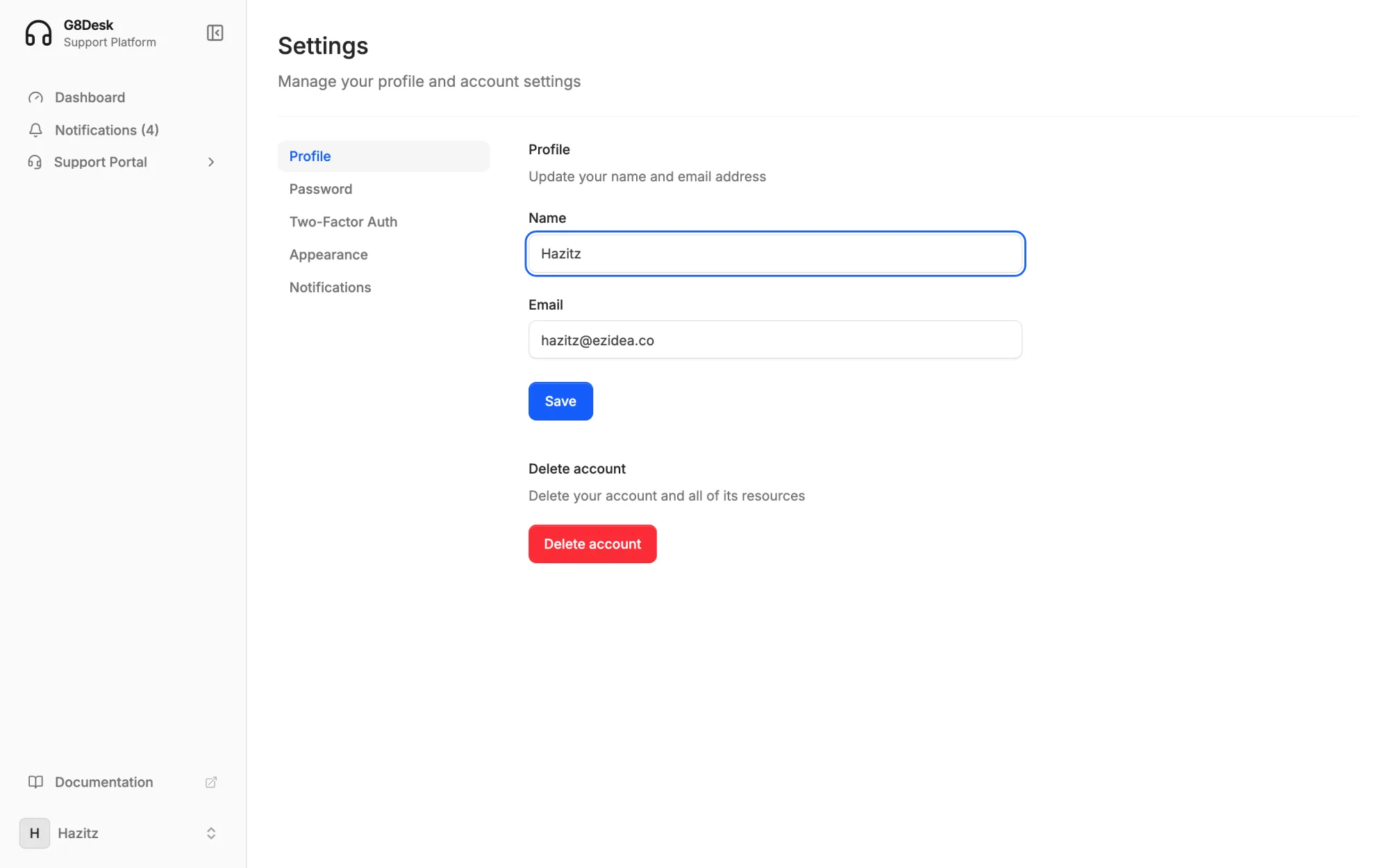
Note: Changing your email marks it as unverified. Click Click here to re-send the verification email. on the Profile page, then open the link sent to the new address.
Change your password
- Open Settings › Password.
- Enter your Current password, then the New password and Confirm Password.
- Click Save.
The new password must meet the password rules.
Choose a theme
Open Settings › Appearance and pick Light, Dark or System. System follows your device setting.
Delete your account
- Open Settings › Profile and click Delete account.
- Enter your Password and click Delete account again to confirm.
You're logged out and the account is deleted.
Note: Deleting your account can't be undone. If you're leaving your organisation but keeping your account, ask an administrator to remove you from the team instead.