

Tracking Your Tickets
- Client User
- Client Admin
Tracking Your Tickets
Follow your organisation's tickets from submission to closure.
Every ticket is shared with your organisation
Everyone in your organisation can see and comment on every ticket your organisation has raised, whoever submitted it. Notifications still go only to the requester. See Notifications.
Find a ticket
- Go to Support Portal › Tickets.
- Type in Search tickets... to match a title or reference.
- Filter with All Statuses and All Severities.
- Click a ticket to open it.
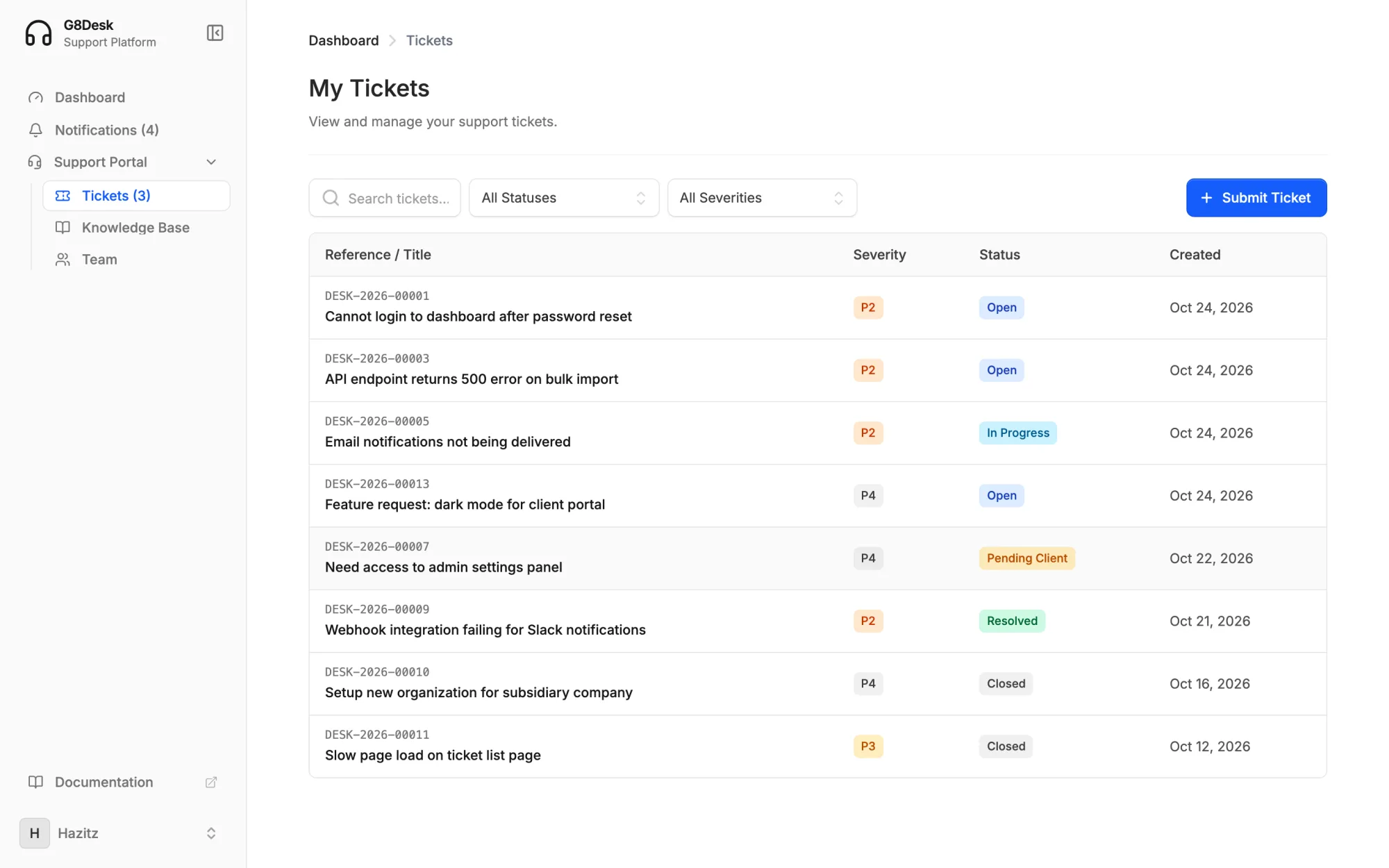
The list shows 10 tickets per page, newest first.
Ticket statuses
| Status | Meaning | What you do |
|---|---|---|
| Open | Submitted and waiting for the support team. | Nothing yet. |
| In Progress | An agent is working on it. | Answer any questions in the thread. |
| Pending Client | The team is waiting for you. The SLA clock is paused. | Reply with the information requested, or confirm a fix. |
| Resolved | The team believes it is fixed. | Check it. Comment if it still isn't working. |
| Closed | Finished. The comment box is no longer shown. | Raise a new ticket if the problem comes back. |
Note: Replying to a Pending Client ticket doesn't change its status by itself. The support team moves it back to In Progress, which restarts the SLA clock and extends the deadlines by the time it was paused. The exception is confirming a fix, which changes the status straight away.
Note: If your support provider has idle handling turned on, a ticket left in Pending Client for too long is closed automatically, and the requester gets a reminder before that happens.
The ticket page
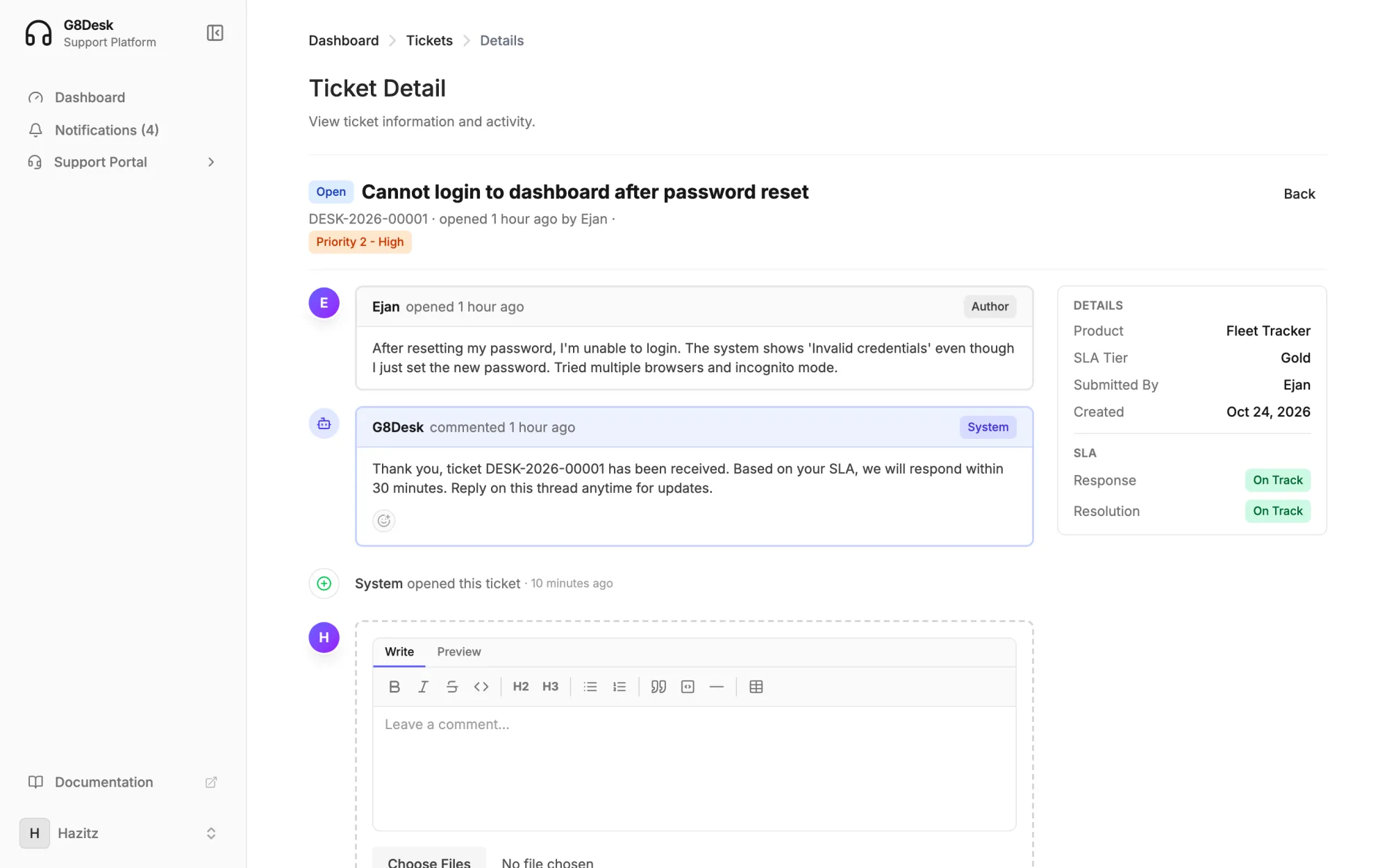
The header shows the status, title, reference, who opened it and the severity. A Change Request or Major Incident badge appears when it applies.
The thread shows the original description, every public reply and key events such as status changes, all in time order. Messages marked System are automatic, such as the acknowledgement sent when the ticket was created.
The sidebar
| Section | What it shows |
|---|---|
| Details | Product, SLA tier, who submitted it and when. |
| Change Request | Approval status and the requested or approved window. Change requests only. |
| Engineering | Shown when the issue has been passed to the engineering team, with how many work items are done. |
| Labels | Tags the support team has added. |
| SLA | Response and Resolution status: On Track, Met, Overdue or Breached. |