

Git Providers & Connections
- Ops Admin
When a ticket needs a code fix, your team can draft engineering issues from the ticket and push them to GitHub or GitLab after approval. Setting this up has three layers:
| Layer | Where | Who |
|---|---|---|
| Git provider — the platform-wide G8Desk GitHub App | Administration › Settings › Git Providers | Platform administrator |
| Git connection — your GitHub organisation or GitLab group | Setup › Git Connections | Ops Admin |
| Repository — where a product's issues go | Product page › Repositories | Ops Admin |
Setting up the GitHub App (administrators)
GitHub connections need the G8Desk GitHub App to be configured once for the whole platform. Until then, Install on GitHub is disabled on the Git Connections page.
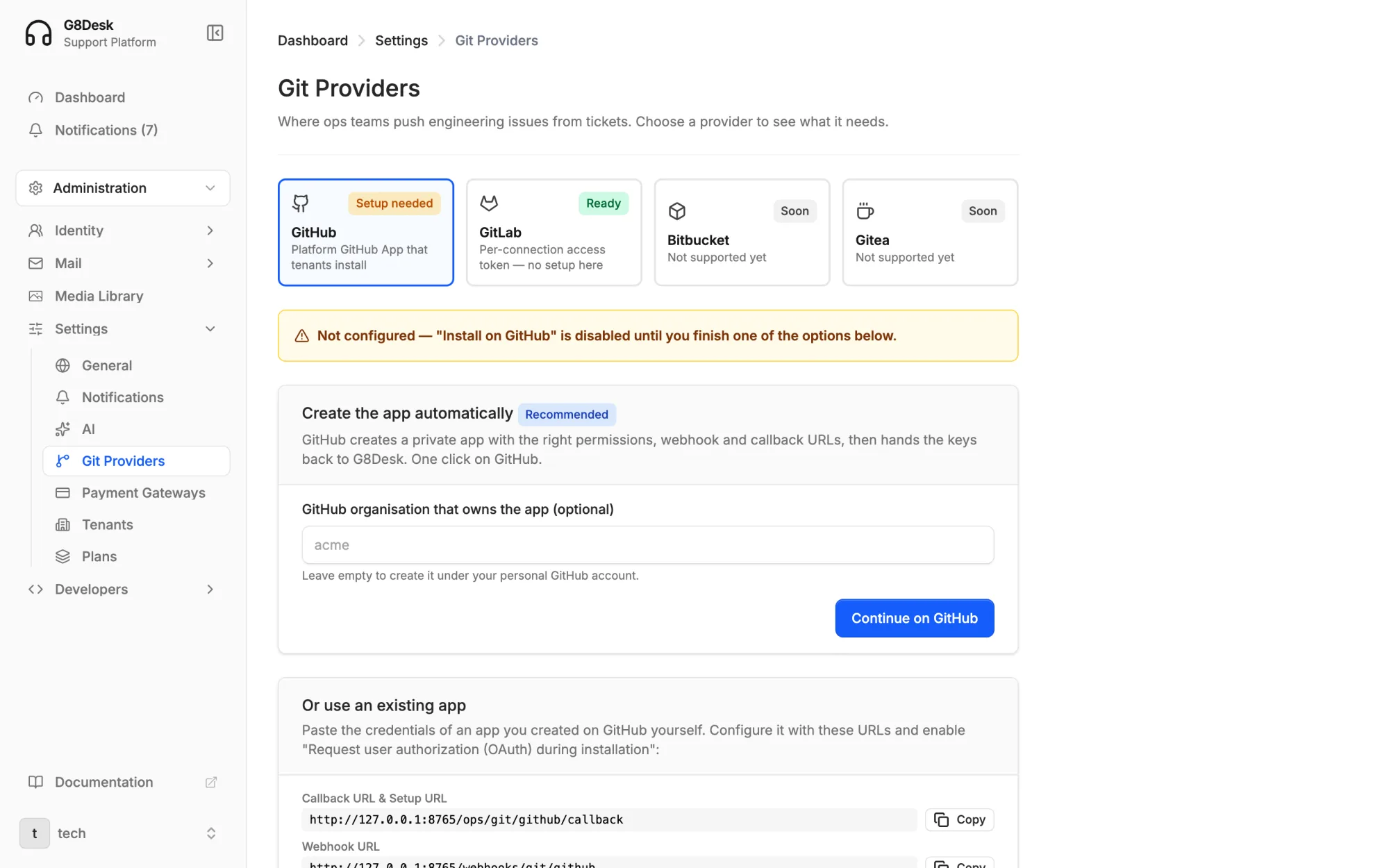
Choose GitHub, then one of two options.
Create the app automatically (recommended)
- Optionally enter the GitHub organisation that owns the app. Leave it empty to create the app under your personal GitHub account.
- Click Continue on GitHub and confirm there.
GitHub creates a private app with the right permissions, webhook and callback URLs, and hands the keys back to G8Desk.
Use an existing app
Create the app on GitHub yourself using the Callback URL & Setup URL and Webhook URL shown on the page, and enable Request user authorization (OAuth) during installation. It needs Issues read and write, Metadata read and Pull requests read, and the Issues and Pull request events. Then enter the App ID, App slug, Client ID, Client secret, Webhook secret and Private key (.pem), and click Save.
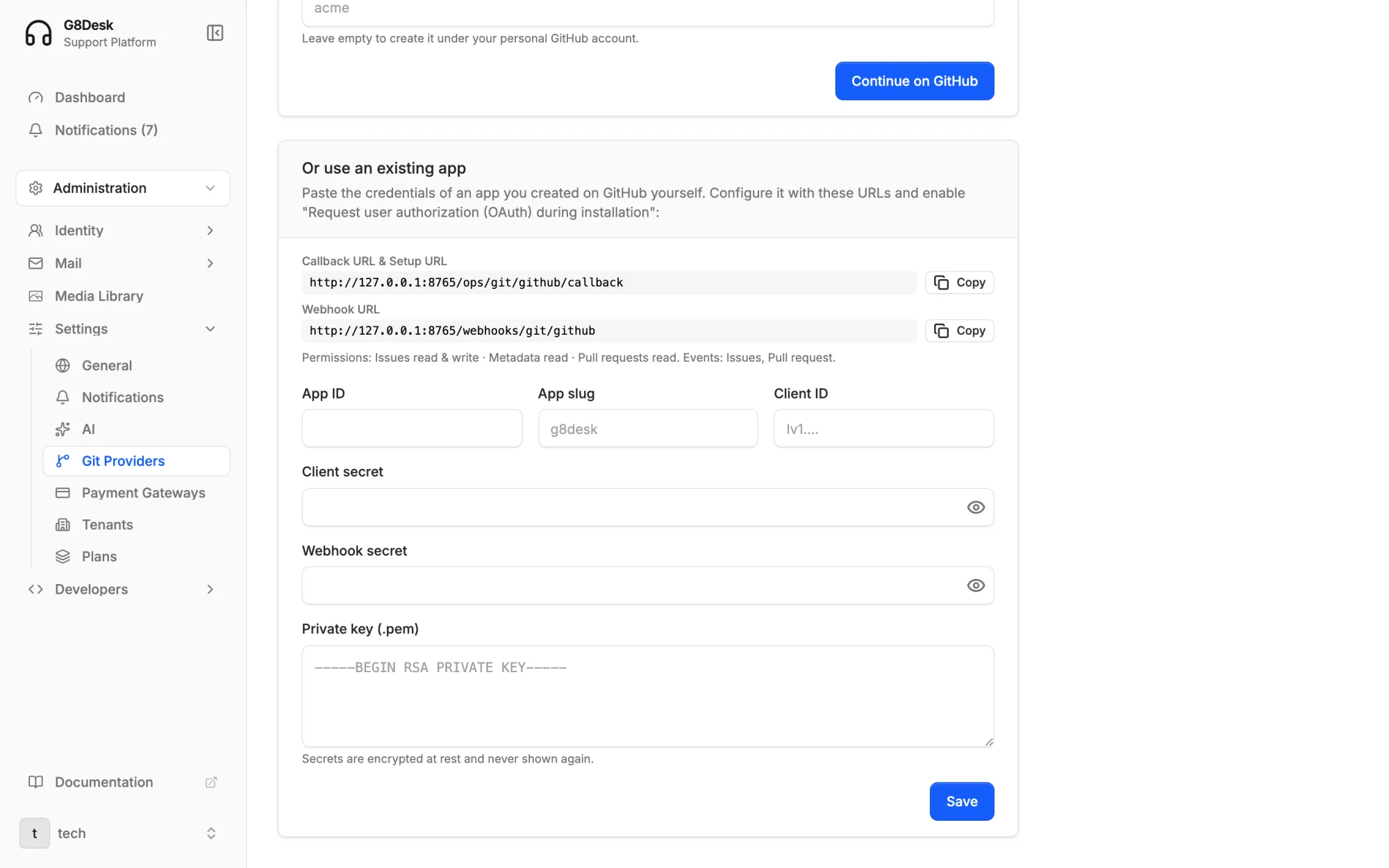
Note: Secrets are encrypted at rest and never shown again. Leave a secret field blank to keep the stored value. Clear stored settings removes the saved app.
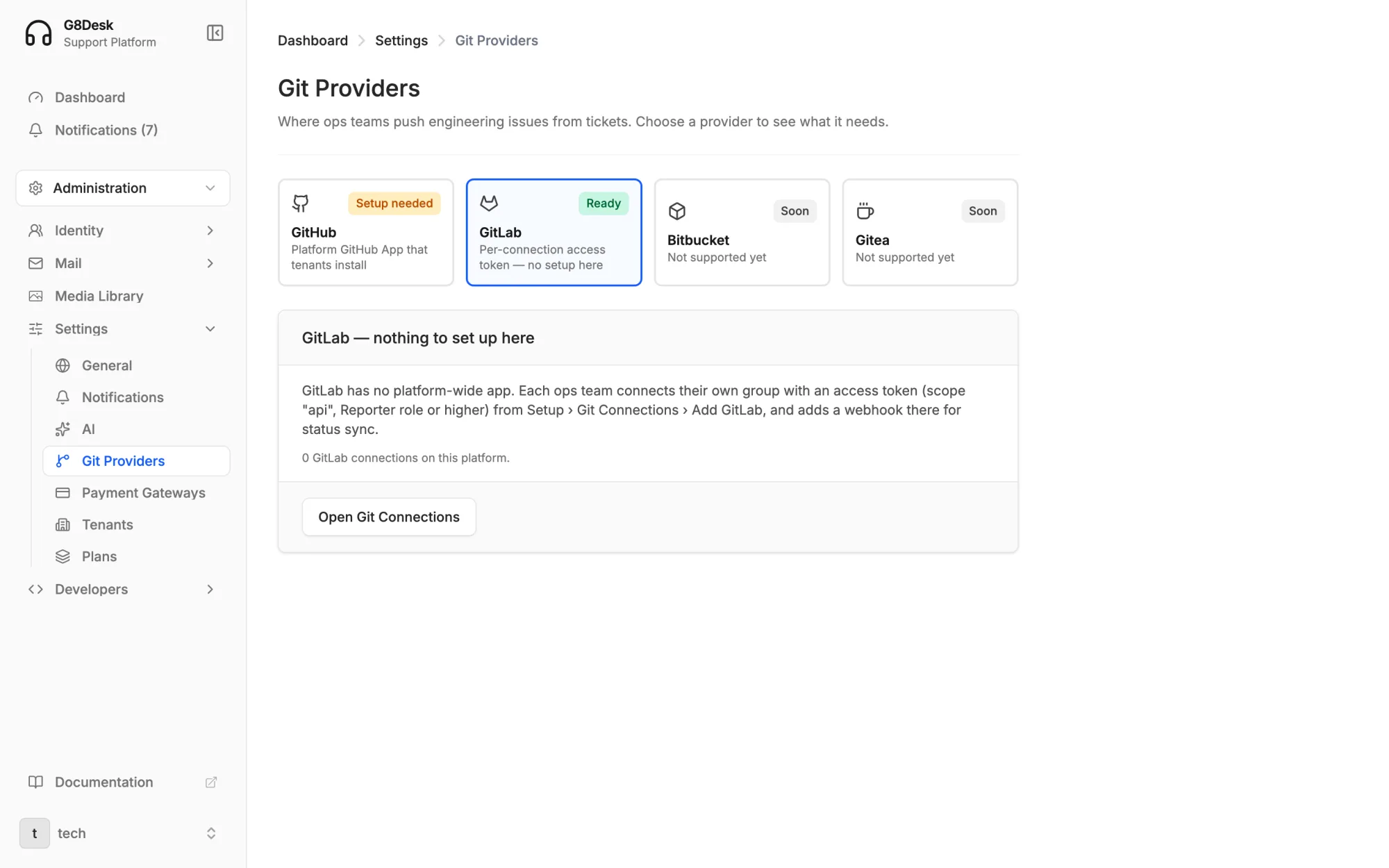
GitLab needs no platform setup — each ops team connects its own group with an access token. Bitbucket and Gitea are not supported yet.
Adding a connection (Ops Admins)
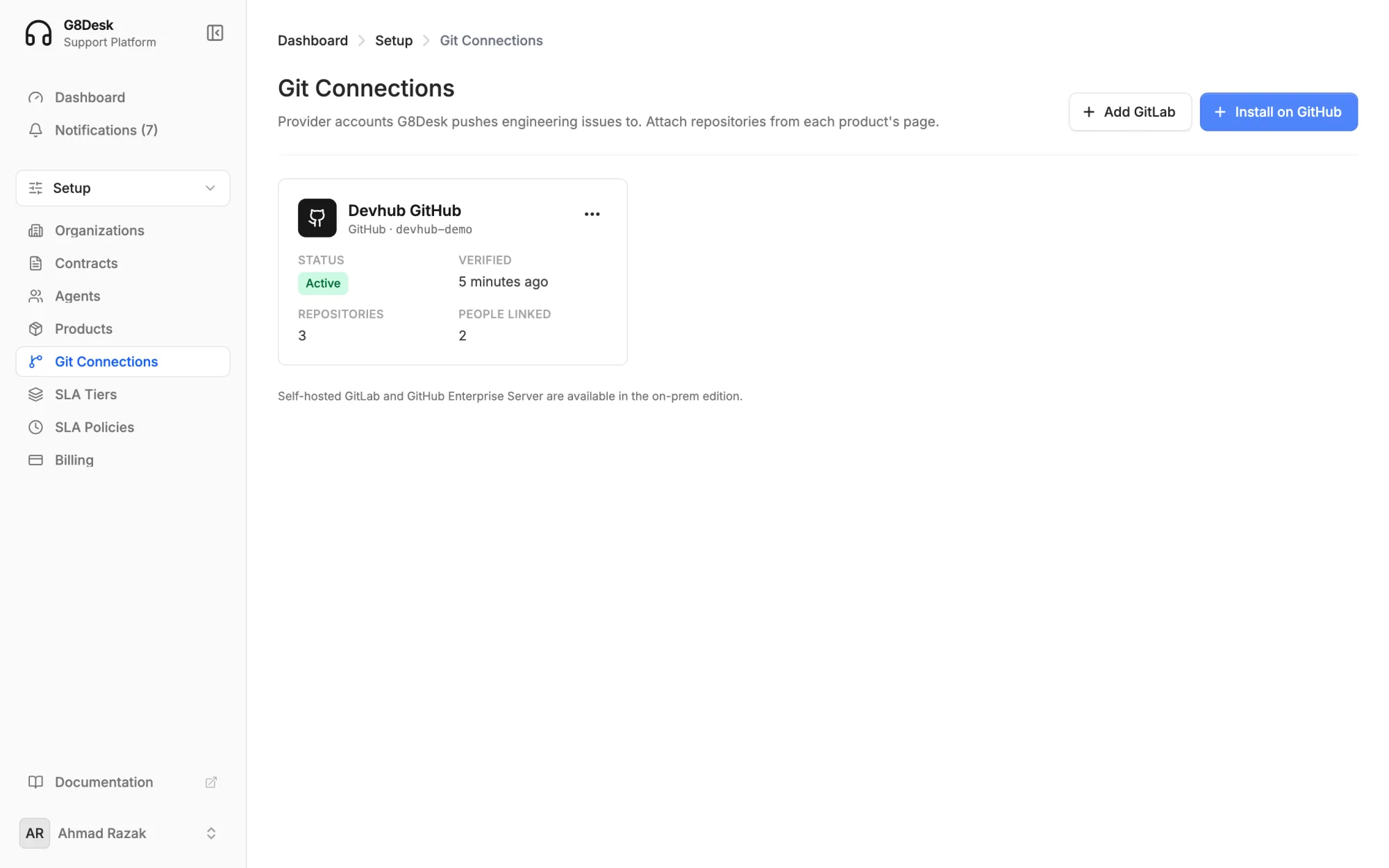
Go to Setup › Git Connections.
GitHub
Click Install on GitHub and install the G8Desk app on your GitHub organisation, choosing which repositories it may access. You return to G8Desk with the connection added.
GitLab
- Click Add GitLab.
- Enter a Connection name.
- Paste a group or project Access token with the
apiscope and at least the Reporter role. - Click Verify & save. G8Desk checks the token before saving it.
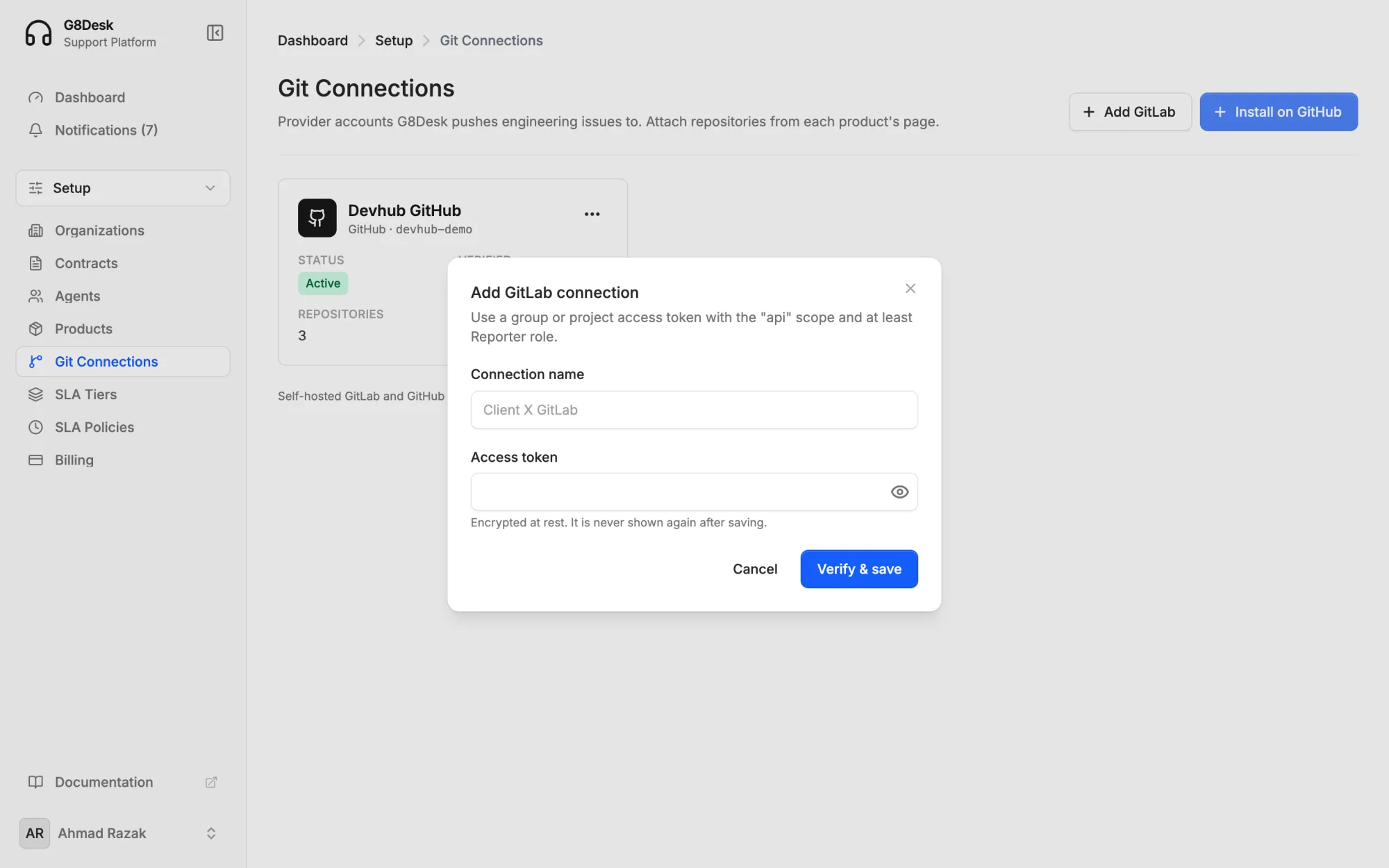
Note: Self-hosted GitLab and GitHub Enterprise Server are available in the on-prem edition.
Connection actions
Each connection card's menu offers People, Test connection (confirms which account it connects as) and Remove. Removing a connection detaches its repositories from every product, and pending pushes fail.
Linking people to their git usernames
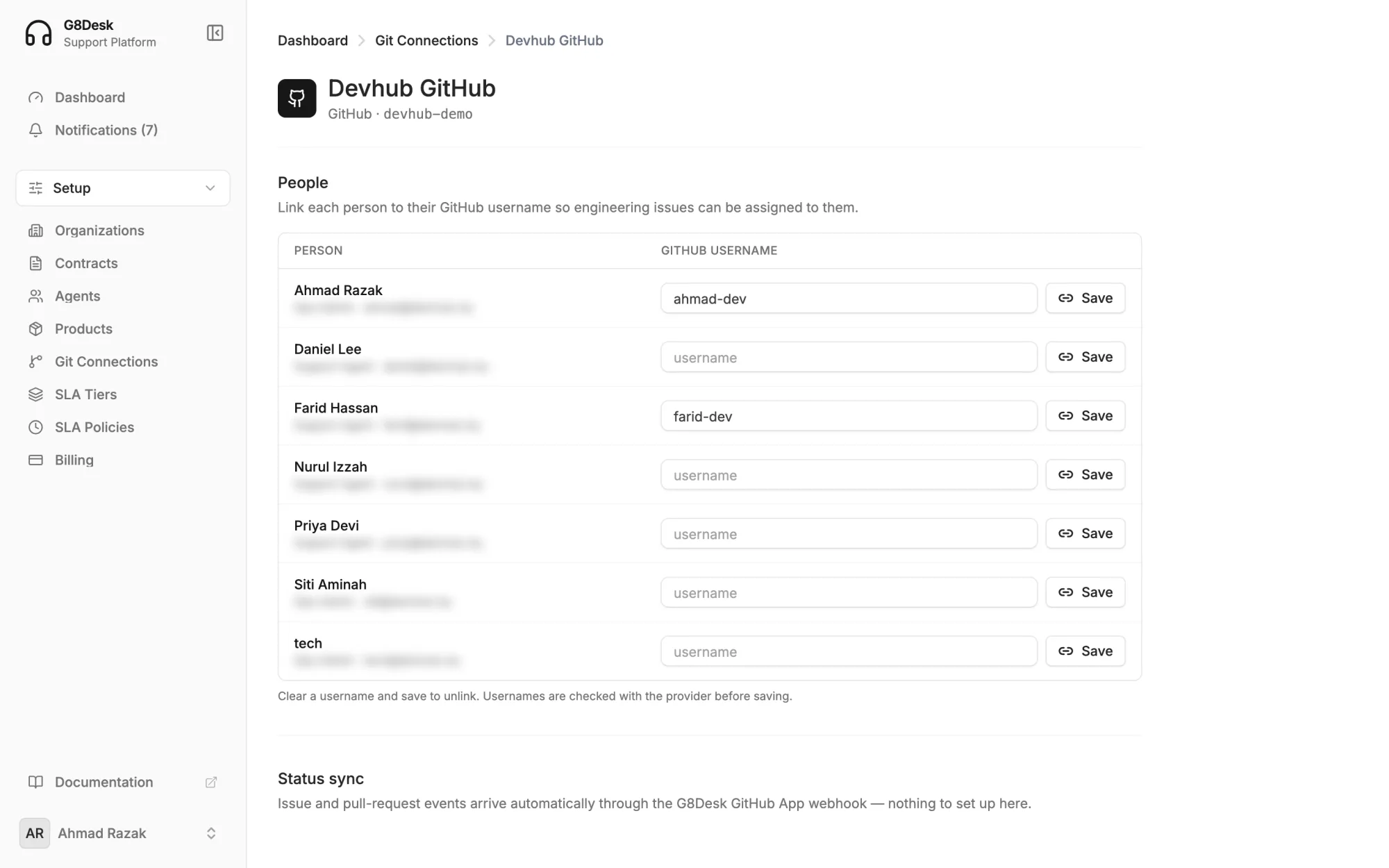
Open People on a connection to link each team member to their GitHub or GitLab username, so engineering issues can be assigned to them. Usernames are checked with the provider before saving. Clear a username and save to unlink it.
Keeping issue status in sync
- GitHub: issue and pull-request events arrive automatically through the app's webhook.
- GitLab: on the connection's People page, click Generate secret, then add a webhook on the GitLab group (Settings › Webhooks) with the URL and secret token shown, and tick Issues events and Merge request events. The secret is shown once; Rotate secret replaces it, and the GitLab webhook stops working until you paste the new one.
Attaching repositories
Attach repositories from each product's page. See Managing Products.
How a handoff is approved
- An Ops Admin, Support Agent or Support Engineer drafts engineering issues on the ticket's Engineering tab.
- Another Ops Admin approves or rejects them. Nobody can approve a handoff they drafted, and a rejection needs a note, which goes back to the drafter.
- Approved issues are pushed to the repository in the background.
Clients see only that the ticket was escalated to engineering — never repository names, issue links or assignees.