

Mail Settings & History
- Ops Admin
G8Desk sends transactional email: ticket notifications, SLA alerts, invitations and the monthly client report. Administration › Mail controls how that mail is delivered and keeps a log of everything sent.
| Page | Purpose | Needs |
|---|---|---|
| Settings | Configure outgoing email and send a test. | Settings management permission |
| History | Read-only log of every email sent. | Mail history permission |
Note: Both pages are in the Administration section, which only platform administrators see. A standard Ops Admin does not have access.
Configuring outgoing email
Go to Administration › Mail › Settings.
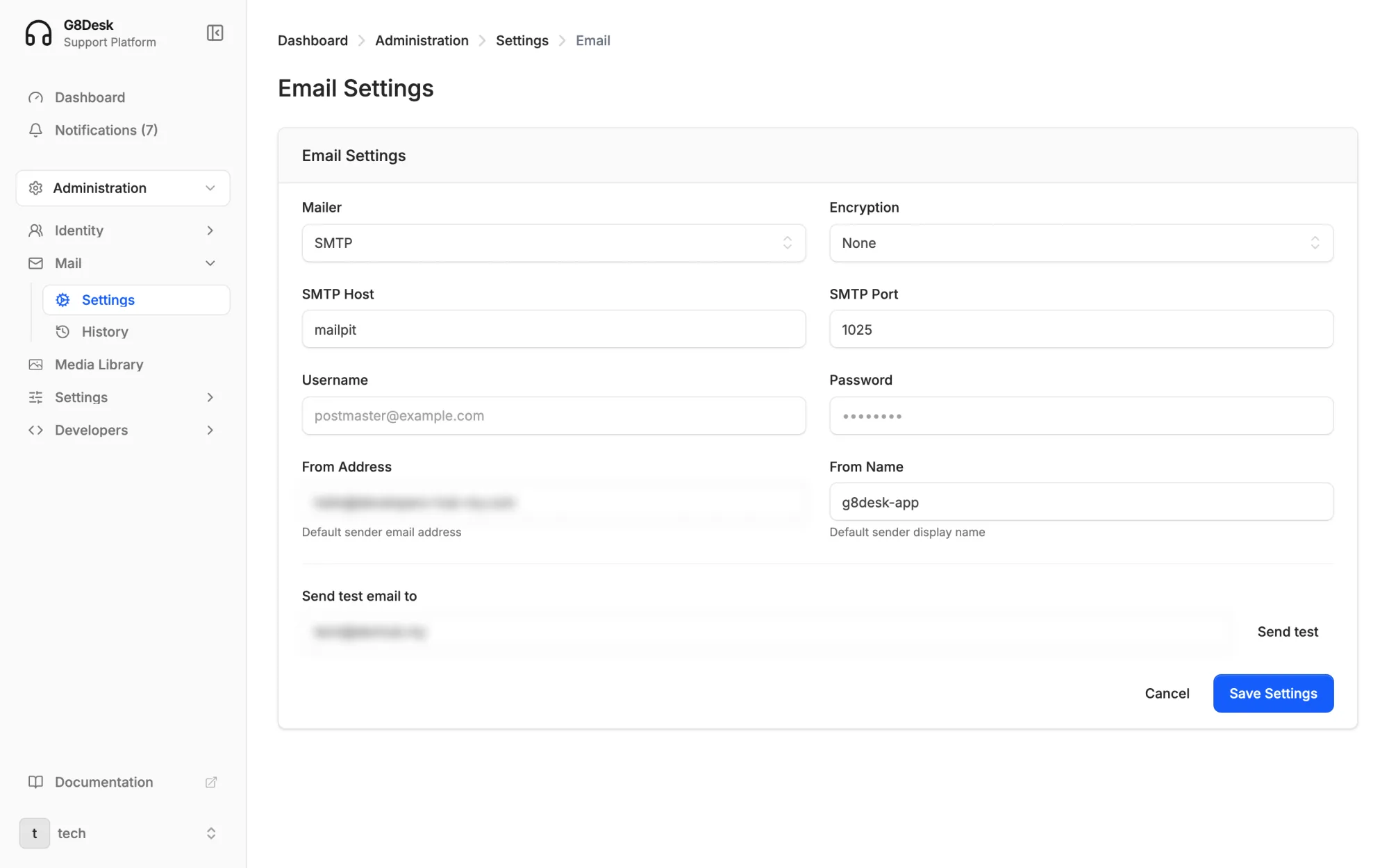
| Field | What it is |
|---|---|
| Mailer | How mail is sent: SMTP, Sendmail, Amazon SES, Mailgun, Postmark, Log (no send) or Array (testing). |
| Encryption | SMTP encryption: None, TLS or SSL. |
| SMTP Host / SMTP Port | Your mail server, for example smtp.mailgun.org on port 587. |
| Username / Password | SMTP credentials. The password is masked. |
| From Address | The sender address on every email. Required. |
| From Name | The sender name on every email. Required. |
Host, port, username, password and encryption apply to SMTP. Click Save Settings to store your changes.
Note: Log (no send) and Array (testing) never deliver email. Use them only for development and testing.
Sending a test email
- In Send test email to, keep your own address or enter another.
- Click Send test.
The test uses the values on screen, saved or not, so you can check delivery before saving. It is sent immediately: a success message confirms it was sent, and an error message shows the reason so you can correct the settings and try again.
The mail history log
Go to Administration › Mail › History.
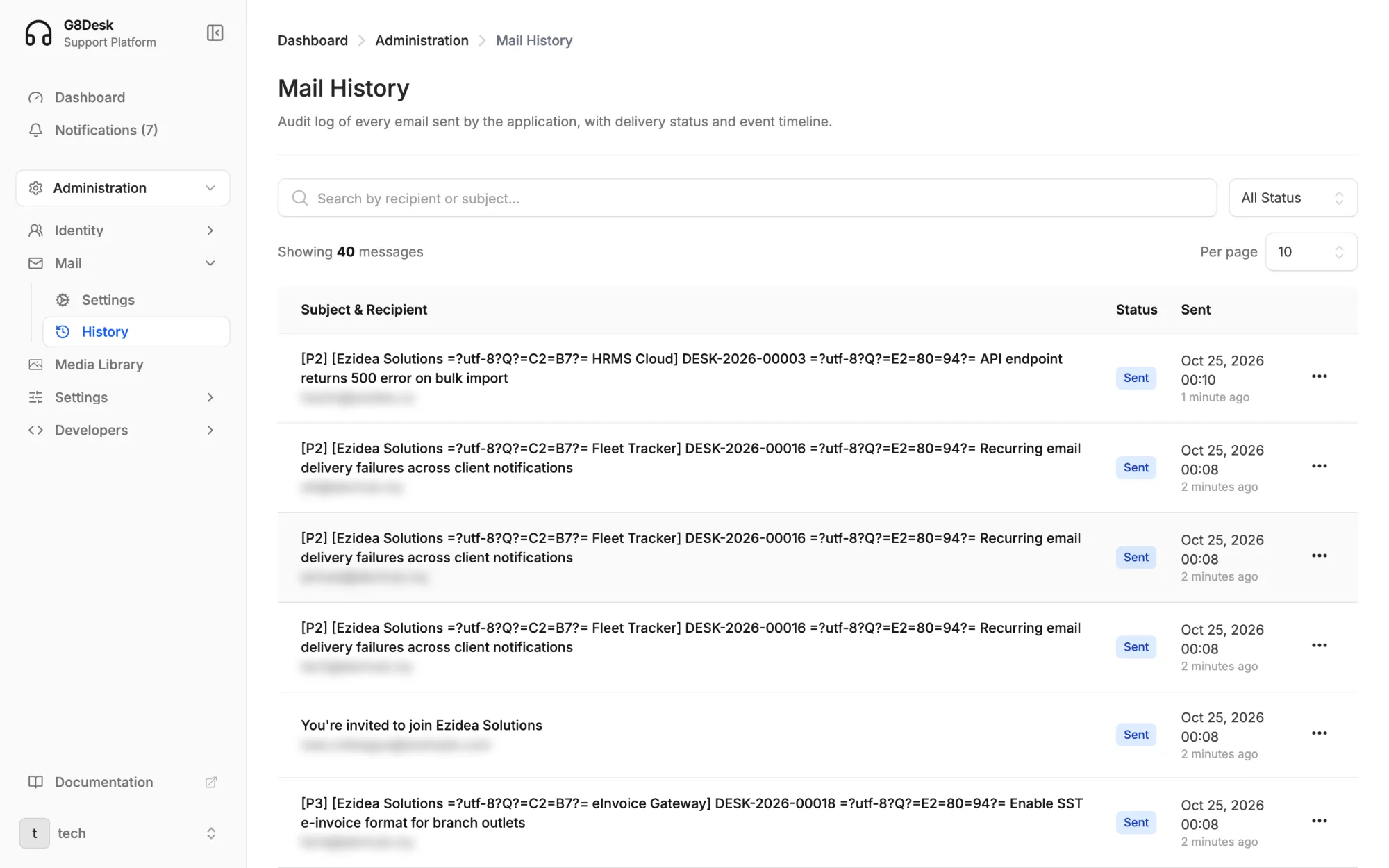
The log shows every outgoing email with its subject, recipient, delivery status and sent time. It is read-only — you cannot resend or edit messages.
- Search by recipient or subject.
- Filter by status, and change how many rows show Per page.
- Clear filters returns to the full list.
Choose View from a message's row menu to see its sender, reference, Delivery Timeline, any attachments, and the body as a preview, HTML source or plain text.
Delivery statuses
| Status | Meaning |
|---|---|
| Sending | Being handed to the mail service. |
| Sent | Accepted by the mail service. |
| Delivered | Reached the recipient's mail server. |
| Opened | The recipient opened it. |
| Clicked | The recipient clicked a link. |
| Bounced | Could not be delivered and was returned. |
| Complained | The recipient marked it as spam. |
| Failed | Could not be sent. |
Tip: When someone reports a missing email, check whether it appears here and which status it reached, then review the mail settings and send a fresh test.