

SLA Policies & Escalation Rules
- Ops Admin
An SLA policy sets the first-response and resolution targets for one severity within one SLA tier. Each policy also has escalation rules that act as a ticket approaches and passes its deadline.
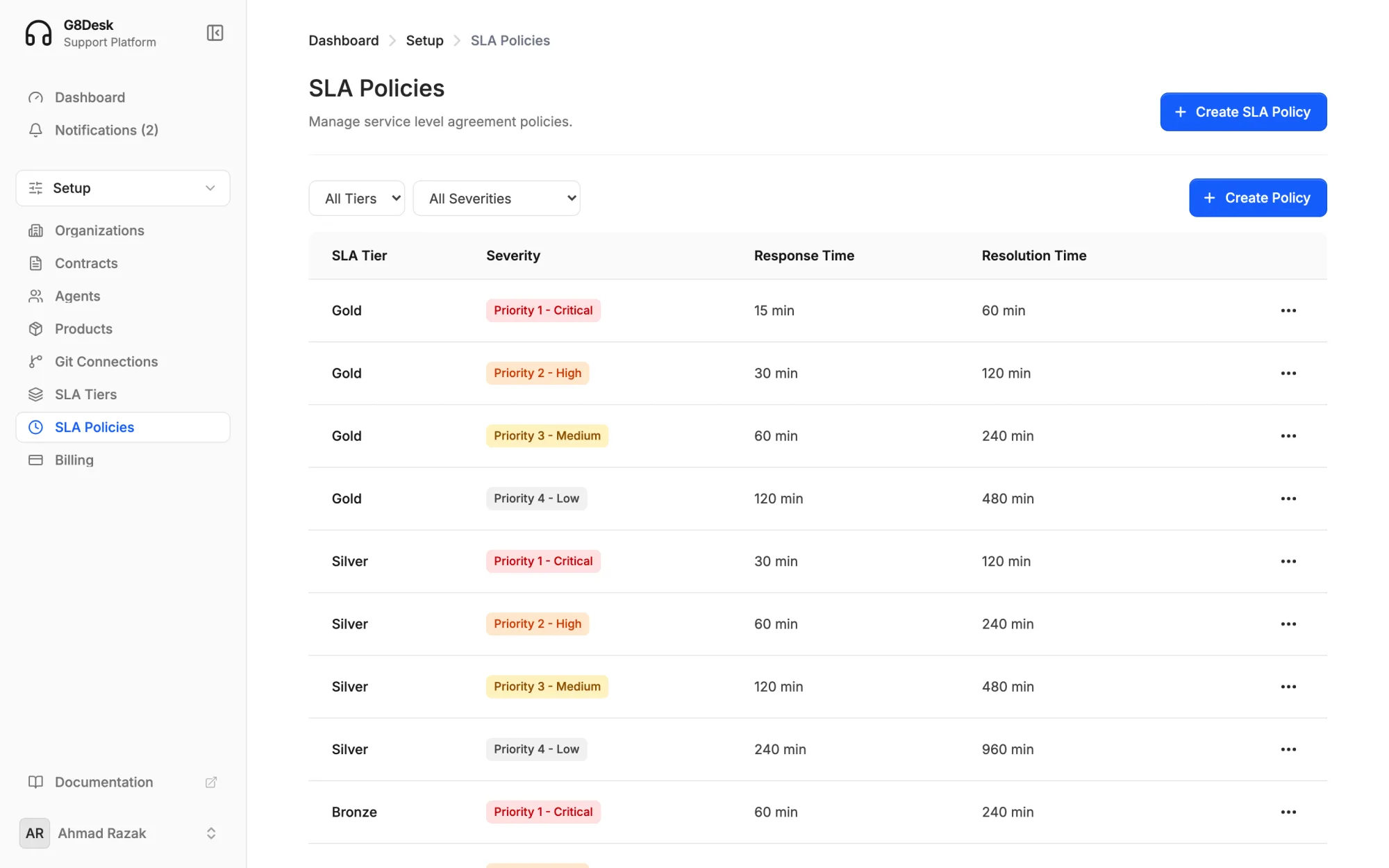
Creating a policy
- Go to Setup › SLA Policies and click Create SLA Policy.
- Choose the SLA tier and the severity (Priority 1 – Critical to Priority 4 – Low).
- Enter the response time and resolution time in minutes (minimum 1).
- Save.
Each tier can have only one policy per severity. Use the All Tiers and All Severities filters to narrow the list.
Tip: Give every tier a policy for all four severities. If a contract's tier has no policy for a ticket's severity, creating that ticket fails with a validation error.
The policy page
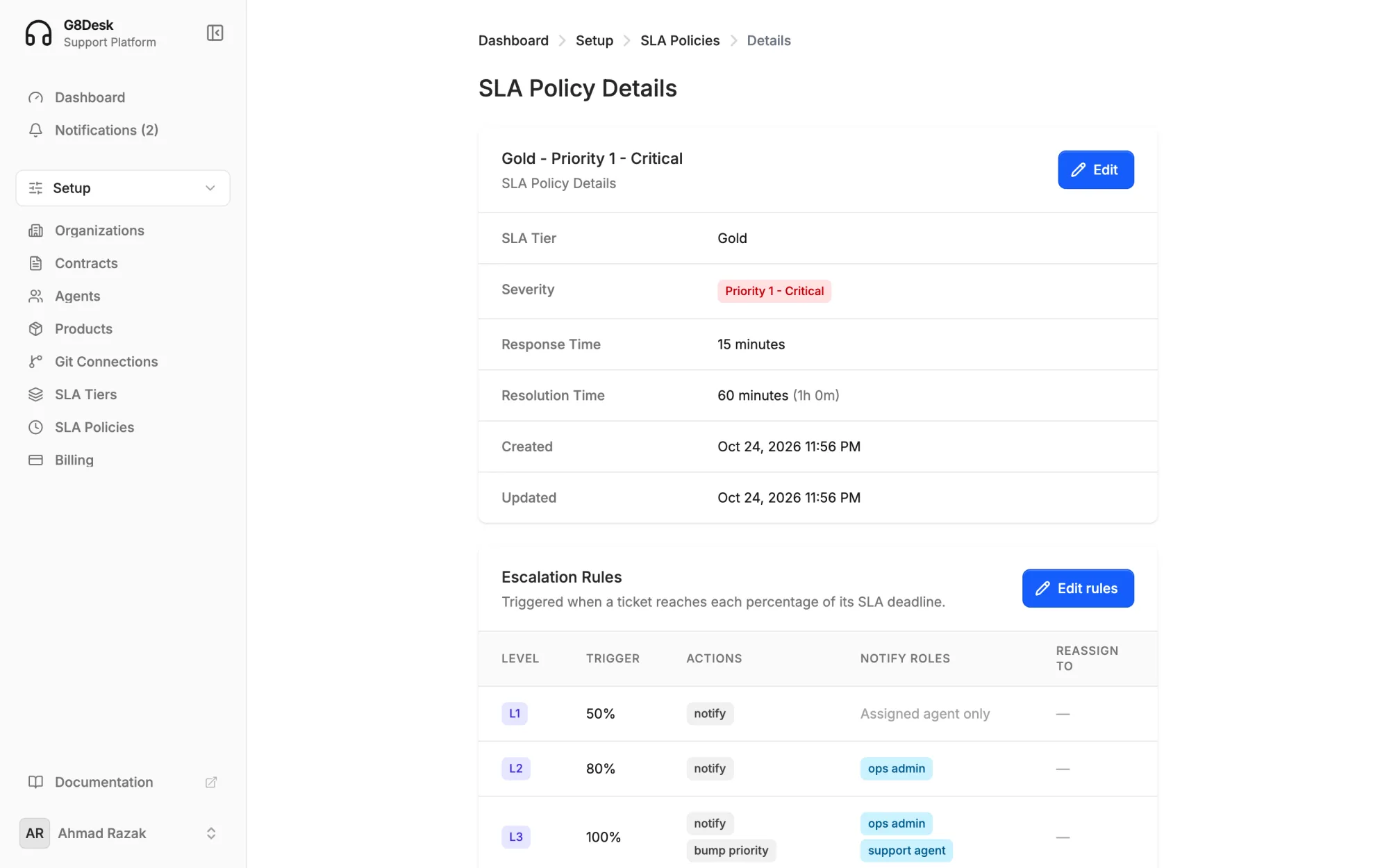
Open a policy to see its targets and its escalation rules.
How escalation works
Every 15 minutes G8Desk checks open and in-progress tickets that have SLA deadlines and are not paused. For both the first-response and the resolution deadline it works out how much of the allowed time has passed, and fires the escalation threshold the ticket has reached:
| Threshold | Meaning |
|---|---|
| 50% | Half the allowed time has gone. |
| 80% | The deadline is close. |
| 100% | The deadline has passed — the ticket is marked as breached. |
Each threshold fires once per deadline per ticket. Tickets that are pending the client, resolved or closed, and internal work items, are skipped.
Note: Only the 50, 80 and 100 thresholds are ever checked. A rule saved with any other Trigger at % value never fires, so use one of those three values.
Editing escalation rules
Click Edit rules on the policy page.
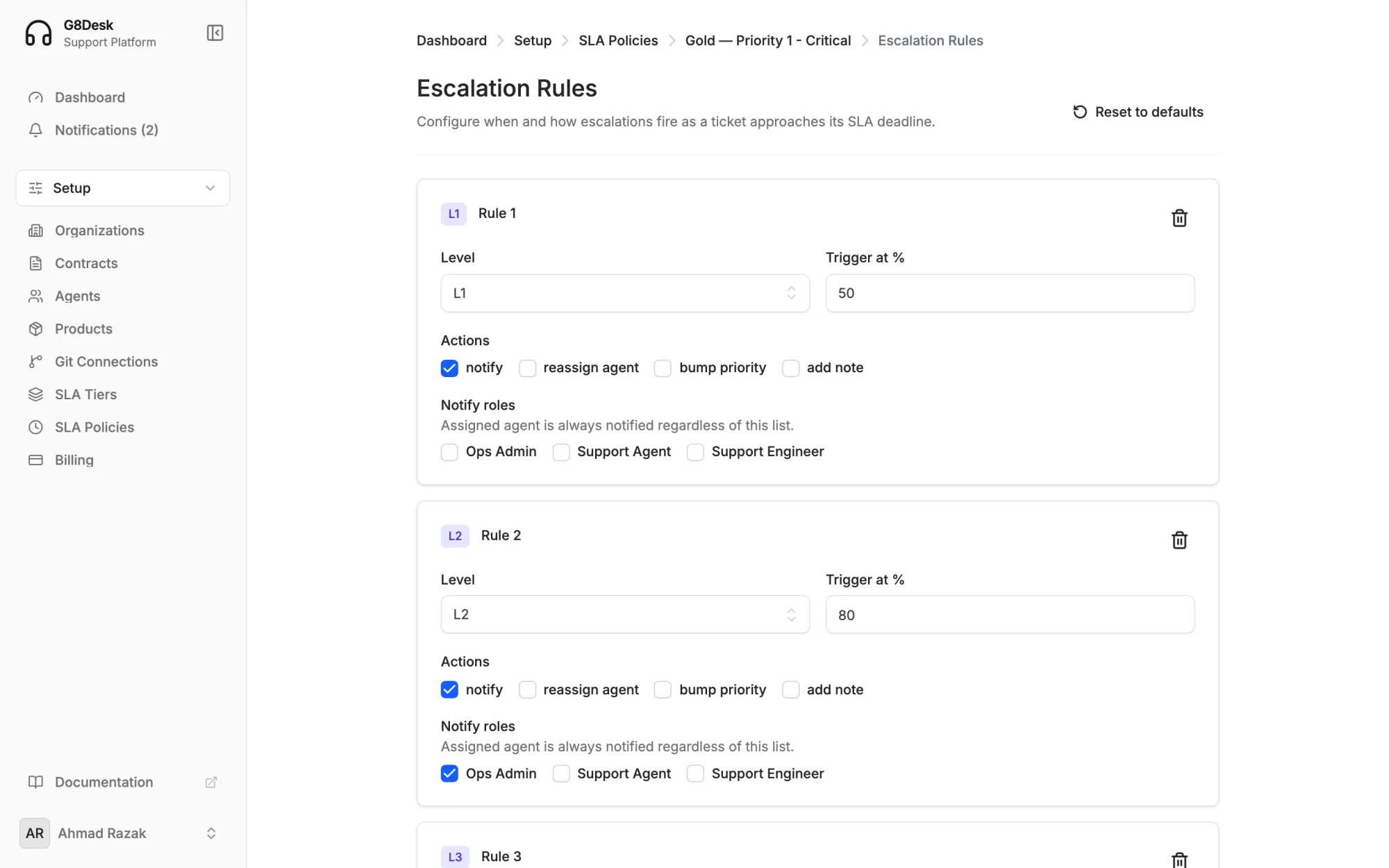
Each rule has:
| Field | What it does |
|---|---|
| Level | L1 to L4. Each level can be used once per policy, and a policy can have up to four rules. |
| Trigger at % | The threshold that runs this rule — 50, 80 or 100. |
| Actions | One or more of the actions below. |
| Notify roles | Which roles receive the escalation notification. The assigned agent is always notified. |
| Action | Effect |
|---|---|
| notify | Sends an SLA escalation notification to the ticked roles and the assigned agent. |
| reassign agent | Reassigns the ticket to the user you choose on the rule. |
| bump priority | Raises severity by one step (P4 → P3 → P2 → P1). P1 stays P1. |
| add note | Adds an internal note to the ticket recording the escalation level and threshold. Clients never see it. |
Click Save to apply your changes, or Reset to defaults to replace the rules with the standard set.
Default rules
Every new policy starts with these rules, and Reset to defaults restores them:
| Level | Trigger | Actions | Notify roles |
|---|---|---|---|
| L1 | 50% | notify | Assigned agent only |
| L2 | 80% | notify | Ops Admin |
| L3 | 100% | notify, bump priority | Ops Admin, Support Agent |