

Managing Organisations
- Ops Admin
Each client company you support is an organisation. Its members use the Client Portal, and every member sees all of the organisation's client-facing tickets.
Viewing organisations
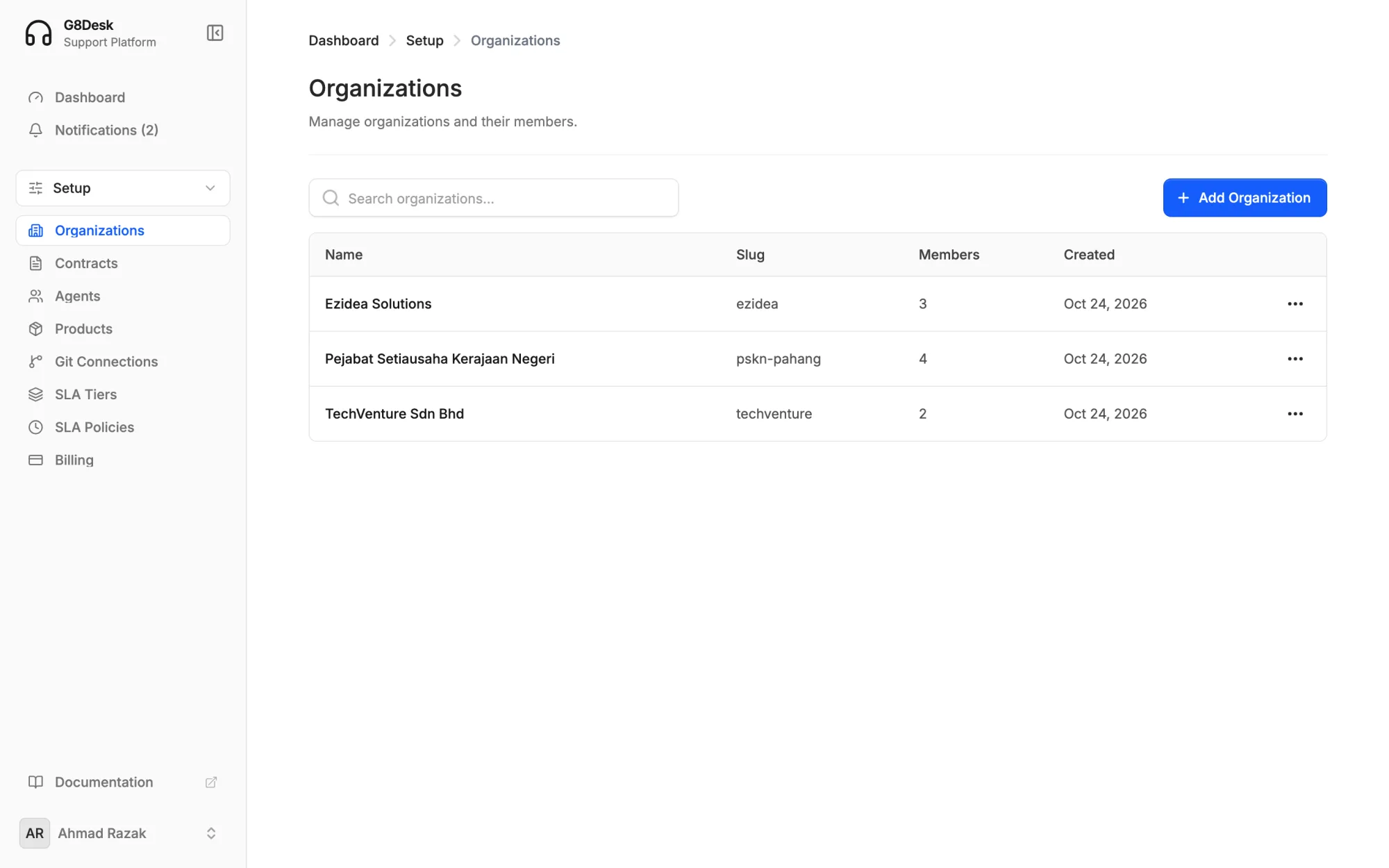
Go to Setup › Organizations. The list shows each organisation's name, slug, member count and creation date. Use the search box to filter by name.
Creating an organisation
- Click Add Organization.
- Enter the name (required) and an optional description.
- Save. The organisation is created under your ops organisation.
Note: On the SaaS edition your plan sets how many client organisations you can have. If the limit is reached, creation is refused with a message explaining why.
The organisation page
Open an organisation from the row menu (View) to manage its people and integrations.
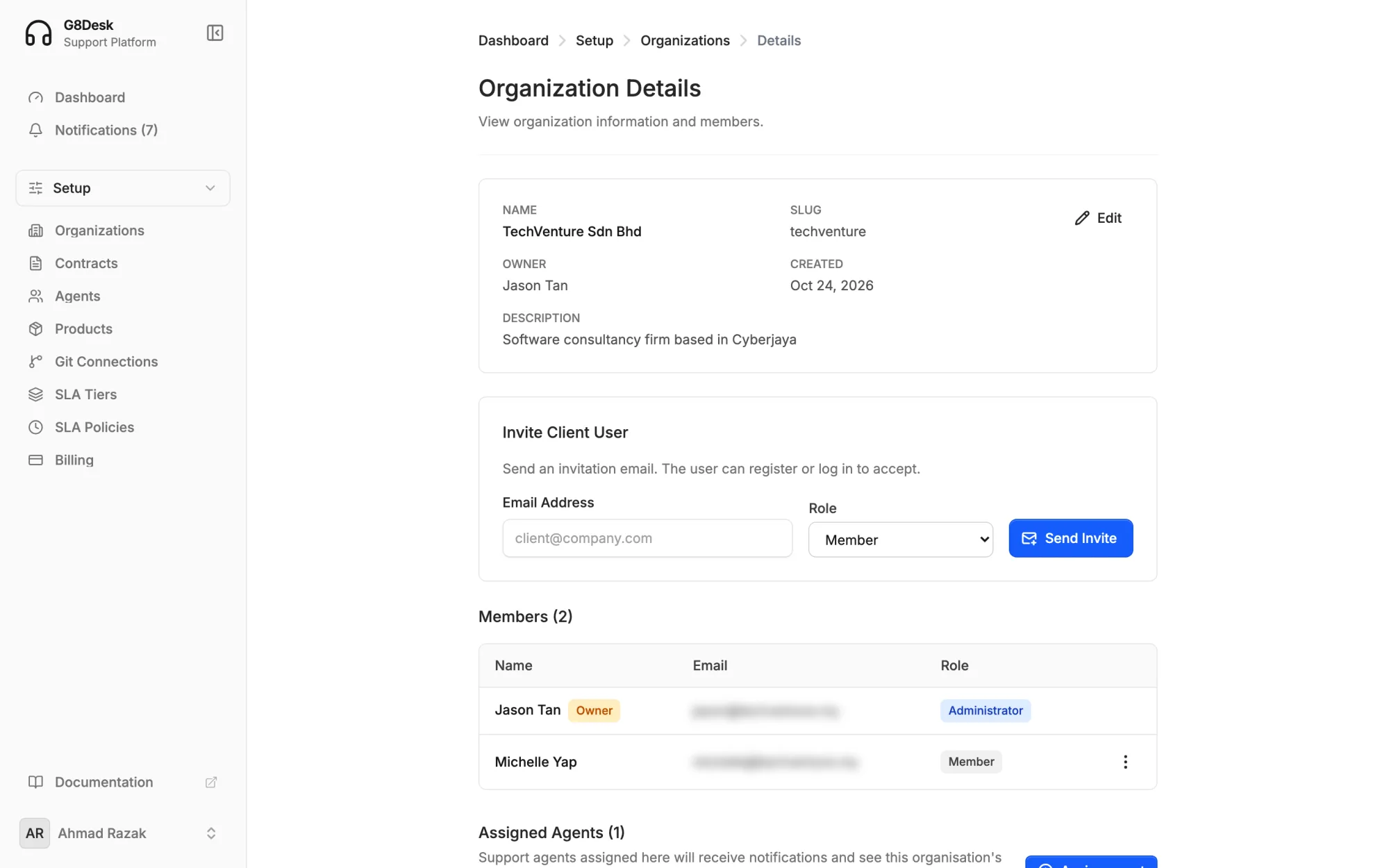
Inviting client users
- In Invite Client User, enter the email address.
- Choose the role:
- Member — a Client User who raises and follows tickets.
- Administrator — a Client Admin who can also manage the team.
- Click Send Invite. The person can register or sign in to accept.
Unaccepted invitations appear under Pending Invitations, with their expiry. Use the bin icon to cancel one.
Managing members
Each member row has a menu with Make Admin or Make Member, and Remove. The organisation owner cannot be changed from here.
Assigning support agents
Assigned Agents lists the support agents who cover this organisation. Only assigned agents receive this organisation's ticket notifications and can see its tickets.
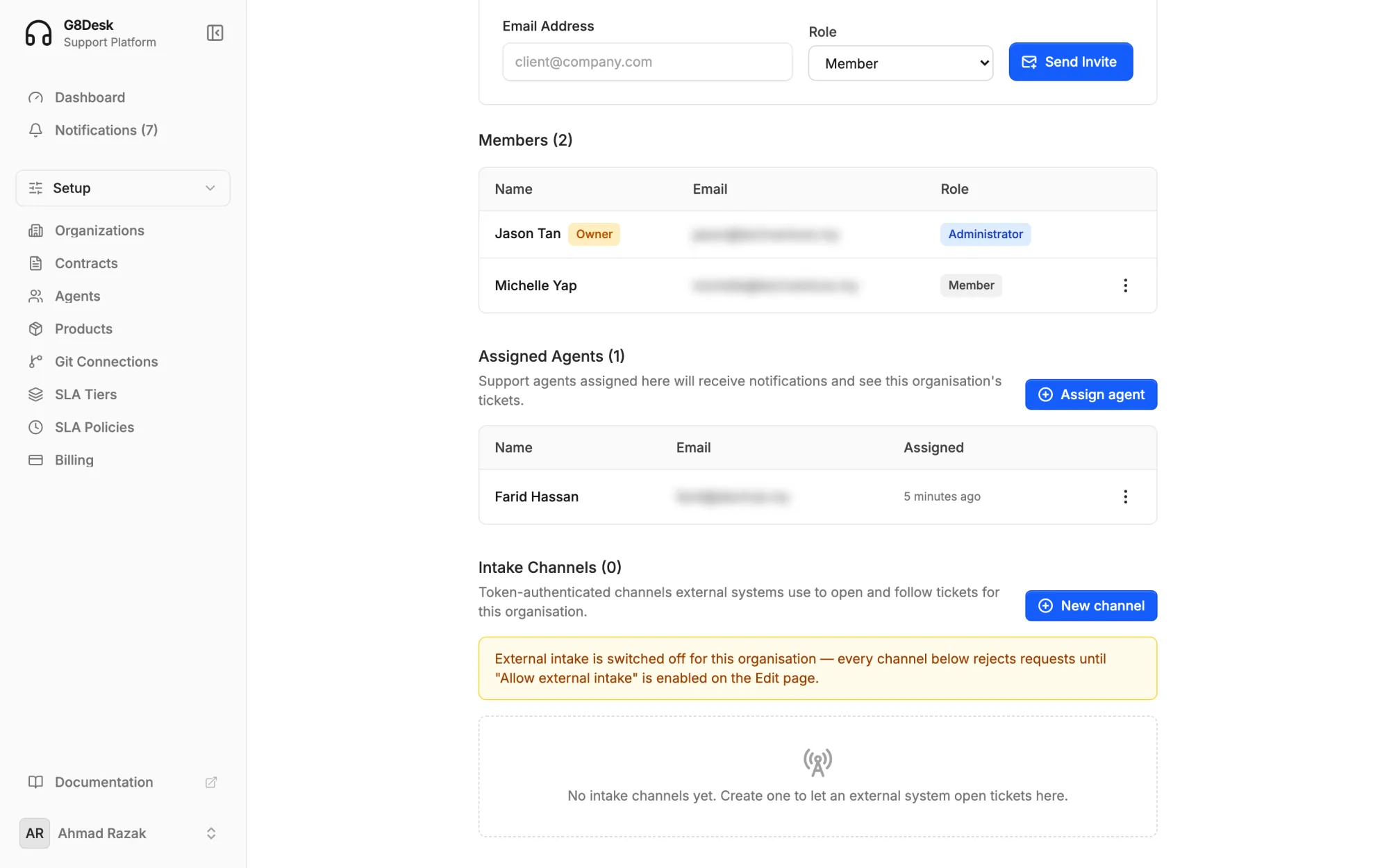
- Click Assign agent and pick a support agent to add them.
- Use the row menu's Unassign to remove one.
Ops Admins are never listed here — they cover every organisation automatically. You can also manage assignments per agent from Setup › Agents.
Tip: A newly added support agent receives nothing until they are assigned to at least one organisation. Assign them as part of onboarding.
The Intake Channels panel at the bottom of the page is covered in Intake Channels & Widget.
Editing an organisation
Choose Edit on the organisation page (or in the list's row menu).
| Setting | What it does |
|---|---|
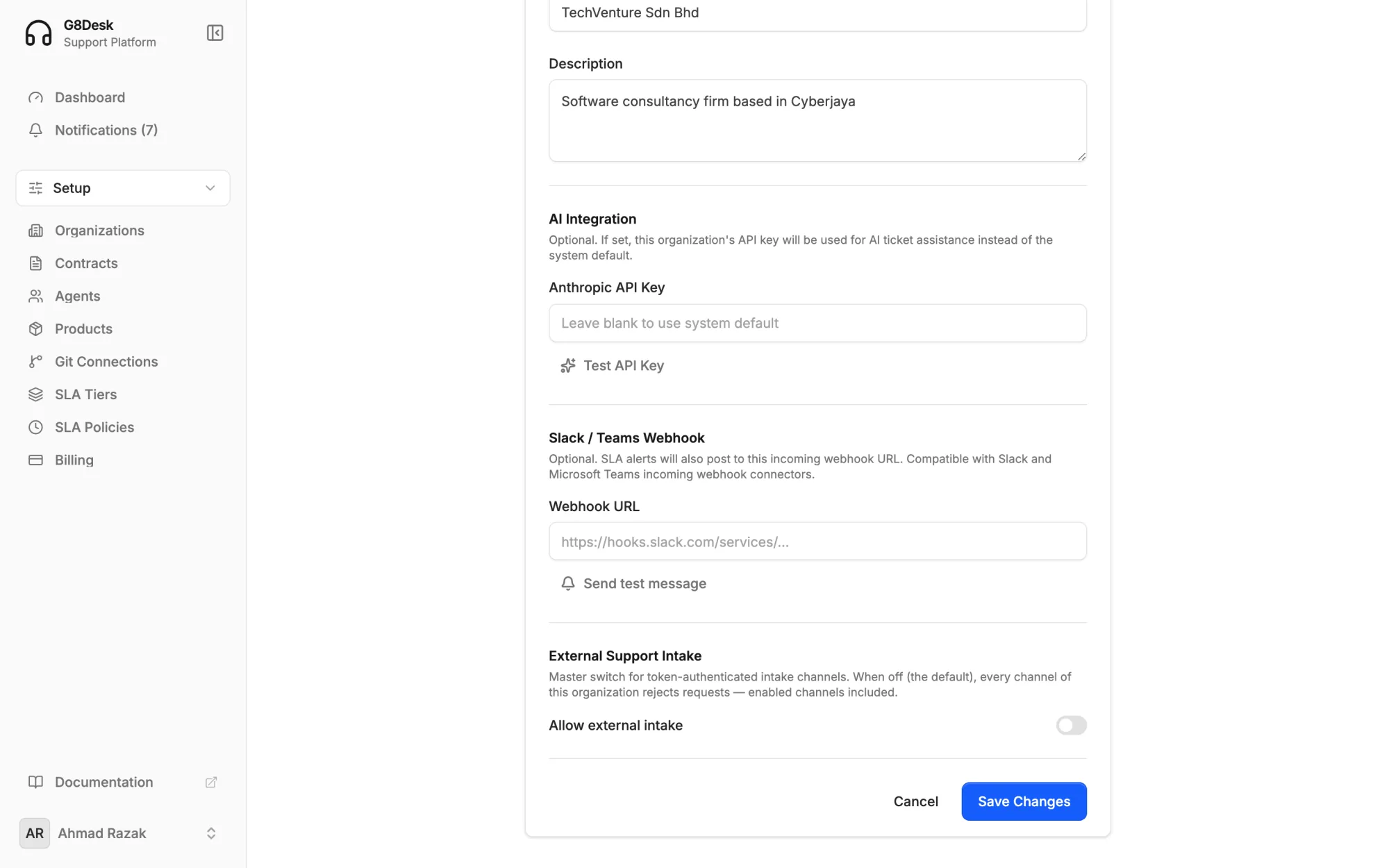
| Organization Name / Description | Display details. The slug is regenerated from the name when you save. |
| Anthropic API Key | Optional. Used for AI ticket assistance for this organisation instead of the platform default. Test API Key checks it. Leave blank to use the platform key. |
| Slack / Teams Webhook URL | Optional. SLA alerts for this organisation are also posted to this incoming webhook. Works with Slack and Microsoft Teams incoming webhooks. Send test message posts a test. |
| Allow external intake | Master switch for this organisation's intake channels. Off by default; while off, every channel rejects requests. |
Click Save Changes to apply.
Note: AI assistance also requires the platform-wide AI switch to be on (Administration › Settings › AI).
Before clients can raise tickets
An organisation needs an active contract for a product before its users can submit tickets for that product. See Managing Contracts.