

Dashboard Overview
- Ops Admin
As an Ops Admin you set up the records every ticket depends on (organisations, products, SLA tiers and contracts), manage your support team, and watch service levels across every client organisation you cover.
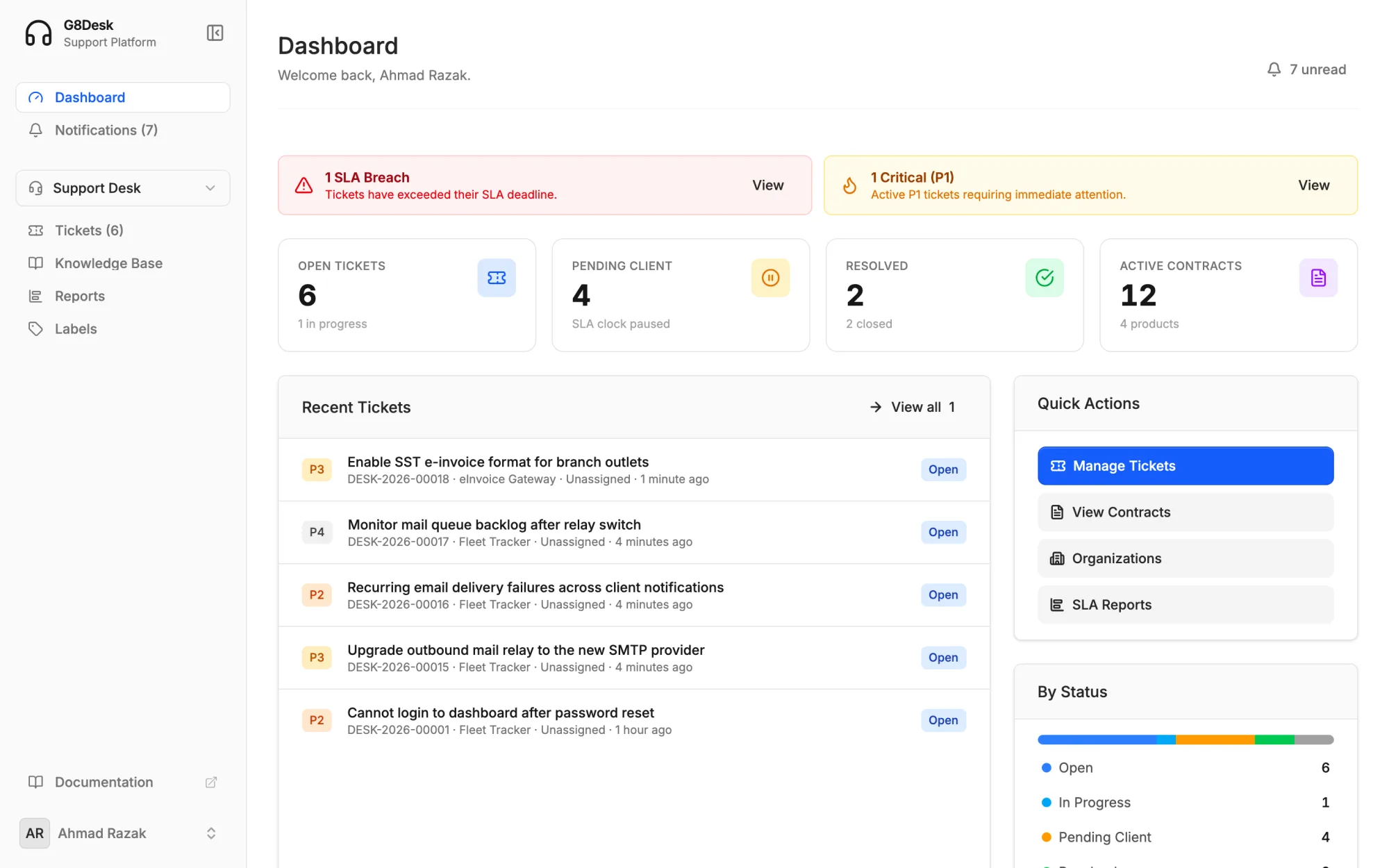
The dashboard
The dashboard opens after you sign in. From top to bottom it shows:
| Area | What it tells you |
|---|---|
| Alert banners | The number of tickets that have breached their SLA and the number of active P1 (critical) tickets, each with a View link. |
| Summary cards | Open tickets, tickets pending the client (SLA clock paused), resolved tickets and active contracts. |
| Recent Tickets | The latest tickets with severity, reference, product, assignee and status. |
| Quick Actions | Shortcuts to Tickets, Contracts, Organisations and the SLA report. |
| By Status | A breakdown of tickets by status. |
Switching sections
The sidebar is split into sections. Use the section switcher below Notifications to move between them; the sidebar then shows only that section's pages.
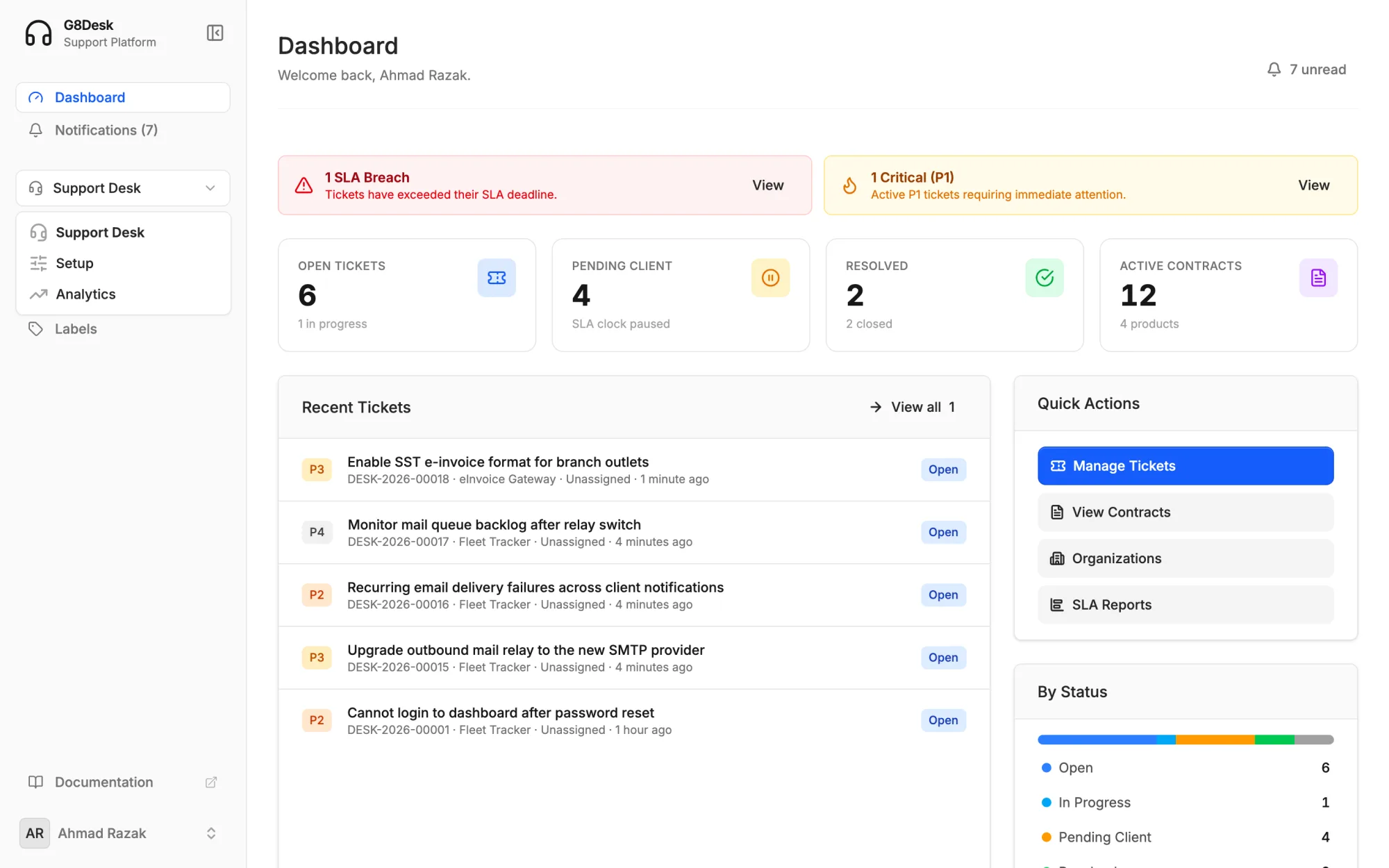
| Section | Pages | Covered in |
|---|---|---|
| Support Desk | Tickets, Knowledge Base, Reports, Labels | Support Agent Guide, SLA Compliance Report |
| Setup | Organizations, Contracts, Agents, Products, Git Connections, SLA Tiers, SLA Policies, Billing (SaaS only) | This guide |
| Analytics | Ticket Behavior, KB Usage, Org Insights, User Profiles | Analytics Dashboards |
| Administration | Identity, Mail, Media Library, Settings, Developers | Only shown to platform administrators |
Note: The Administration section appears only for accounts that hold administration permissions (for example the superadmin created at installation). A standard Ops Admin does not see it. See Users, Roles & Audit Trail.
What you can see
You see every client organisation under your ops organisation. Support Agents see only the client organisations they are assigned to — you control those assignments (see Agent Management).
Setting up a new client
Work through these pages in order. Tickets cannot be created until the last step is done.
- Create the organisation and invite its users.
- Add the product you support for them.
- Check the SLA tier and its policies.
- Create an active contract linking the organisation, product and SLA tier.
- Assign support agents to the organisation.