

Linking Tickets
- Support Agent
- Ops Admin
Linking Tickets
Links connect related tickets, for example several incidents caused by one problem, or the change request that fixes it. Links are for the ops team only. Clients never see them.
Link types
You create a link from the ticket you're on. The other ticket automatically shows the reverse wording.
| You choose | This ticket shows | The other ticket shows | Use it when |
|---|---|---|---|
| Relates to | Relates to | Relates to | The tickets share context, but neither explains the other |
| Caused by | Caused by | Causes | This ticket is explained by the other, typically incident → problem |
| Resolves | Resolves | Resolved by | This ticket delivers the fix for the other, typically change → problem or incident |
Adding a link
- In the ticket sidebar, find Linked Tickets.
- Choose the link type in the dropdown.
- Type at least two characters of a reference or title in Search by reference….
- Click the ticket you want in the results.
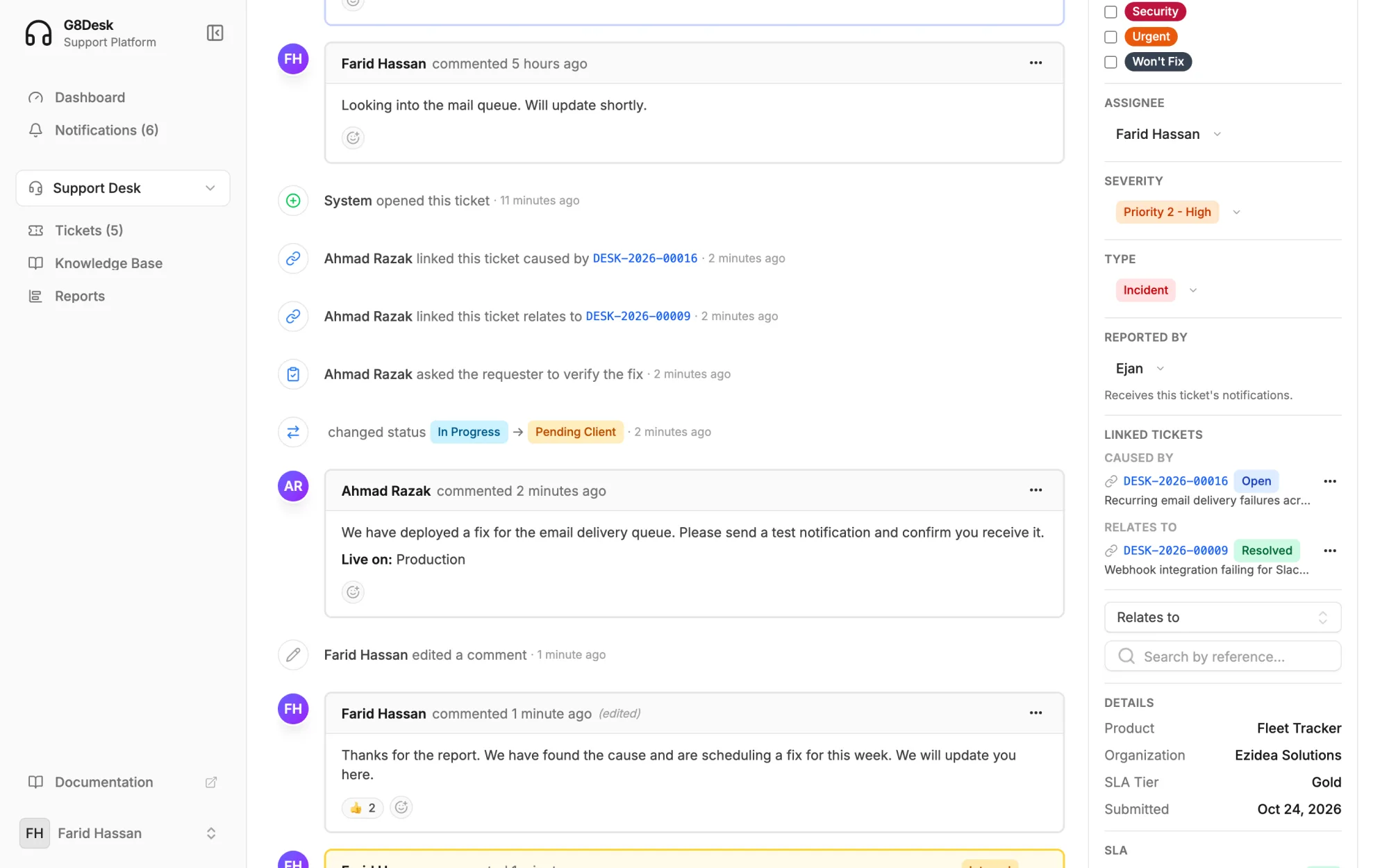
Search only covers tickets you can see. It skips the current ticket and tickets that are already linked. Links can cross client organisations, for example a problem that affects several clients.
Linked tickets are grouped by wording and show each ticket's reference, status and title. Click a reference to open that ticket.
G8Desk refuses:
- linking a ticket to itself
- adding the same link twice
- adding the mirror of an existing link. If A is caused by B, B already shows causes A
Removing a link
Open the ⋯ menu next to the linked ticket and choose Remove link, then confirm.
Adding and removing links both appear on the internal timeline, for example linked this ticket caused by DESK-2026-00016.