

Joining Your Organisation
- All Users
Joining Your Organisation
Client accounts are created by invitation. An administrator of your organisation invites you by email, and you accept to join.
Accept your invitation
- Open the invitation email and click the link to accept.
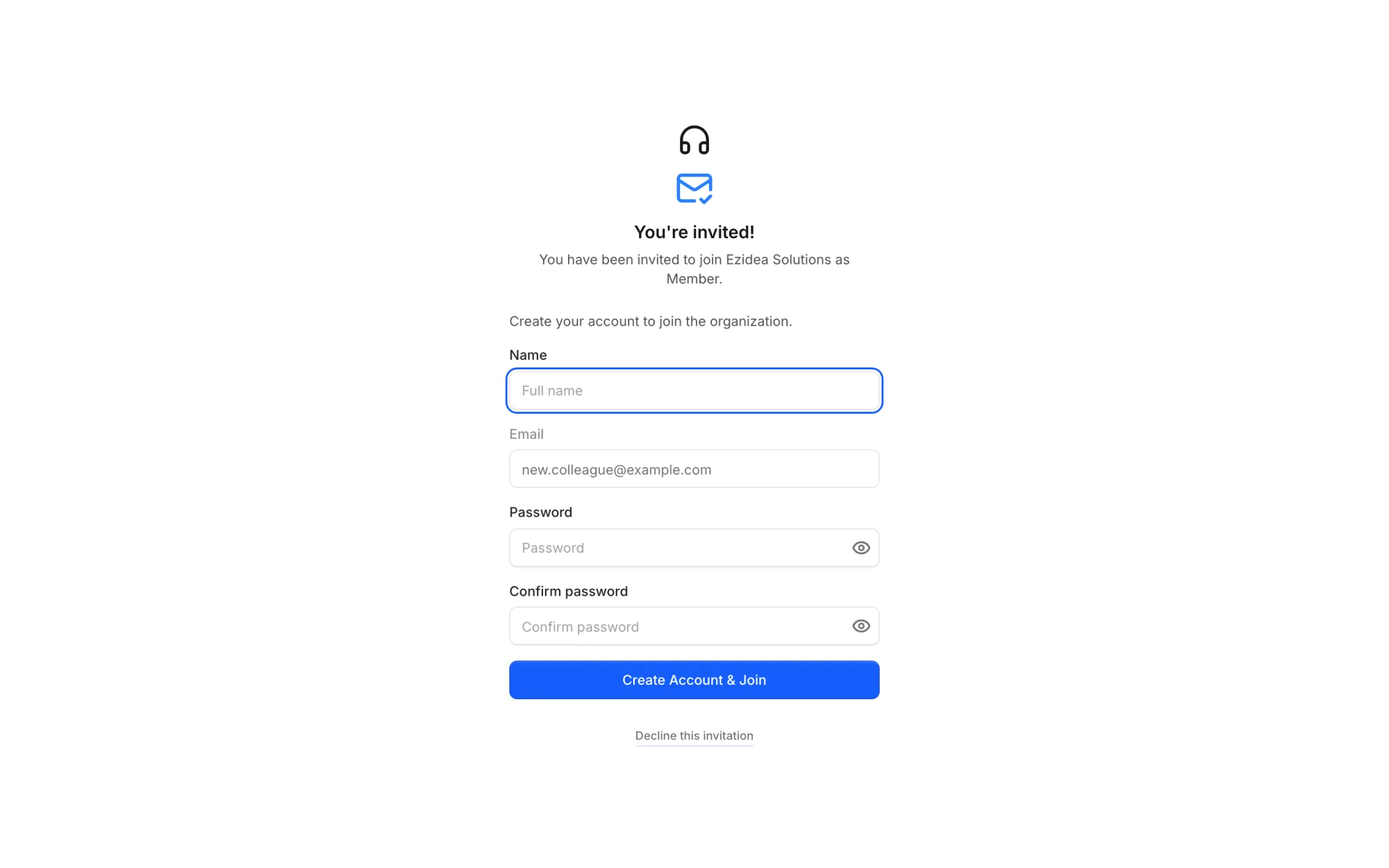
- On the You're invited! page, check the organisation name and the role you were invited as.
- If you are new to G8Desk, enter your Name, a Password and Confirm password, then click Create Account & Join.
- If you already have a G8Desk account, log in with the invited email address and click Accept Invitation.
You land on your dashboard with the organisation selected.
Note: Invitations expire after 7 days. If yours has expired, ask your organisation's administrator to resend it.
Note: You must accept with the email address the invitation was sent to. If you are logged in as someone else, log out first.
You can also click Decline this invitation if you don't want to join.
Password rules
By default a password must:
- be at least 12 characters long
- mix upper and lower case letters
- include a number and a symbol
- not appear in a known data breach
Log in
- Go to the login page and enter your Email address and Password.
- Tick Remember me to stay signed in on this device.
- Click Log in. If you have turned on two-factor authentication, enter the code from your authenticator app.
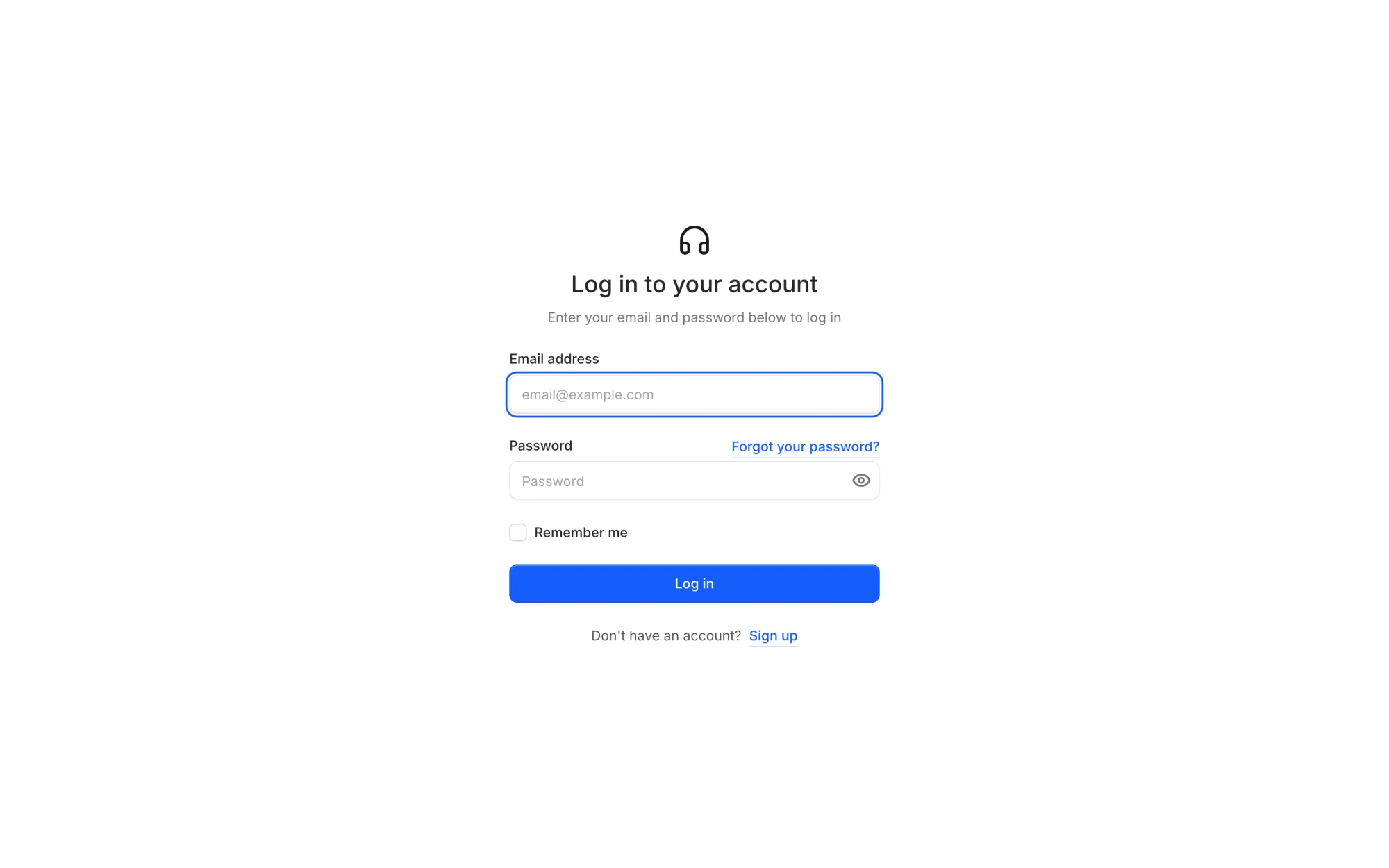
Forgot your password? Click Forgot your password? and follow the link in the reset email.
Getting Started checklist
The dashboard shows a Getting Started checklist until your organisation has finished three steps: create your account, verify your email and submit the organisation's first ticket. Click Dismiss to hide it sooner.