

Replies and Internal Notes
- Support Agent
- Ops Admin
Replies and Internal Notes
The comment box at the bottom of the Activity tab handles both client-facing replies and team-only notes.
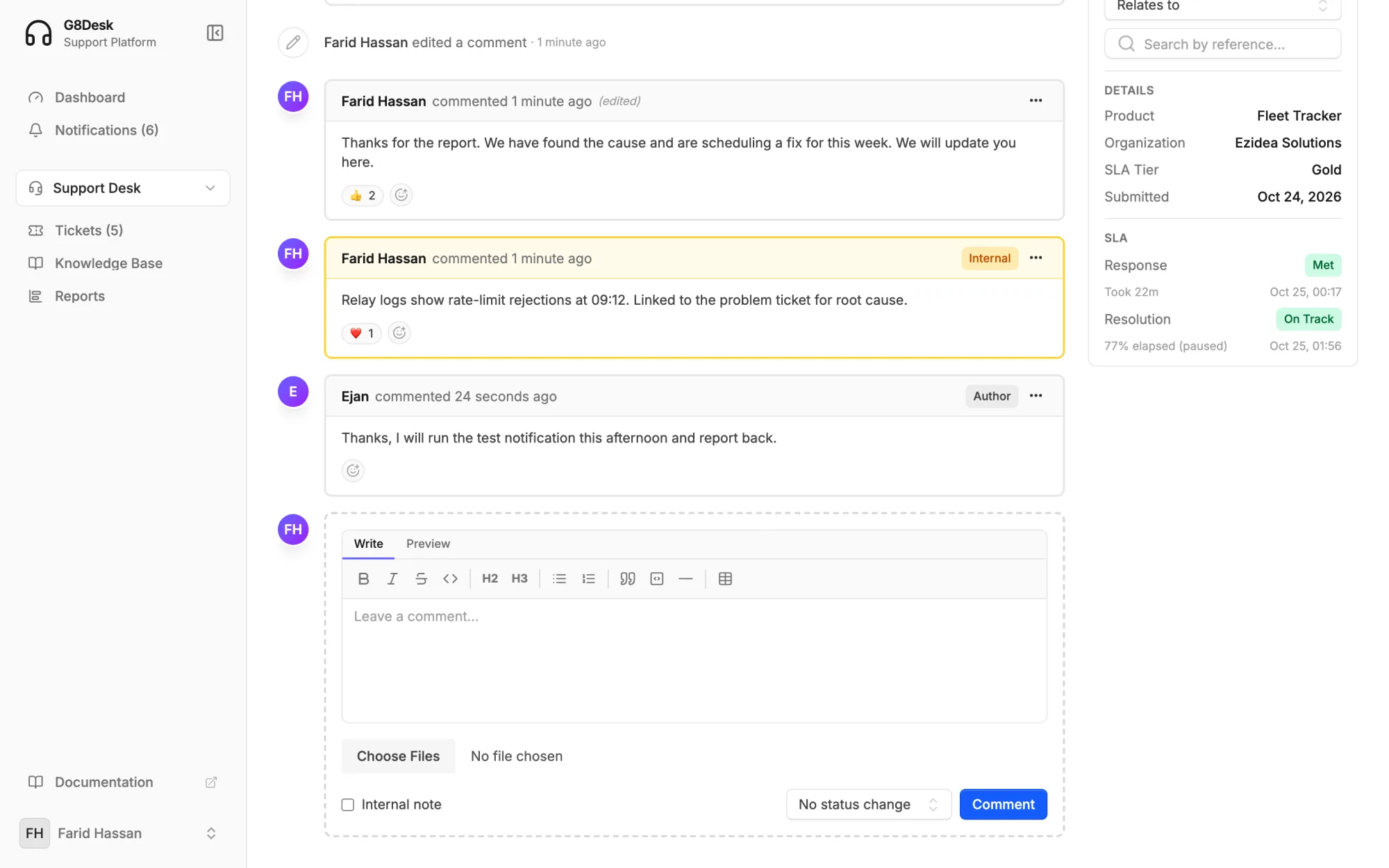
Posting a reply
- Write in the editor. Write and Preview tabs, headings, lists, quotes, code and tables are available.
- Attach files with Choose Files if needed.
- Optionally pick Set to … to change the status in the same step, for example Set to Pending Client when you ask the client a question.
- Click Comment.
The reporter (Reported By) receives your reply by email. If you also changed the status, it changes through the normal rules: SLA pause and resume, timeline entry and notifications.
Note: If you post exactly the same text twice within 10 seconds, the second copy is ignored and you see Duplicate comment ignored.
Internal notes
Tick Internal note before clicking Comment to keep the comment inside the team.
- Internal notes have an amber border and an Internal badge.
- Clients never see them, in the portal or in emails.
- Ops Admins and the Support Agents who cover the ticket's client organisation get an in-app notification. You don't get one for your own note.
Tip: Use internal notes for log extracts, hypotheses and hand-over context. They also appear in the major incident report, which is for internal use only.
Editing and deleting comments
Open the ⋯ menu on a comment.
| Option | Who can use it |
|---|---|
| Copy link | Everyone. Copies a link that jumps straight to that comment |
| Edit | Support Agents on their own comments. Ops Admins on any comment |
| Delete | Support Agents on their own comments. Ops Admins on any comment. Asks you to confirm and cannot be undone |
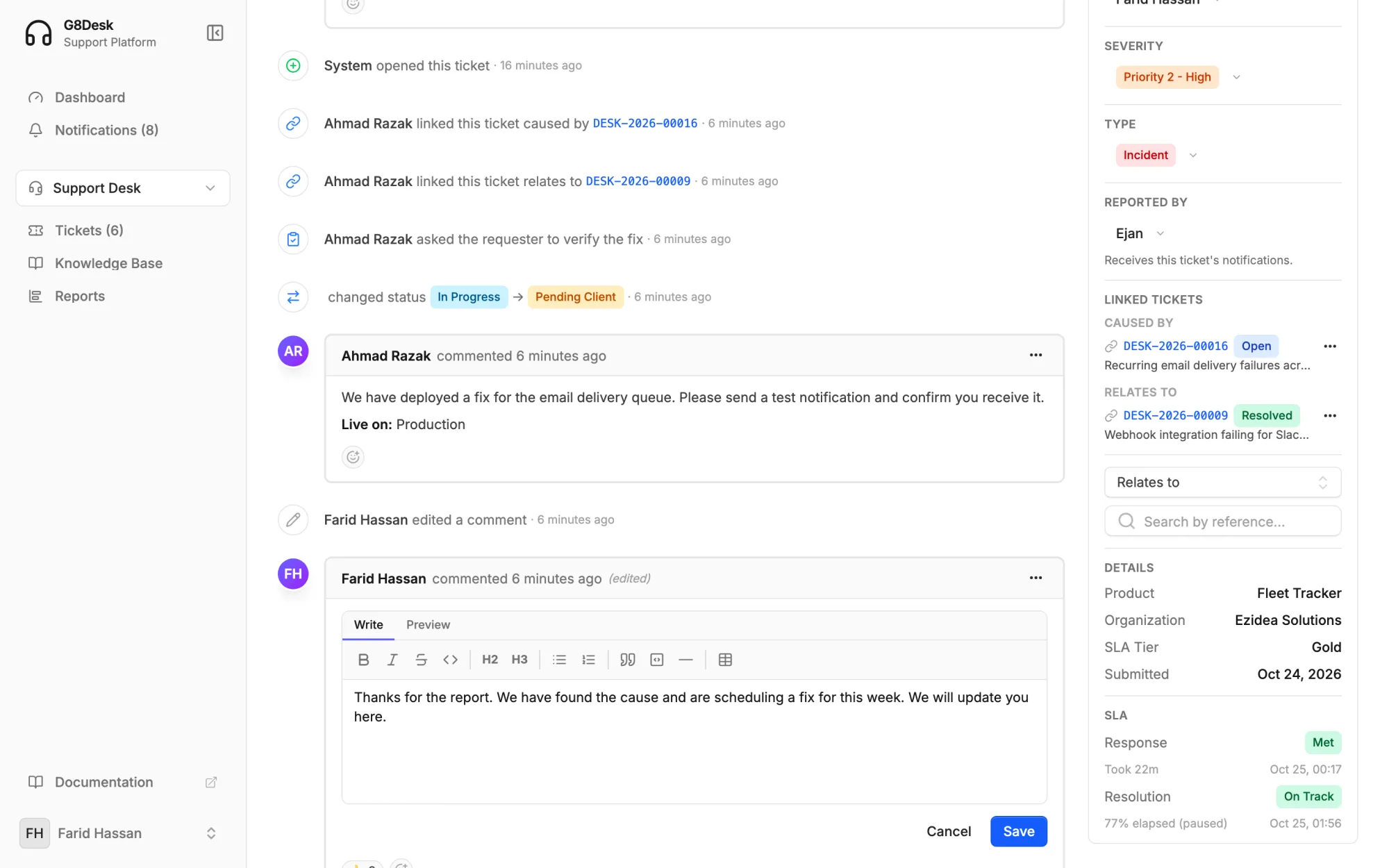
When you edit, the comment becomes an editor with Cancel and Save. Saved edits show (edited) next to the time, and the timeline records edited a comment. Clients only see that entry for public replies.
System messages from G8Desk (the automatic acknowledgement, escalation notes) cannot be edited or deleted.
Reactions
Click the smiley button under a comment and pick 👍 ❤️ 😂 😮 😢 or 🎉. Click a reaction again to remove it. Hover over a reaction to see who added it.
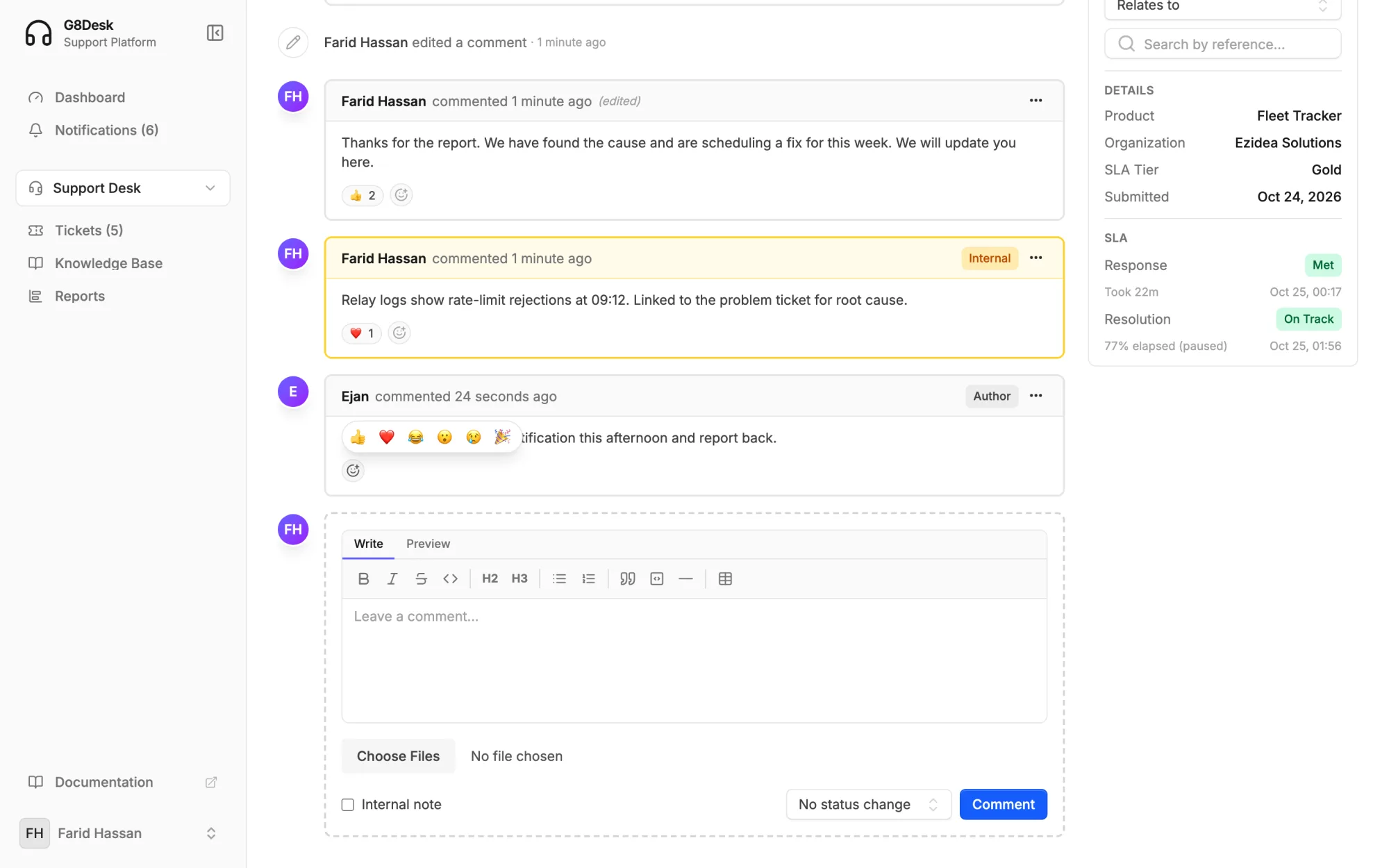
Reactions don't send notifications and don't appear on the timeline. Clients can react to public replies but never see internal notes.
Who gets notified
| Event | Who is notified |
|---|---|
| You post a public reply | The ticket's reporter |
| The client replies | The assignee. If nobody is assigned, the Ops Admins and the agents who cover that organisation |
| Someone posts an internal note | Ops Admins and the covering agents, except the author |
In-app notifications appear under Notifications in the sidebar, with the unread count next to the name. From there you can filter by Unread or Read, open a notification's details, mark notifications read or unread, delete them, or use Mark All as Read.
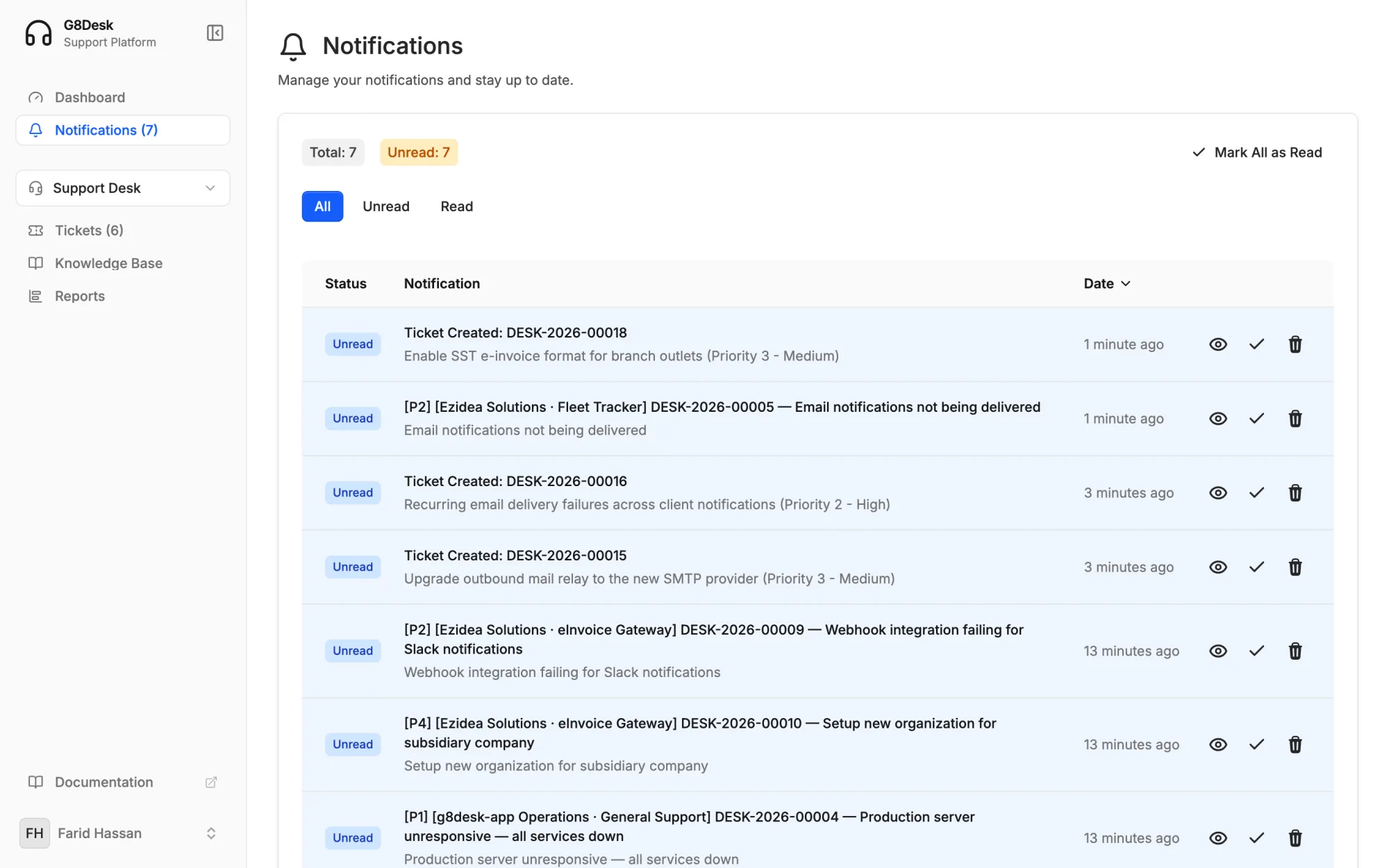
Choose how you receive each type under Settings › Notifications. See Notifications.