

Managing Contracts
- Ops Admin
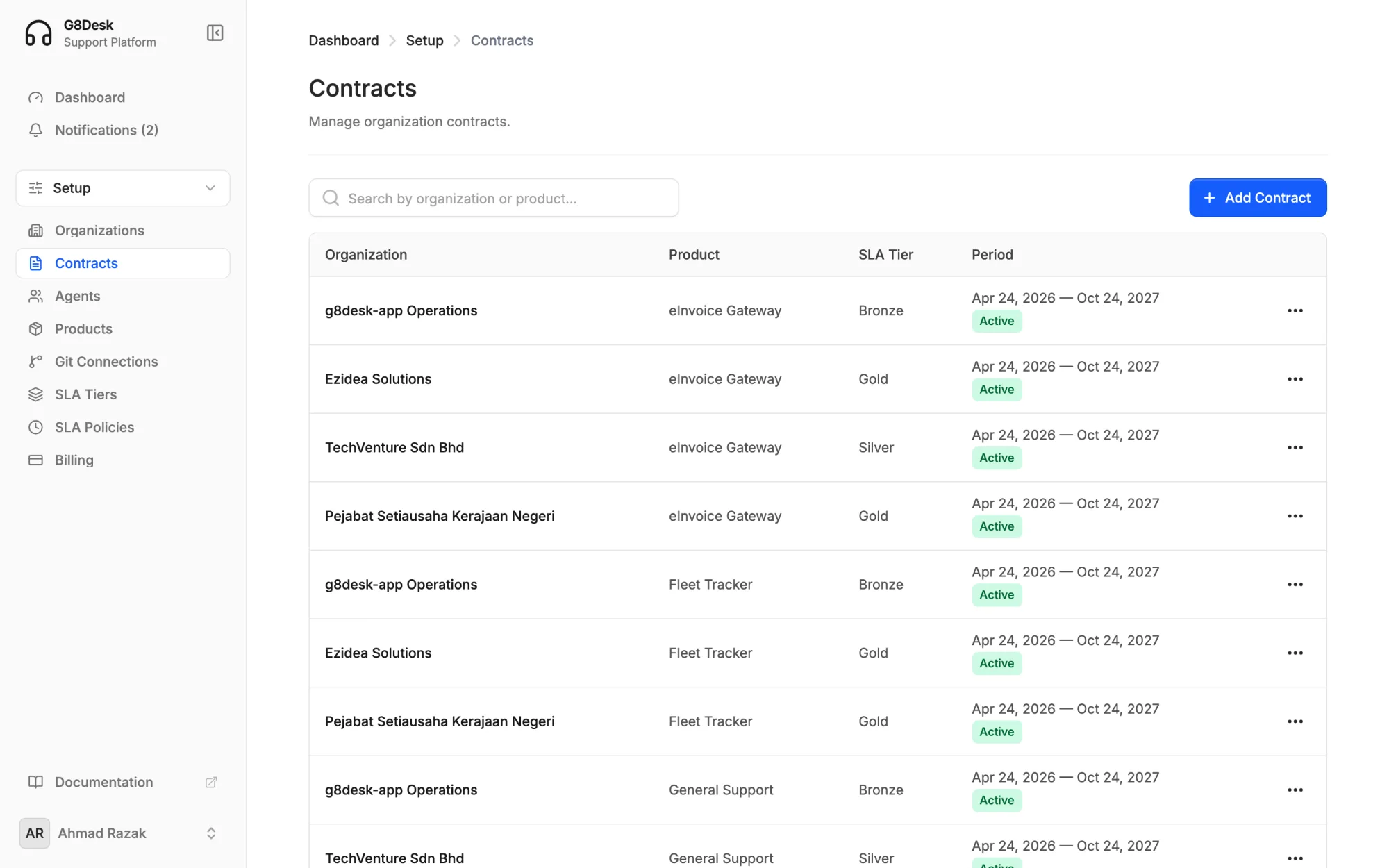
A contract says that one organisation is supported for one product at one SLA tier, for a date range. Without an active contract, nobody can raise a ticket for that organisation and product.
Creating a contract
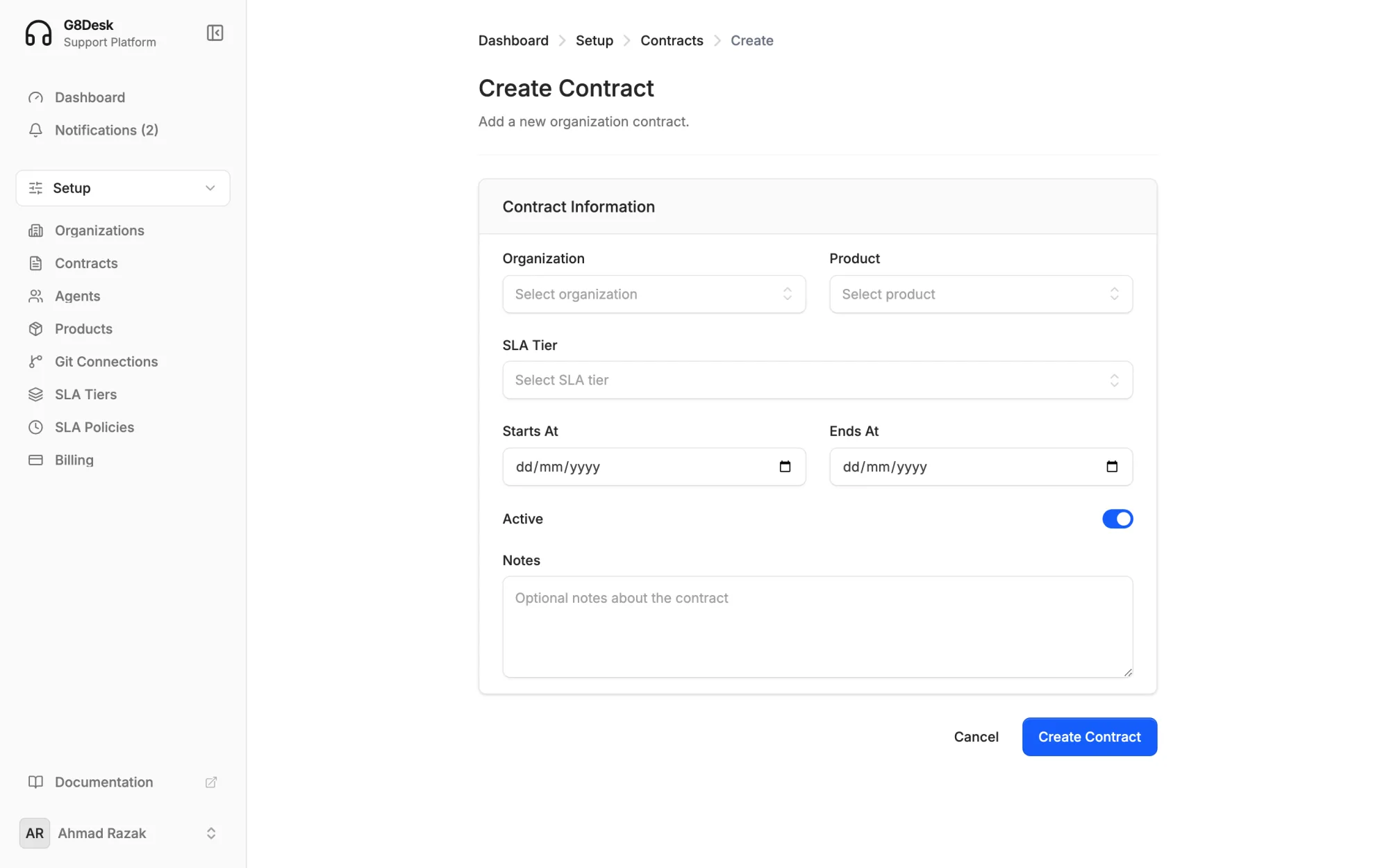
- Go to Setup › Contracts and click Add Contract.
- Choose the Organization, Product and SLA Tier.
- Set Starts At and Ends At. The end date must be after the start date.
- Leave Active on, and add optional Notes.
- Click Create Contract.
When a contract counts as active
A contract applies to new tickets only when all of these are true:
- Active is switched on.
- Today is on or after Starts At.
- Today is on or before Ends At.
Clients see a product in their ticket form only while their organisation holds an active contract for it. Creating a ticket for an organisation and product with no active contract fails with a validation error.
Editing and deleting
Use the row menu to View, Edit or Delete a contract. Search by organisation or product name to find one.
Note: Delete acts immediately, with no confirmation prompt. To stop coverage but keep the record, switch Active off or set an earlier end date instead.
Tip: Renew contracts before they end. A gap between the old end date and the new start date means clients cannot raise tickets for that product in between.