

Intake Channels & Widget
- Ops Admin
Intake channels let an external system — a partner helpdesk, your client's own app, or an embedded support widget — open and follow tickets for one organisation without anyone signing in to the Client Portal. Each channel belongs to one organisation and one product, and authenticates with its own token.
Before you start
- The organisation needs an active contract for the product the channel will use.
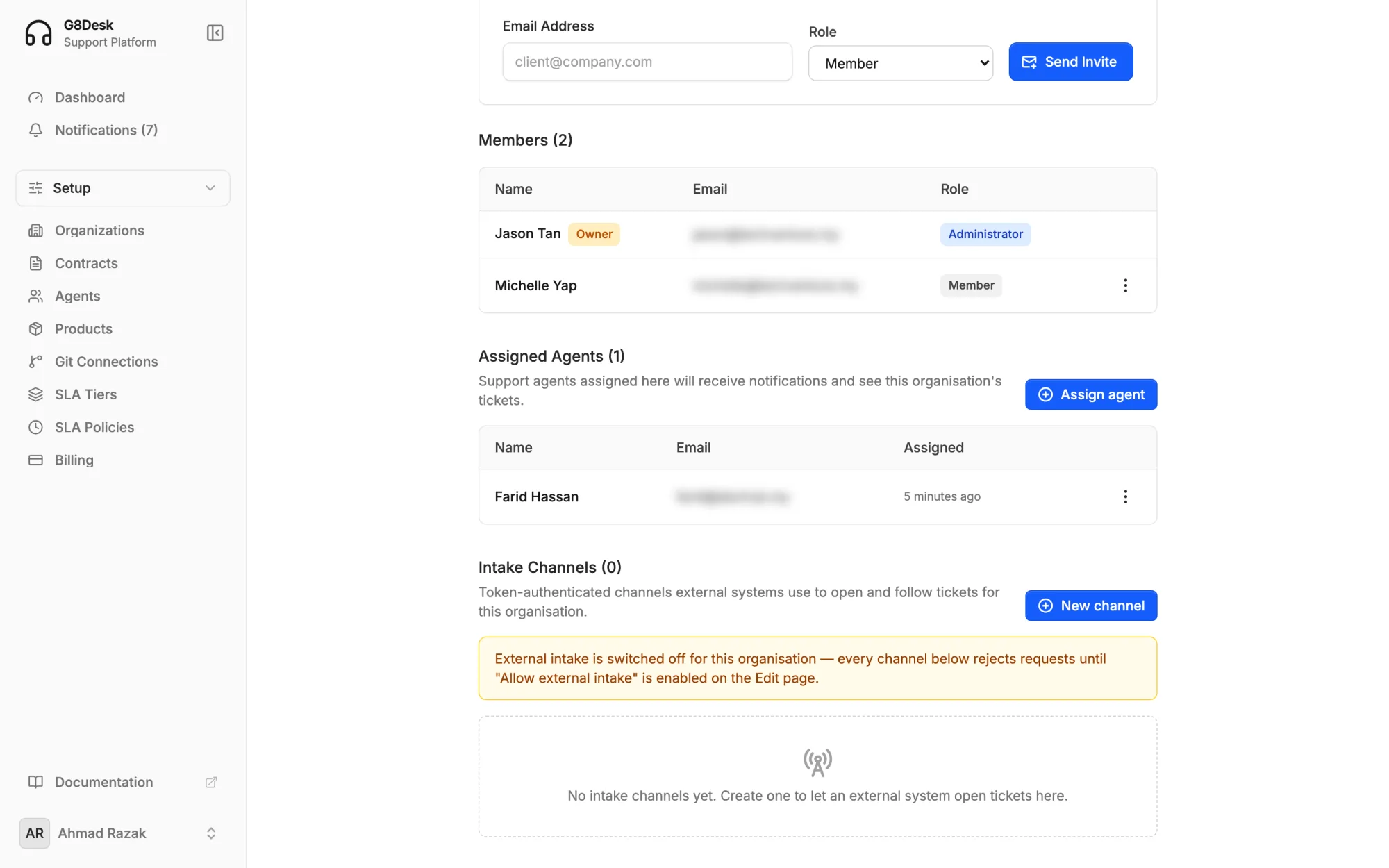
- Allow external intake must be switched on in the organisation's Edit page. It is off by default, and while it is off every channel rejects requests, including enabled ones.
Creating a channel
- Open the organisation (Setup › Organizations › View) and scroll to Intake Channels.
- Click New channel.
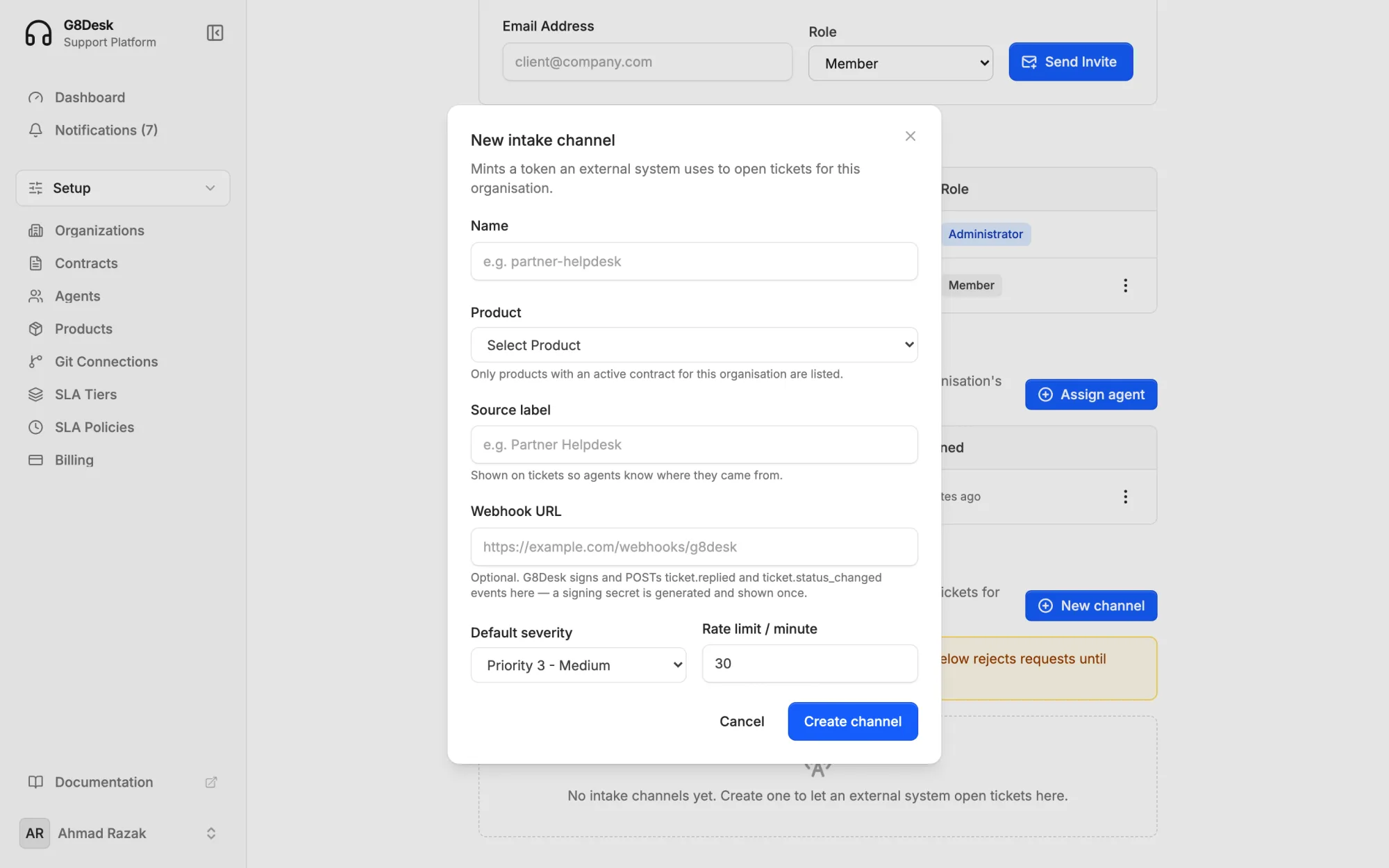
- Fill in the form and click Create channel.
| Field | What it is |
|---|---|
| Name | An identifier, unique per organisation and product, for example partner-helpdesk. |
| Product | Only products with an active contract for this organisation are listed. |
| Source label | Shown on tickets so agents know where they came from, for example "Partner Helpdesk". |
| Webhook URL | Optional. G8Desk sends signed ticket.replied and ticket.status_changed events here. |
| Default severity | Severity given to tickets from this channel. Defaults to Priority 3 – Medium. |
| Rate limit / minute | Requests allowed per minute, from 1 to 600. Defaults to 30. |
After you create the channel, its token is shown once. Copy it straight into the external system. If you entered a webhook URL, the webhook signing secret is also shown once.
Note: G8Desk stores only a hash of the token, so it cannot show it again. The channel list shows just enough of it to tell channels apart. If a token is lost, regenerate it.
Managing a channel
Each channel's row menu offers:
| Action | Effect |
|---|---|
| Enable / Disable | Turns the channel on or off without changing its token. |
| Regenerate token | Issues a new token. The old one stops working immediately. |
| Set webhook | Adds or changes the webhook URL. A signing secret is created on first save and shown once; Save & regenerate secret rotates it. |
| Remove webhook | Stops event delivery and deletes the signing secret. |
| Widget | Configures the embeddable widget (see below). |
| Revoke | Permanently disables the channel. This cannot be undone — create a new channel instead. |
Webhooks
Every webhook delivery carries an X-G8Desk-Signature header: an HMAC computed with the channel's webhook secret. The receiving system should verify it before trusting the payload.
The embeddable widget
The widget is a floating support panel your client embeds in their own web app. Their signed-in users can open and follow tickets on this channel without leaving the app.
- Choose Widget from the channel's row menu.
- Switch on Enable widget.
- Under Allowed origins, list each site that may embed it, one
https://origin per line, scheme and host only (for examplehttps://app.example.com). Leave it empty to block embedding everywhere. - Click Save.
- Click Generate embed. G8Desk shows a public key (safe to expose) and a widget secret (server-side only). The secret is shown once, and generating again rotates it.
- Use How to integrate for copy-ready snippets in PHP, Node.js or Python. The client's server uses the secret to sign each user's identity, so the secret never reaches the browser.
Tip: Treat the token, webhook secret and widget secret like passwords. Send them to the client through a secure channel and never paste them into a ticket.
The intake API
External systems call the API with the channel token as a bearer token:
| Method | Path | Purpose |
|---|---|---|
POST |
/api/v1/intake/tickets |
Open a ticket. |
GET |
/api/v1/intake/tickets |
List the channel's tickets. |
GET |
/api/v1/intake/tickets/{reference} |
Read one ticket. |
POST |
/api/v1/intake/tickets/{reference}/replies |
Add a reply. |
Requests fail with 401 for a missing or wrong token, and 403 when the channel is disabled or revoked, or when external intake is switched off for the organisation.