

Billing & Licence
- Ops Admin
How you pay for G8Desk depends on your edition. G8Desk Cloud (SaaS) uses a subscription you manage on the Billing page. An on-premise installation uses a licence file you can check on the Licence page.
Billing (G8Desk Cloud)
Go to Setup › Billing. Only Ops Admins can open it.
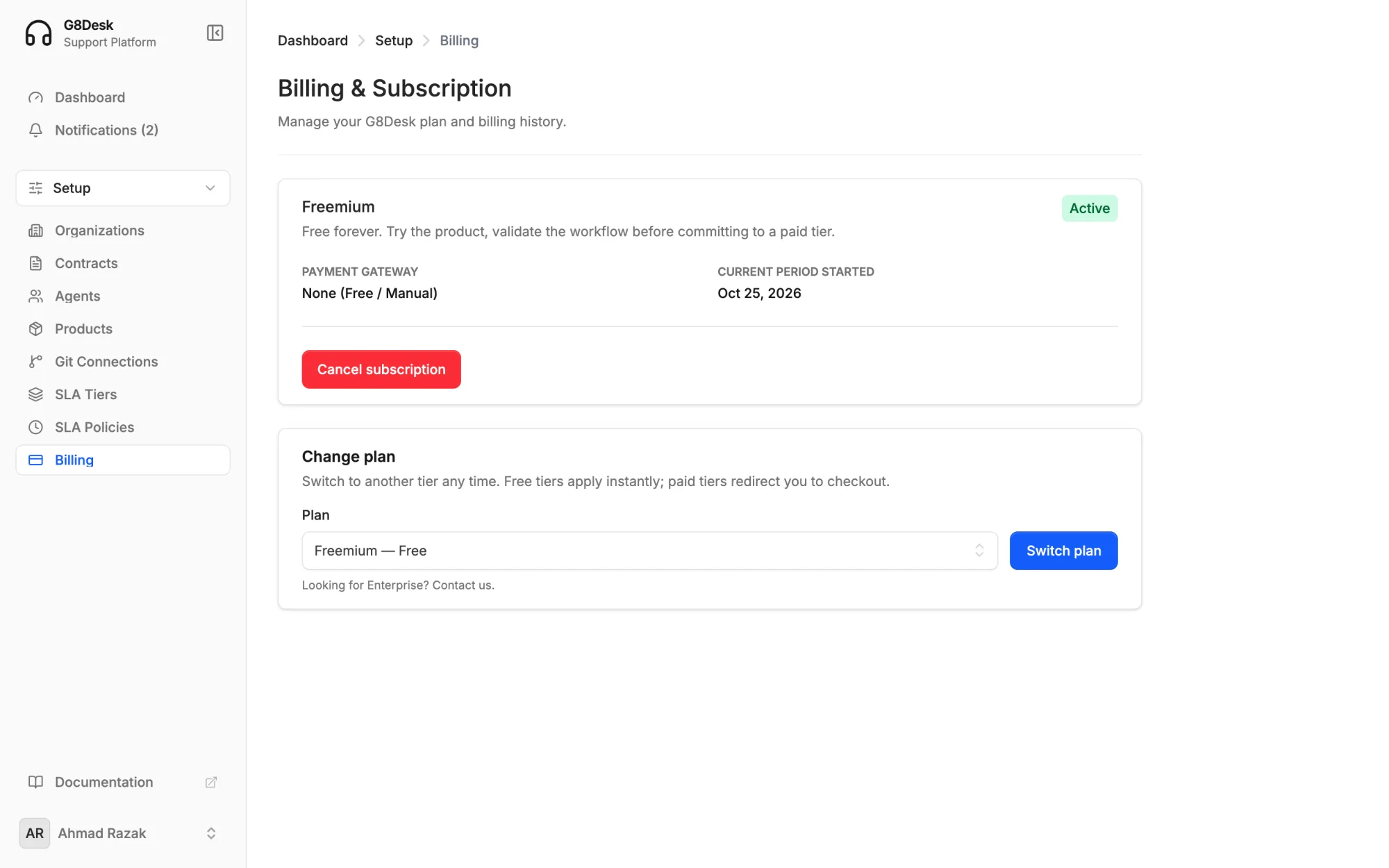
Your current plan
The top card shows the plan name and status, the payment gateway, the monthly price for paid plans, when the current period started, and when it renews — or, after cancellation, when access ends. Included features are listed when the plan has any.
| Button | When it appears | What it does |
|---|---|---|
| Renew now | Active or past-due paid subscriptions | Starts checkout to renew. |
| Complete payment | A paid subscription awaiting payment | Returns you to checkout. |
| Cancel subscription | Active or past-due subscriptions | Asks for confirmation, then cancels. |
Changing plan
- Under Change plan, choose a plan. Each option shows its monthly price in RM, or Free.
- Click Switch plan.
Free plans apply straight away. Paid plans take you to the payment gateway's checkout. If no gateway is available you are told to contact support.
Note: Your plan sets limits such as the number of client organisations and agent seats. When a limit is reached, G8Desk refuses the action with a message rather than failing silently.
Licence (on-premise)
On an on-premise installation, go to /ops/settings/license on your G8Desk address. The page is a read-only view of the installed licence file, and does not appear in the sidebar.
| Field | Meaning |
|---|---|
| Status | Valid, Valid (perpetual), In grace period, Expired or Invalid. |
| Customer, Edition, Issued, Expires, Instance ID | Details from the licence file. |
| Entitlements | Maximum agents, client organisations, tickets per month and storage in GB (or unlimited). |
| Features | Features the licence enables. |
When a licence expires
After the expiry date there is a grace period (14 days unless your installation is configured otherwise). During it G8Desk keeps working. After it ends, the Ops Dashboard is blocked until a valid licence is installed — the Licence page itself stays reachable so you can see why.
Your server administrator manages the licence file with these commands:
| Command | Purpose |
|---|---|
php artisan license:show |
Print the current licence and its status. |
php artisan license:install /path/to/file.lic |
Verify a new licence file and install it. A file that fails verification is never installed. |
php artisan license:verify |
Check the installed licence. Exits with 0 when the signature is valid. |