

Notifications
- All Users
Notifications
G8Desk tells you about ticket activity by email and in the app. You choose which channel each type of notification uses.
Who gets notified
On the client side, ticket notifications go to the ticket's requester, the person shown as Submitted By. Other members of your organisation can still open and comment on the ticket, but they are not emailed about it.
| Event | Sent to |
|---|---|
| Ticket created | The requester |
| Support team replies | The requester |
| Ticket resolved or closed | The requester |
| Fix verification requested | The requester |
| Change request approved or rejected | The requester |
| Ticket idle for a few days | The requester, if your support provider has idle reminders turned on |
Tip: If a colleague needs updates on a ticket, ask them to raise it themselves, or check the ticket regularly from Support Portal › Tickets.
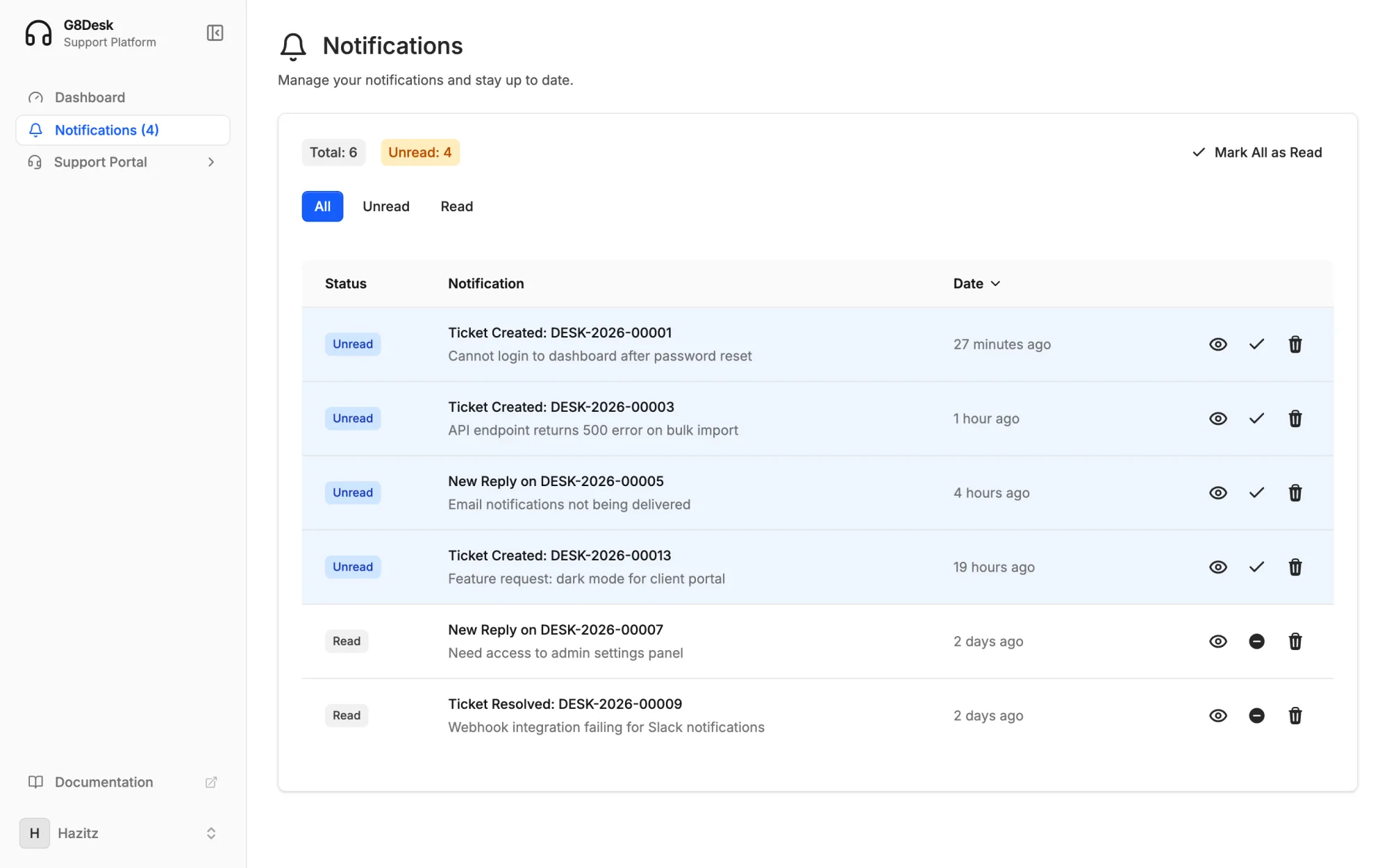
Read your notifications
- Click Notifications in the sidebar.
- Use All, Unread and Read to filter the list.
- On a row, use the icons to view details, mark as read (or unread) and delete.
- Click Mark All as Read to clear your unread count.
Choose your channels
- Open Settings › Notifications.
- Tick or untick Email and In-app for each notification type. A dash means that channel isn't available for that type.
- Click Save. Click Reset to defaults to turn everything back on.
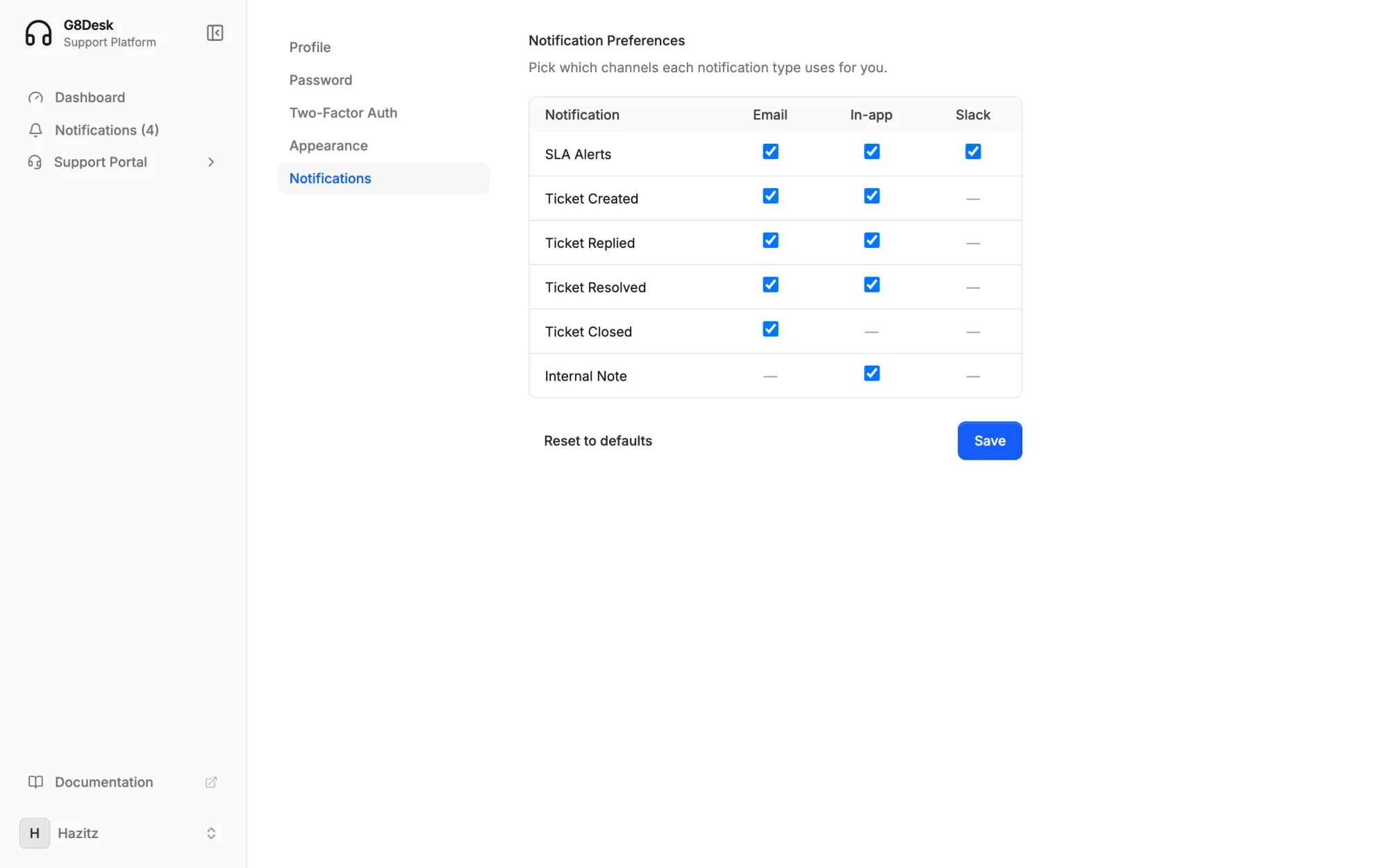
| Type | In-app | Slack | |
|---|---|---|---|
| SLA Alerts | Yes | Yes | Yes |
| Ticket Created | Yes | Yes | — |
| Ticket Replied | Yes | Yes | — |
| Ticket Resolved | Yes | Yes | — |
| Ticket Closed | Yes | — | — |
| Internal Note | — | Yes | — |
Note: SLA alerts, Slack and internal notes are used by the support team. As a client you mainly need the Ticket rows.
Note: Turning off email for Ticket Replied means you won't be emailed when support asks you a question. Keep in-app on, or check your tickets regularly.