

Two-Factor Authentication
- Client User
- Client Admin
Two-Factor Authentication
Two-factor authentication (2FA) asks for a code from your phone each time you log in, as well as your password. Use any TOTP authenticator app, such as Google Authenticator, Microsoft Authenticator or 1Password.
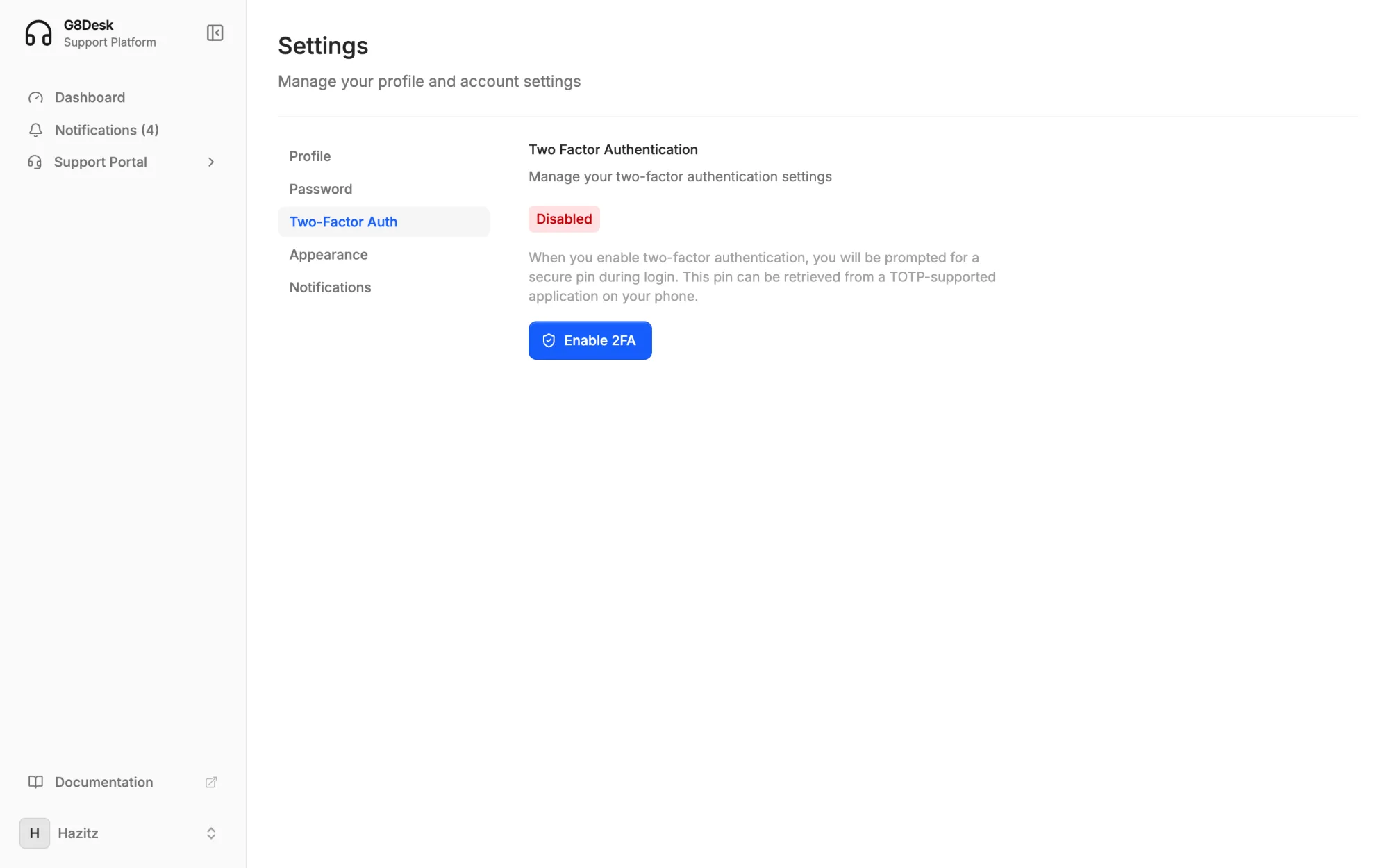
Turn on 2FA
- Open Settings › Two-Factor Auth.
- Enter your password on the Confirm password screen. G8Desk asks for this before you change security settings.
- Click Enable 2FA.
- Scan the QR code with your authenticator app. If you can't scan it, use the setup key shown under or, enter the code manually.
- Click Continue.
- Enter the 6-digit code from the app and click Confirm.
The status changes from Disabled to Enabled.
Save your recovery codes
Recovery codes let you log in if you lose your phone.
- On Settings › Two-Factor Auth, click View Recovery Codes.
- Store them somewhere safe, such as a password manager.
Each code works once. Click Regenerate Codes to get a fresh set. This cancels the old codes.
Log in with 2FA
- Enter your email and password as usual.
- Enter the 6-digit code from your authenticator app.
Lost your phone? On the code screen, click login using a recovery code and enter one of your saved codes.
Turn off 2FA
Open Settings › Two-Factor Auth and click Disable 2FA.
Tip: If codes are rejected, check that your phone's date and time are set automatically. TOTP codes depend on an accurate clock.
Note: The G8Desk mobile app also asks for your 2FA code when you sign in.