

Navigating the Dashboard
- All Users
Navigating the Dashboard
The dashboard is the first page you see after logging in. It shows what needs your attention across your organisation's tickets.
Note: This page describes the client dashboard. Support agents and ops admins see a different dashboard, covered in the Ops Admin guide.
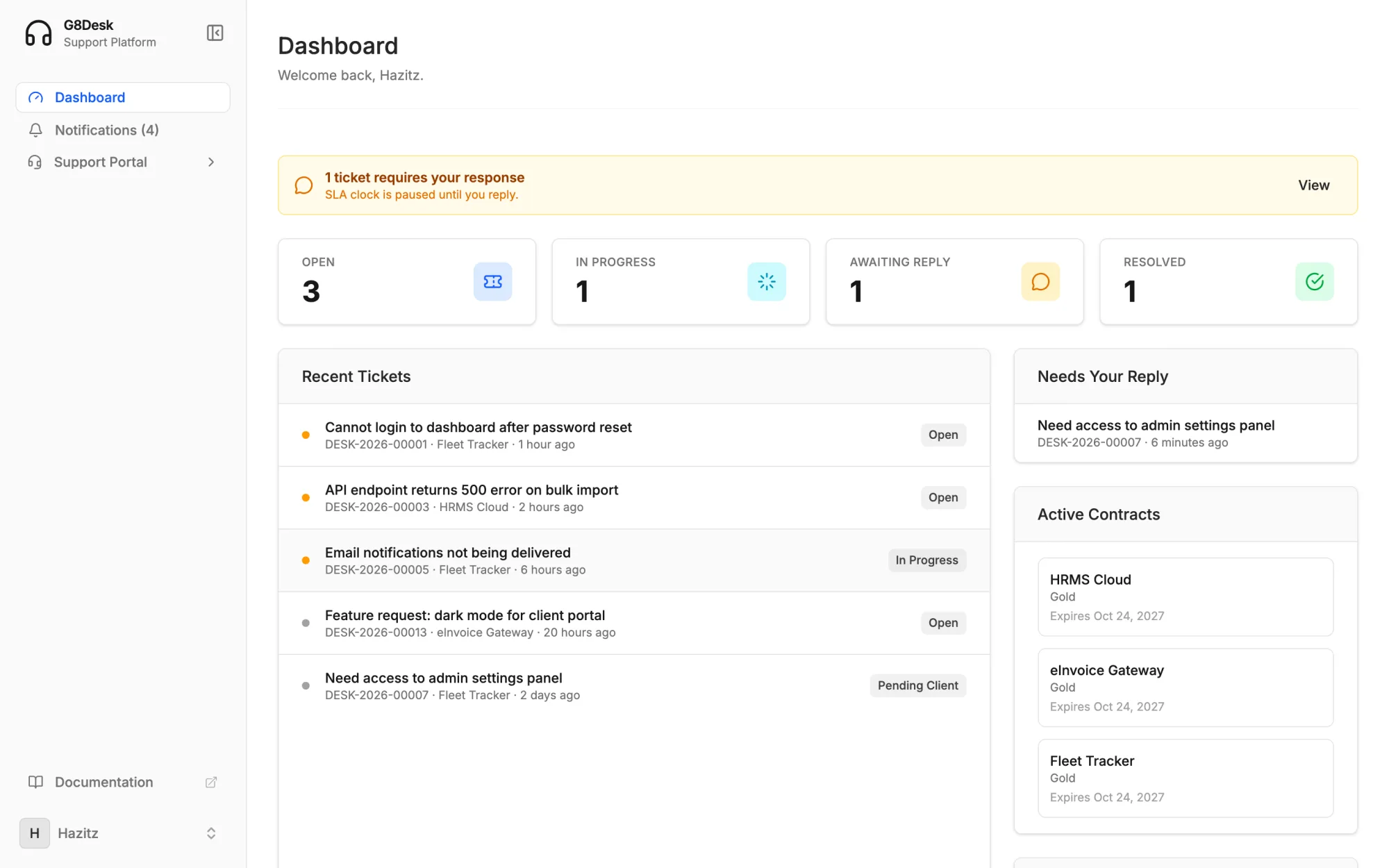
What's on the dashboard
| Area | What it shows |
|---|---|
| Submit Ticket button | Opens the new ticket form. |
| Response banner | Appears when tickets are waiting on your organisation. The SLA clock is paused until someone replies. Click View to open the ticket list. |
| Counters | Open, In Progress, Awaiting Reply and Resolved tickets for your organisation. |
| Recent Tickets | The latest tickets with reference, product, age and status. Click one to open it. |
| Needs Your Reply | Tickets in Pending Client status. |
| Active Contracts | Each product you are covered for, its SLA tier and its expiry date. |
| Quick Links | Shortcuts to Submit Ticket, All Tickets and Knowledge Base. |
The sidebar
| Item | Purpose |
|---|---|
| Dashboard | Return to this page. |
| Notifications | Your in-app notifications. The number is your unread count. |
| Support Portal › Tickets | All of your organisation's tickets. The number is how many are Open. |
| Support Portal › Knowledge Base | Self-help articles. |
| Support Portal › Team | Your organisation's profile and members. |
| Documentation | These guides. |
| Your name (bottom) | Opens the menu with Settings and Log out. |
If you belong to more than one organisation, an organisation switcher appears at the top of the sidebar. See Managing Your Organisation.