

Raising a Change Request
- Client Admin
Raising a Change Request
A change request asks your support provider to make a planned change to a service, such as a configuration change, a new feature switch or scheduled maintenance. The provider approves or rejects it before any work starts.
Note: Only administrators can raise change requests. Members only see the incident form.
Raise a change request
- Click Submit Ticket.
- Set Request Type to Change Request — a planned change to a service. The Severity field disappears and Desired Start and Desired End appear.
- Choose the Product.
- Set Desired Start and Desired End. The start must be in the future and the end must be after the start.
- Enter a Title.
- In the description, explain the change and why it's needed.
- Click Submit Ticket.
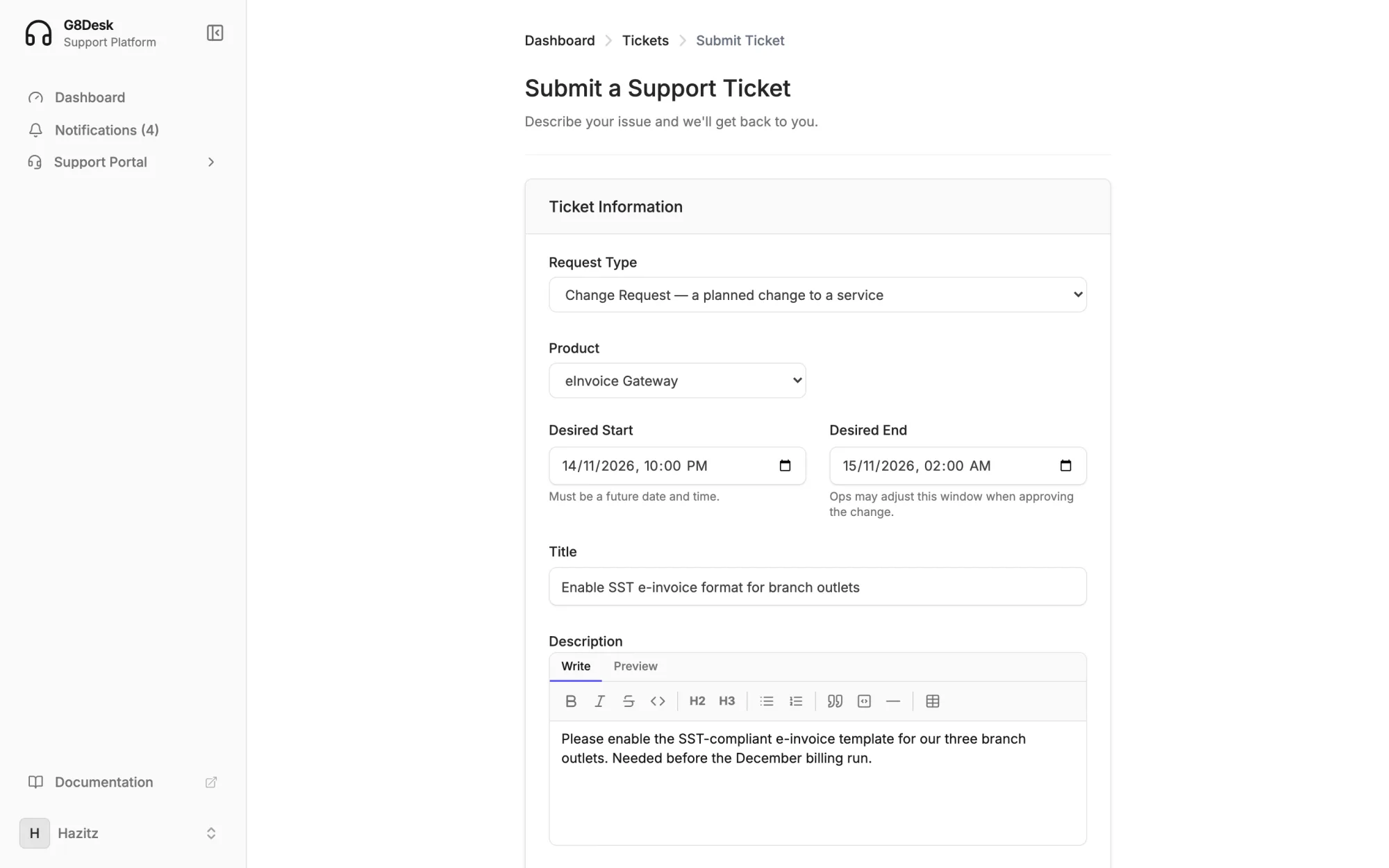
Change requests always use the Priority 3 - Medium SLA.
Follow the approval
Open the ticket. It shows a Change Request badge, and the sidebar has a Change Request section.
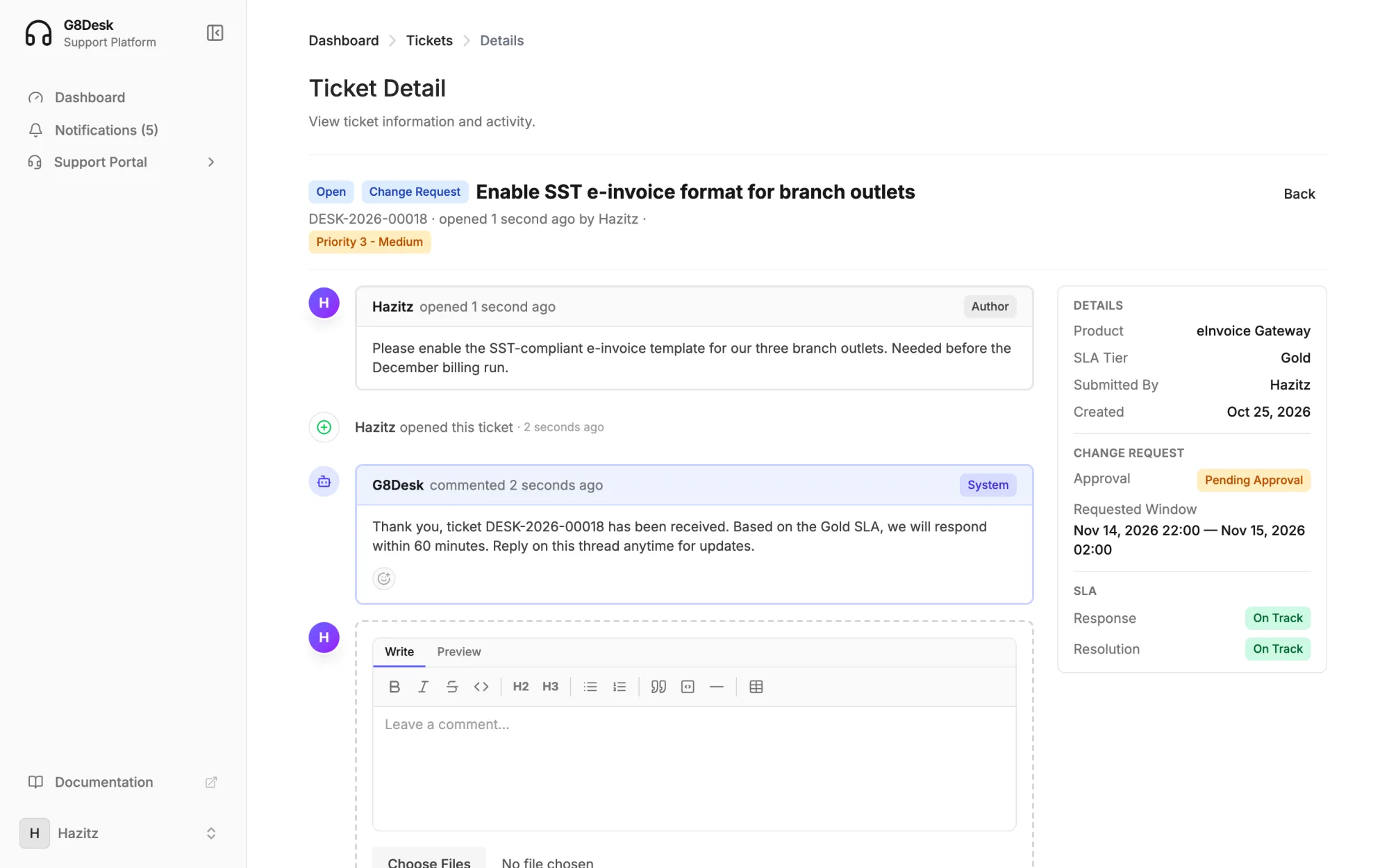
| Approval | Meaning |
|---|---|
| Pending Approval | Waiting for a decision. Work can't start yet. |
| Approved | Work may go ahead. The sidebar shows the Approved Window. |
| Rejected | The change wasn't authorised. |
The requester is notified when the change is approved or rejected.
Note: The provider may adjust your window when approving. Always check the Approved Window before planning around it.
Discuss details in the ticket thread as you would for any ticket. See Replying, Editing and Reactions.