

Ticket Board
- Support Agent
- Ops Admin
Ticket Board
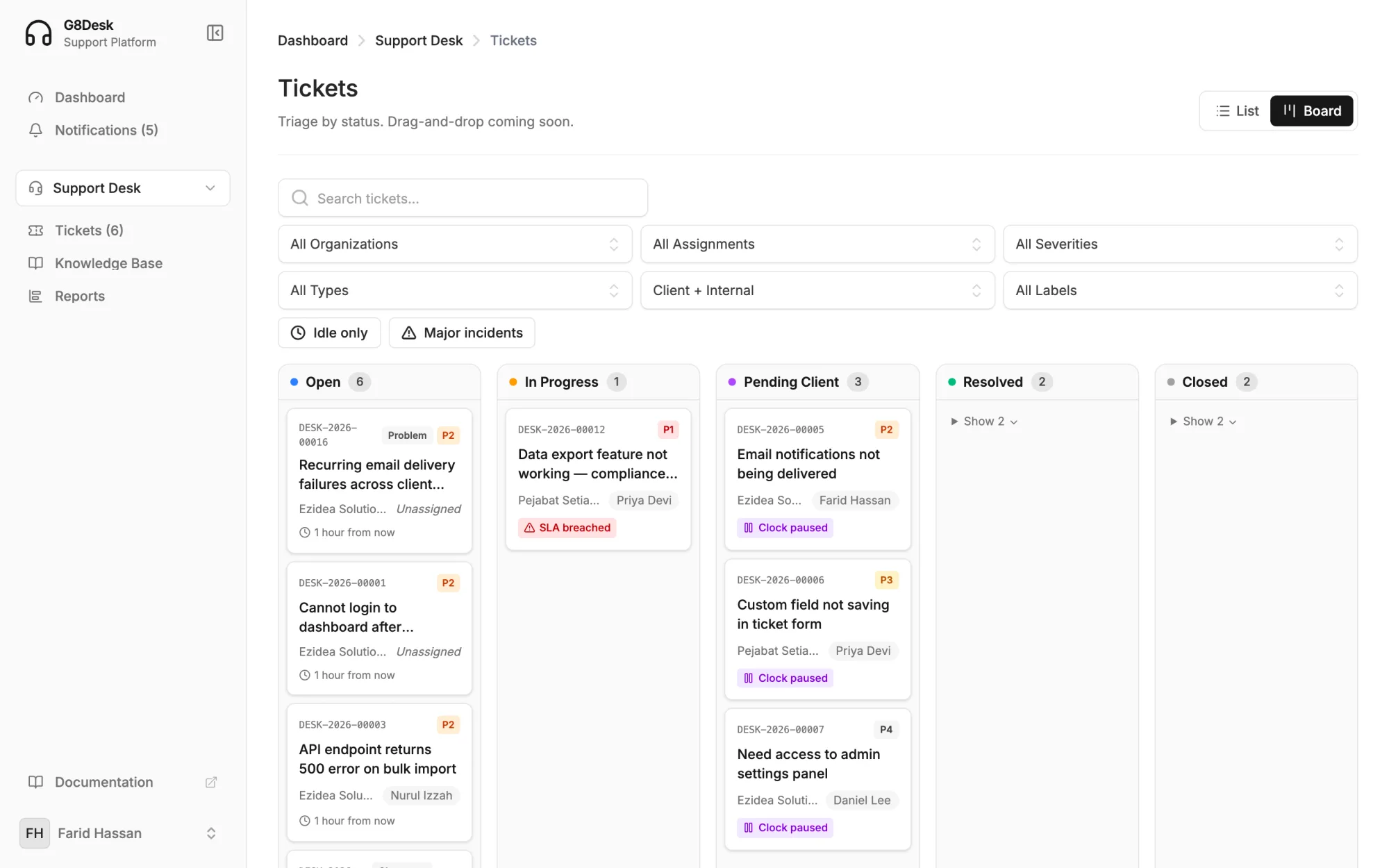
The board shows your queue as five status columns, so you can see at a glance where work is piling up.
Opening the board
On Support Desk › Tickets, click Board at the top right. G8Desk remembers the choice and opens the board next time. Click List to switch back.
Note: The board needs a wide screen. On a narrow screen G8Desk shows a link to the list instead.
Reading the board
Each column header shows the status and how many tickets match your filters. Within a column, tickets are sorted by severity (P1 first), then newest first.
Each card shows:
| Part of the card | Meaning |
|---|---|
| Reference and badges | MI for a major incident, Internal for an internal work item, the type when it is not an incident, and the severity |
| Title | Click it to open the ticket |
| Organisation and assignee | Unassigned in italics when nobody holds it |
| SLA chip | Clock paused, SLA breached, or the time left until the resolution deadline |
| Idle chip | Nobody has worked on the ticket for the idle threshold |
Resolved and Closed are collapsed behind Show N so they don't crowd the active columns.
Each column shows at most 50 tickets. When there are more, a + N more link opens the list view filtered to that status.
Filtering
The board has the same filters as the list except status, because the columns are the statuses: search, organisation, assignment, severity, type, client-facing or internal, and label. Idle only and Major incidents work as quick filters here too.
Tip: The label filter is only on the board. Use it to see, for example, every ticket tagged Bug across all statuses.
Changing status
The board header reads Triage by status. Drag-and-drop coming soon. Change a ticket's status from the ticket page: open the card and use the Status field. See Ticket Details and Sidebar.