

Ticket Details and Sidebar
- Support Agent
- Ops Admin
Ticket Details and Sidebar
Everything about a ticket lives on one page: the conversation and history on the left, and the fields you edit on the right. There is no separate edit page. Every field saves as soon as you change it.
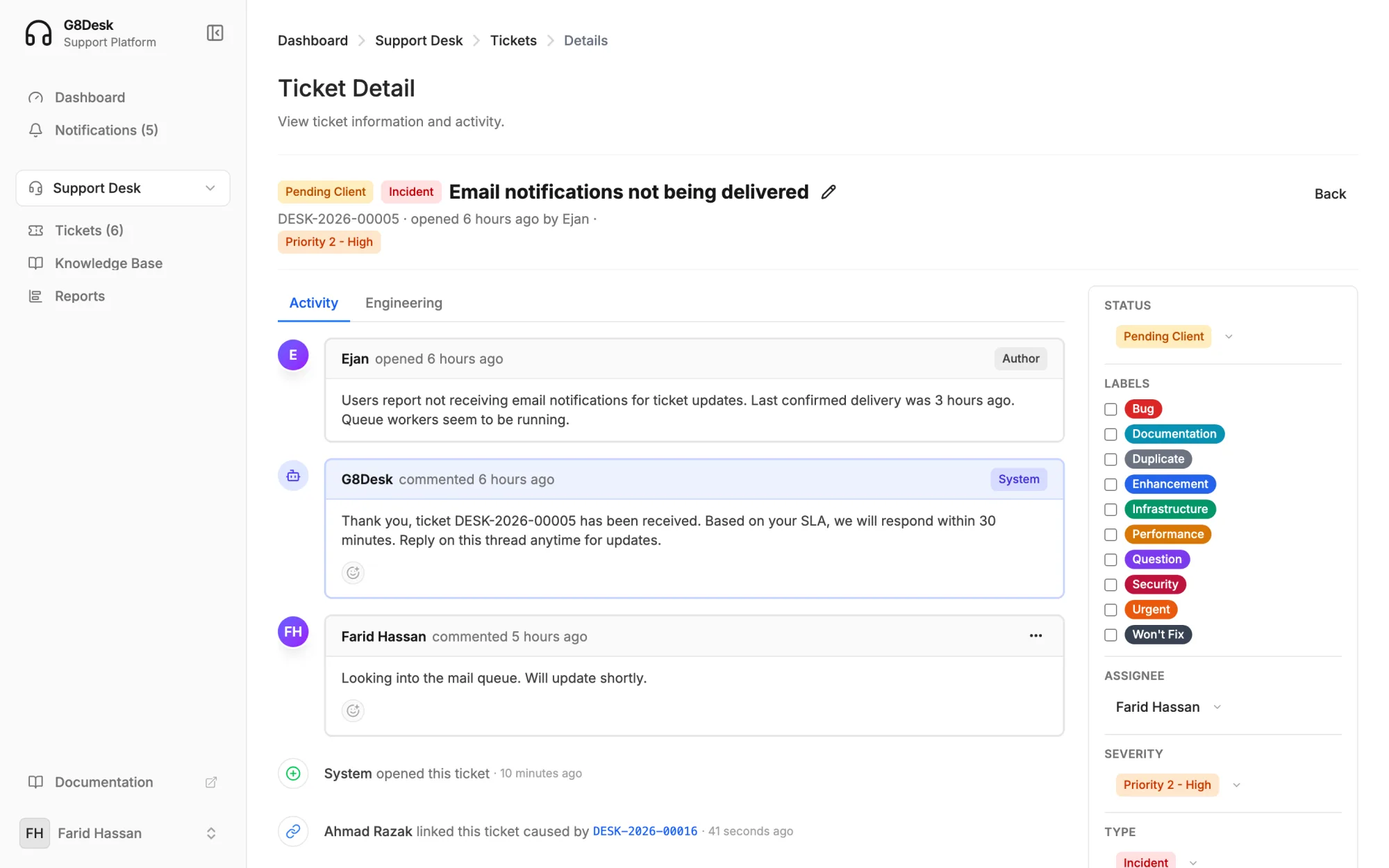
The header
The header shows the status, type, and Internal or Major Incident badges, the title, the reference, who opened the ticket and when, and the severity.
- Edit the title with the pencil icon next to it. The change is recorded on the timeline, and the client sees it too.
- MI Report appears on tickets that are, or were, a major incident. See Major Incidents.
- Back returns to the ticket list.
Tabs
| Tab | When it appears |
|---|---|
| Activity | Always. The description, every reply and note, and every change, in time order |
| RCA | Problem tickets only. See Ticket Types and Problems |
| Engineering | When you can draft engineering issues. See Engineering Handoff |
Sidebar fields
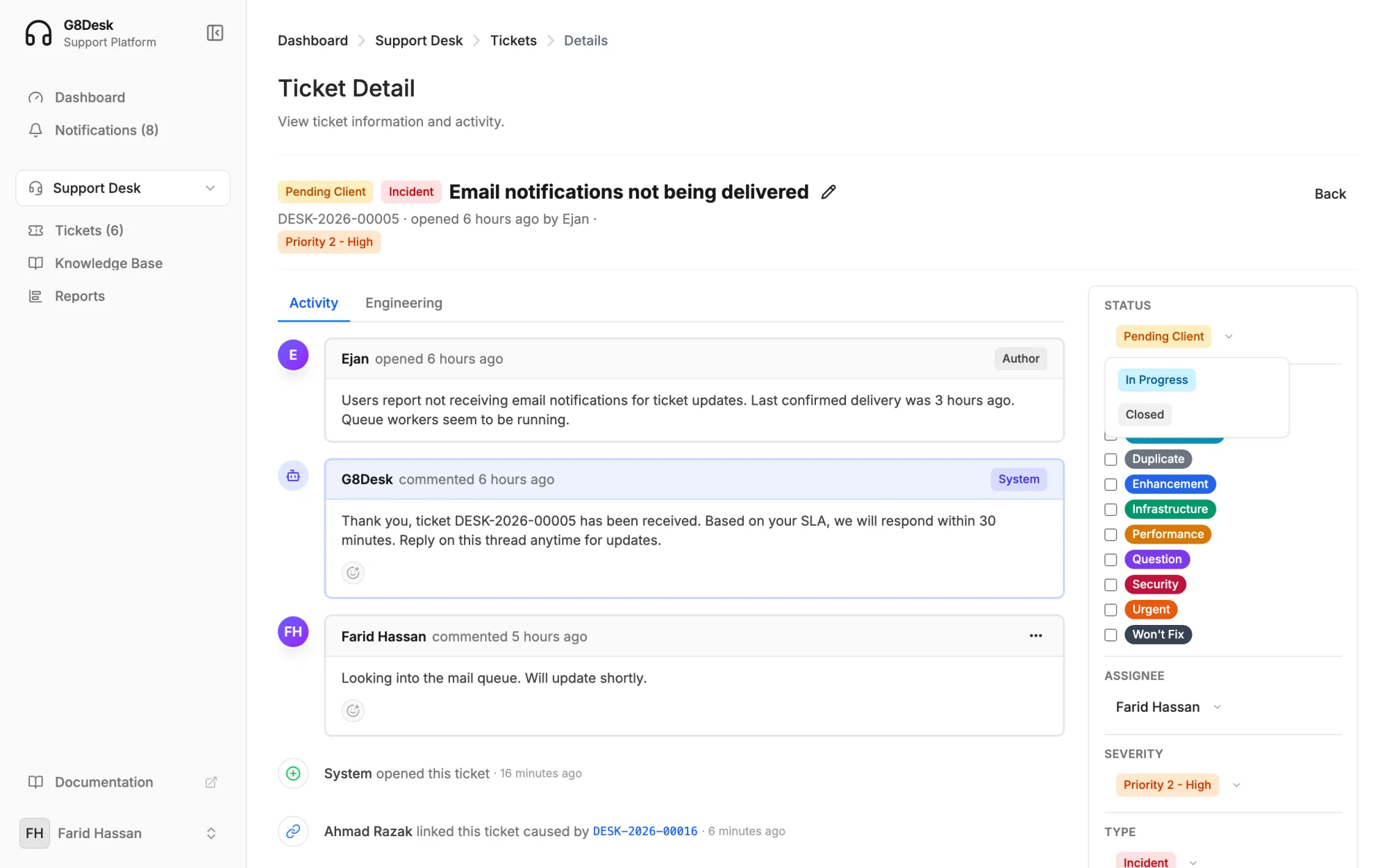
| Field | What it does |
|---|---|
| Status | Lists only the statuses this ticket can move to next |
| Labels | Tick or untick labels. See Using Labels |
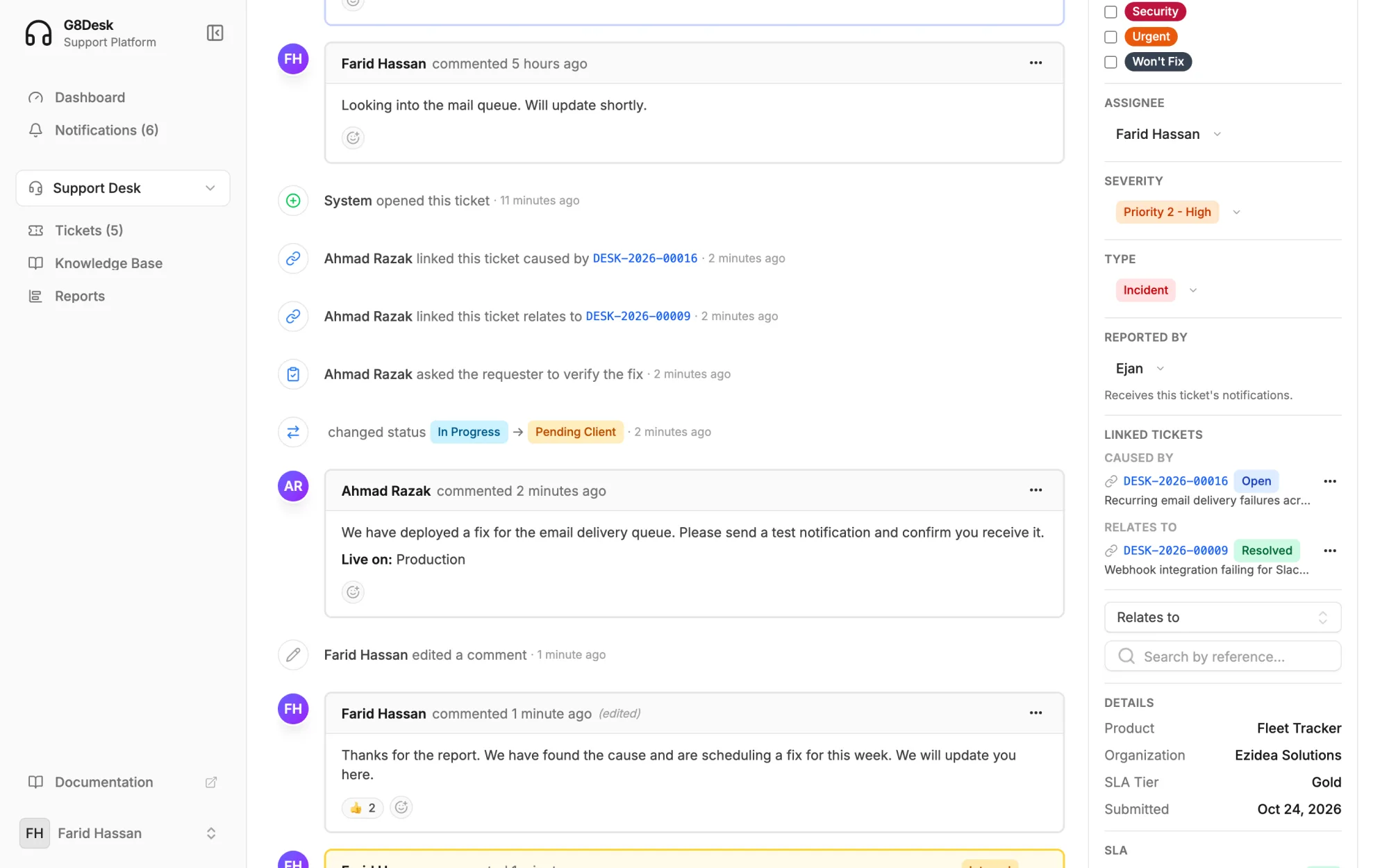
| Assignee | Unassigned, Ops Admins, and the Support Agents who cover this client organisation |
| Severity | P1 to P4 |
| Type | Incident, Problem or Change Request. The change is recorded on the timeline |
| Reported By | The client contact who reported the issue. Not shown on internal work items |
| Linked Tickets | Related tickets, and a search box to add more. See Linking Tickets |
| Details | Product, organisation, SLA tier and submission date (read-only) |
| SLA | Response and resolution deadlines with their state (read-only) |
Assignee
The assignee list only includes people who can see this ticket, so you can't hand a ticket to an agent who doesn't cover the client.
Reported By
Reported By is the person G8Desk treats as the requester. They receive the client-side emails for this ticket: your replies, verification requests, and the resolved and closed notices.
Note: If a ticket was filed by an ops user and nobody corrected Reported By, no one on the client side is notified. Set it to the real contact. The timeline records it as changed the requester to …, and the client can see that entry.
Reclassifying the type
Changing a ticket to Change Request starts its approval: the change request panel appears with Pending Approval. See Change Requests.
The SLA panel
| Badge | Meaning |
|---|---|
| On Track | The deadline hasn't passed |
| Met | Responded or resolved in time. The line below shows how long it took |
| Overdue | The deadline has passed but the scheduler hasn't flagged it yet |
| Breached | The scheduler has recorded a breach |
The line under each badge shows how much of the allowed time has gone, with (paused) while the ticket is Pending Client. Internal work items have no SLA, so the panel is hidden. See Understanding SLA.