

Configuring SLA Tiers
- Ops Admin
An SLA tier is a named service level, such as Gold, Silver or Bronze. A contract points to one tier, and the tier's policies set the response and resolution targets for each severity.
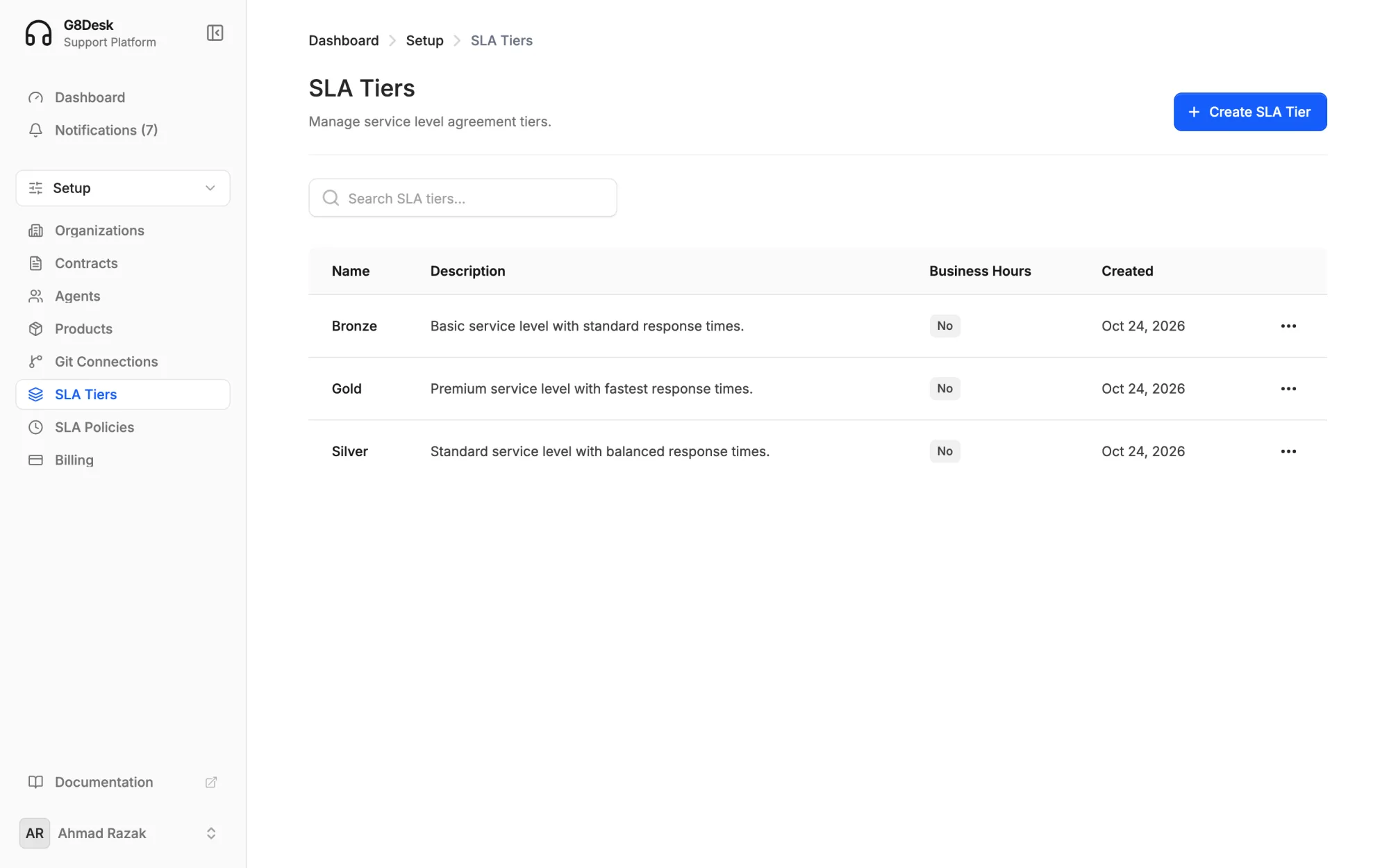
How a ticket gets its deadlines
Ticket (organisation + product + severity)
  → active contract for that organisation and product
  → the contract's SLA tier
  → the tier's SLA policy for that severity
  → first-response and resolution deadlines
Creating a tier
- Go to Setup › SLA Tiers and click Create SLA Tier.
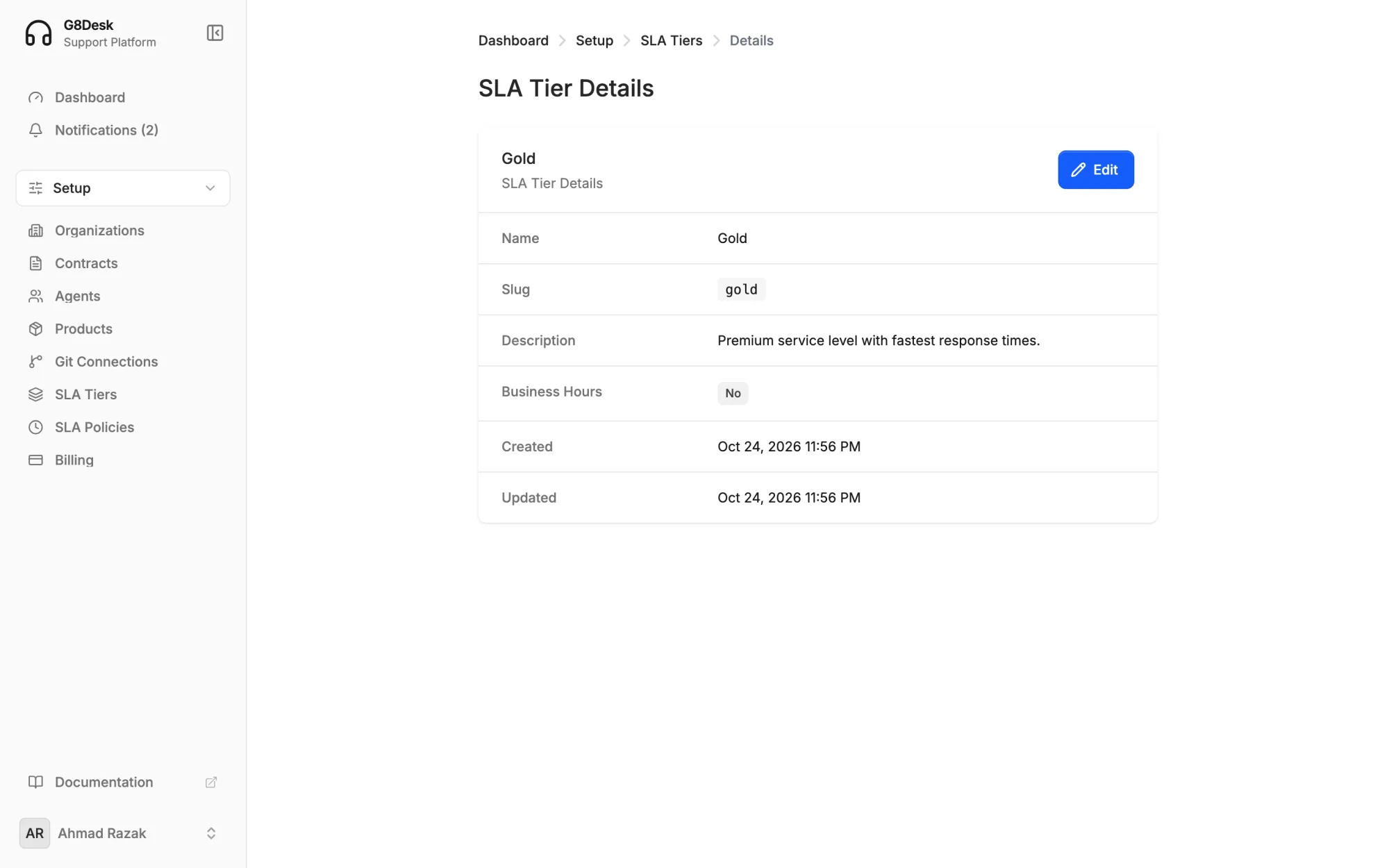
- Enter a name and an optional description.
- Choose whether the tier uses business hours.
- Save, then add a policy for each severity (P1–P4) — see SLA Policies & Escalation Rules.
Business hours or calendar hours
| Setting | How the clock runs |
|---|---|
| Business hours | Counts only Monday to Friday, 09:00–18:00, in the platform's configured time zone. Weekends are skipped. Public holidays are not excluded. |
| Calendar hours | Counts every minute, 24/7. |
The setting applies to every policy in the tier. Create separate tiers if you need both, for example "Enterprise 24/7" and "Standard business hours".
Note: Whichever mode you choose, the clock stops while a ticket is Pending Client and resumes when the client replies.
Duplicating a tier
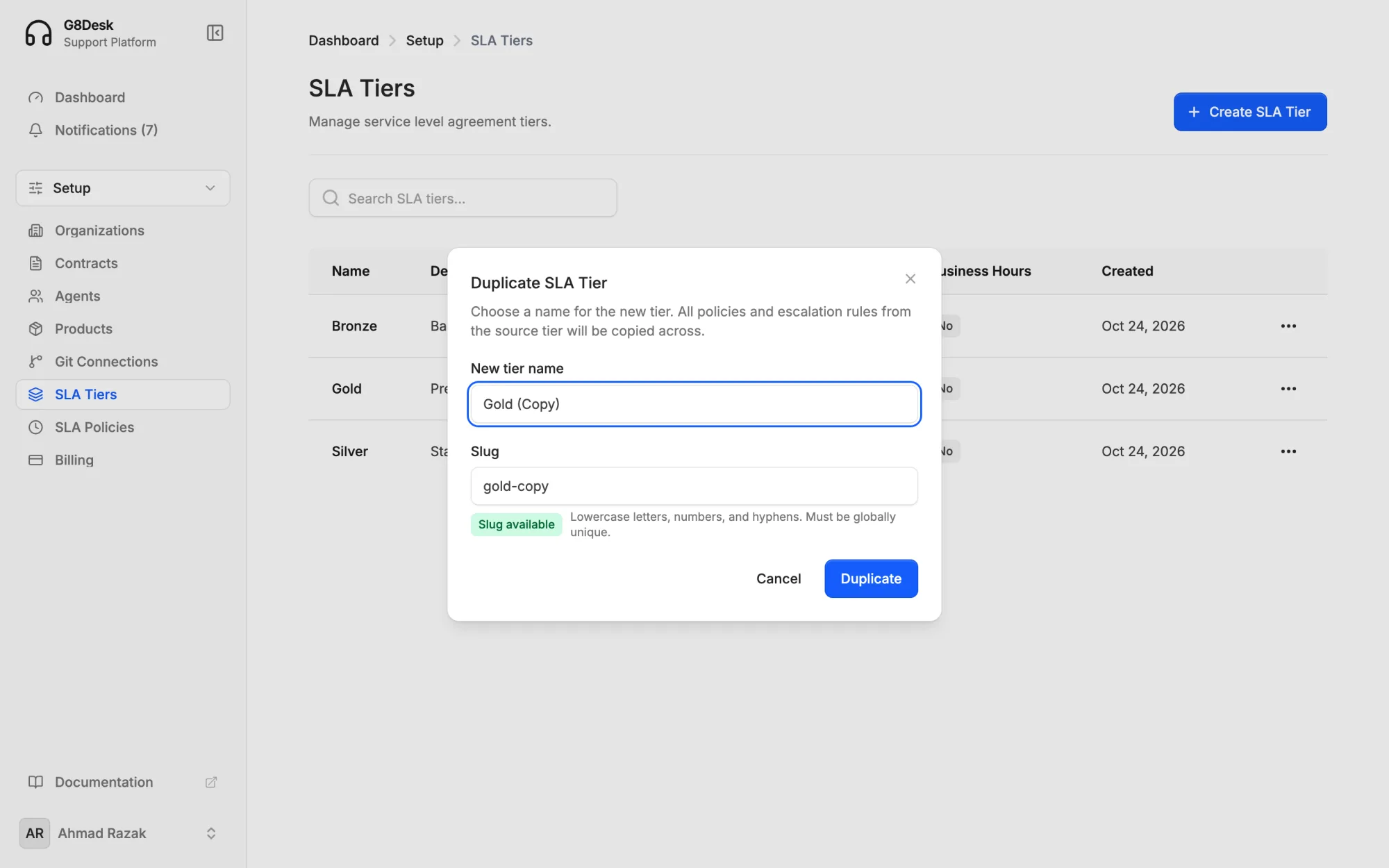
To build a new tier from an existing one, choose Duplicate from the tier's row menu. Enter a name and check the slug shows Slug available, then click Duplicate. All policies and escalation rules are copied.
Deleting a tier
A tier that any contract still uses cannot be deleted; you are told how many contracts reference it. Move those contracts to another tier first. Deleting an unused tier also deletes its policies and escalation rules.