

Engineering Handoff and Fix Verification
- Support Agent
- Ops Admin
Engineering Handoff and Fix Verification
When a ticket needs a code fix, draft engineering issues from the ticket. After an Ops Admin approves them, G8Desk creates them in the product's GitHub or GitLab repository. When the issues are closed, you ask the client to confirm the fix.
Before you start
Open the ticket's Engineering tab. If it says No repositories for this product, an Ops Admin needs to connect a repository to the product before you can draft issues.
1. Draft an issue
Click Add engineering issue.
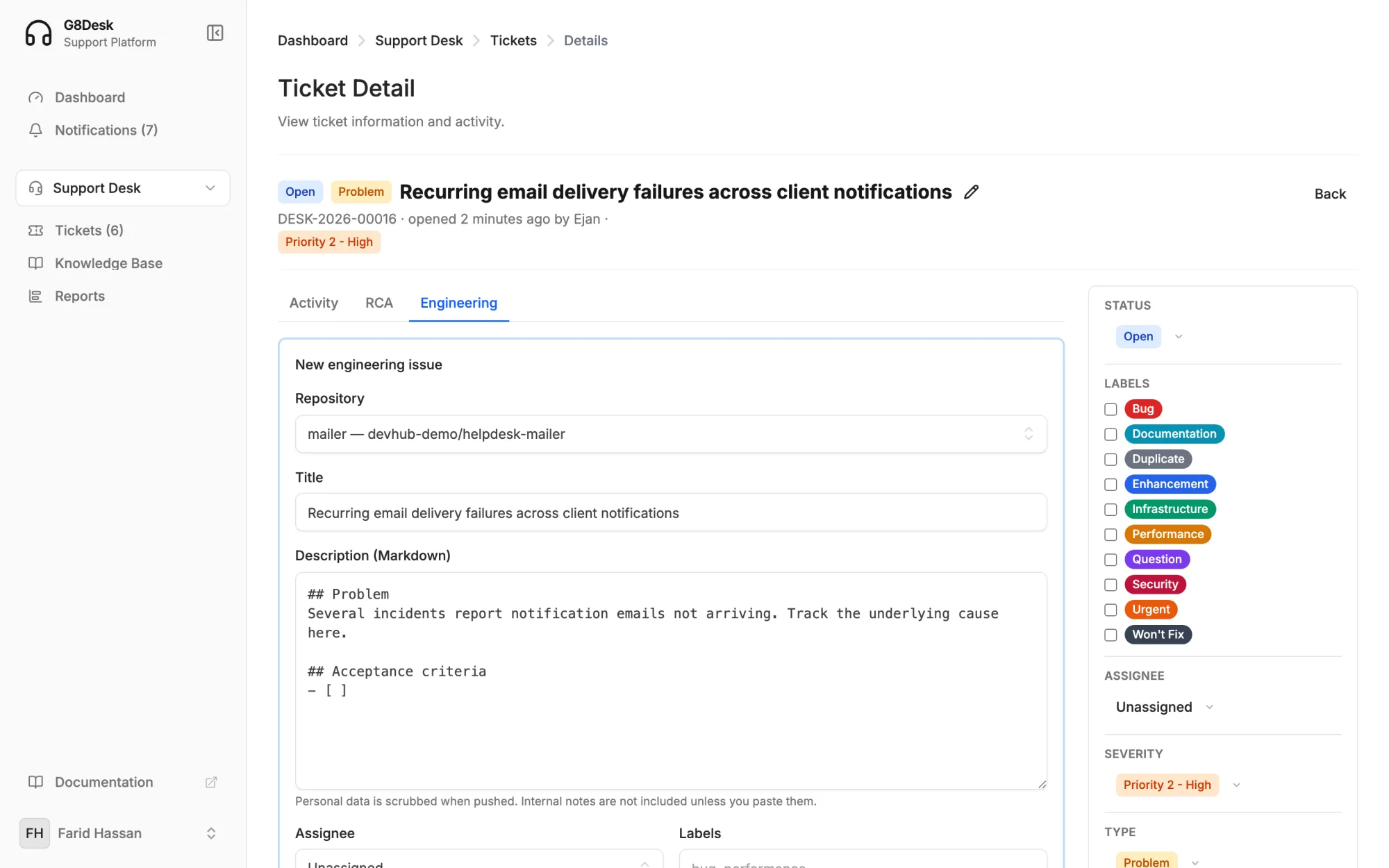
| Field | Notes |
|---|---|
| Repository | G8Desk suggests one by matching the ticket's text against each repository's component name and keywords. Change it if the suggestion is wrong |
| Title | Pre-filled from the ticket title |
| Description (Markdown) | Pre-filled with the ticket description under Problem and an empty Acceptance criteria checklist |
| Assignee | Only people with a linked account on that repository's connection are listed |
| Labels | Comma-separated. The repository's default labels are added automatically |
Click Save draft. You can add several issues, for example one per component. Drafts can be changed or deleted from their ⋯ menu.
Note: Personal data is scrubbed from the description when the issue is created. Internal notes are not included unless you paste them in yourself.
2. Submit for approval
Click Submit N issues for approval. The issues are locked as Pending approval and the approvers are notified. Nothing is sent to GitHub or GitLab yet.
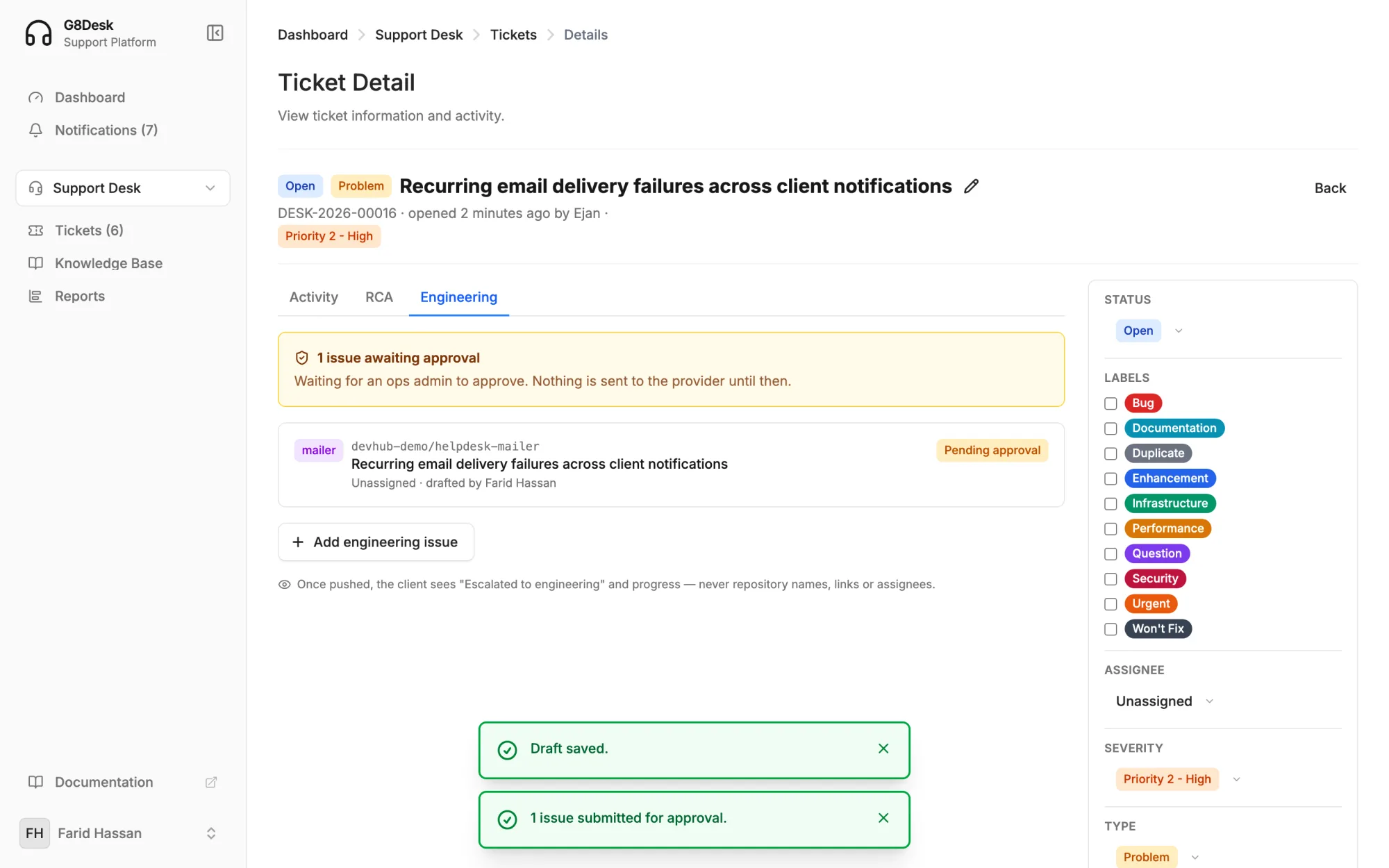
Note: Submission is refused if any issue targets a public repository. Client content can't be pushed there, so choose a private repository.
3. Approval
Any Ops Admin except the person who drafted the issues can approve them.
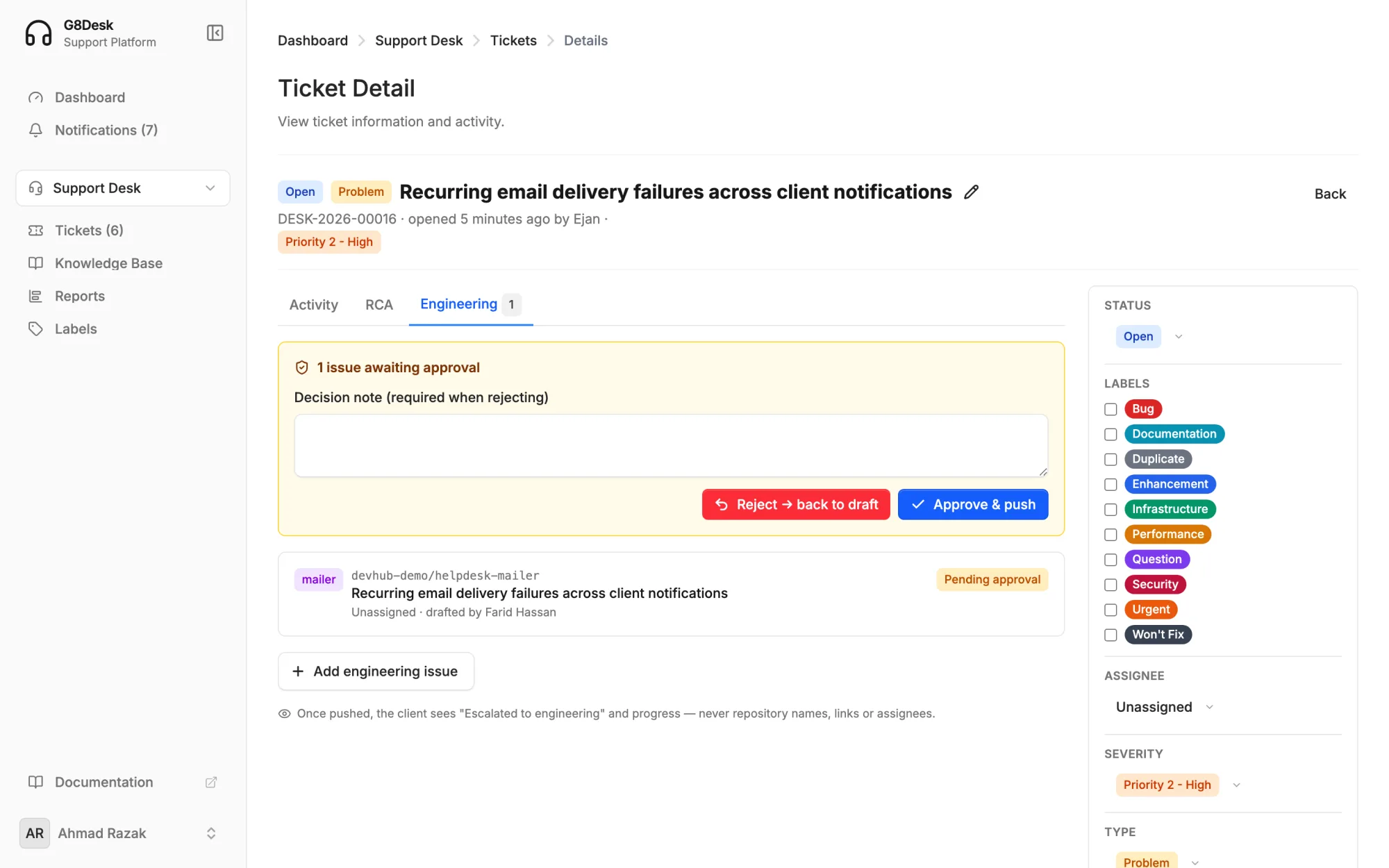
| Decision | Result |
|---|---|
| Approve & push | Issues move through Queued and Pushing to Pushed, and each one links to repository#number |
| Reject → back to draft | A note is required. Issues return as Rejected with the note shown, and the drafter is notified. Edit them and submit again |
If a push fails, the issue shows Failed with the error message. Click Retry to try again.
What the client sees
Once issues are pushed, the client's timeline shows Escalated to our engineering team with the number of work items. Their ticket sidebar shows With our engineering team and a progress bar such as 1 of 2 work items done. The client never sees repository names, links or assignees.
4. Ask the client to verify the fix
When every pushed issue is closed, the tab shows All linked issues are closed. G8Desk never resolves the ticket by itself. You decide what happens next.
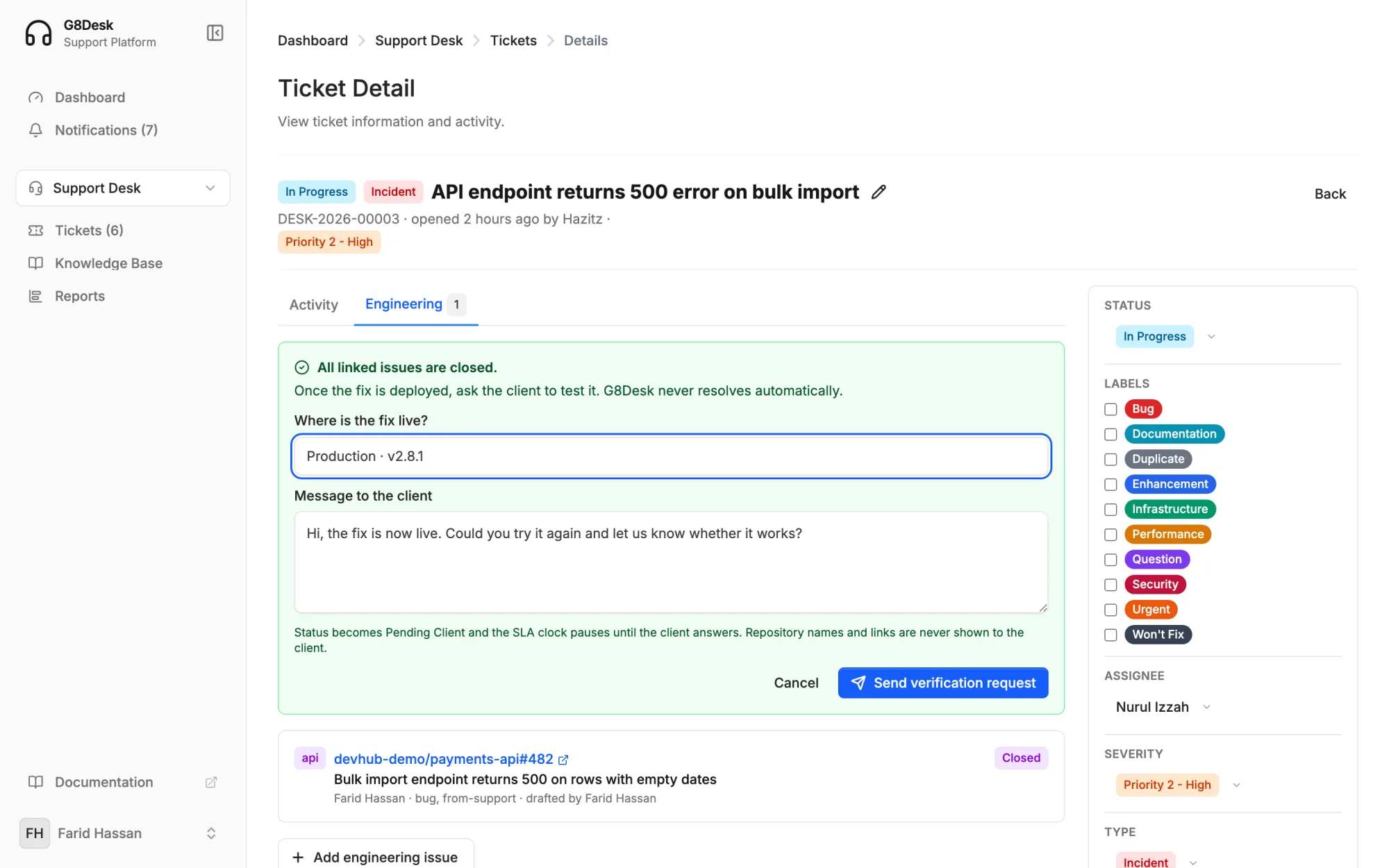
- Ask client to verify opens a form. Fill in Where is the fix live? (for example Production · v2.8.1), adjust the Message to the client, and click Send verification request.
- Resolve without verification resolves the ticket straight away, after you confirm.
Sending the request posts your message as a reply to the reporter, moves the ticket to Pending Client and pauses the SLA clock.
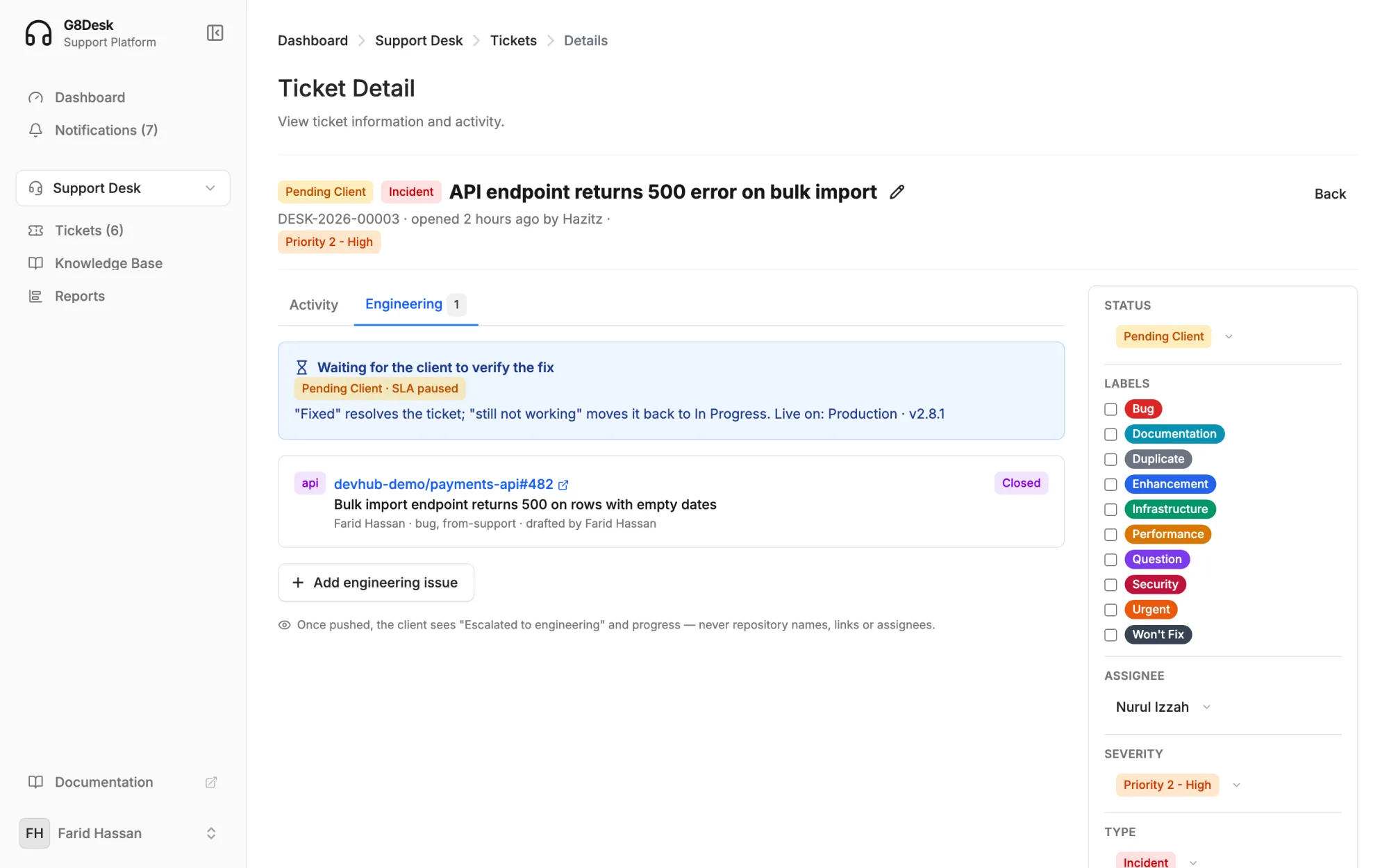
Note: The ticket must be In Progress to send a request, and Reported By must be a client contact. You can only ask once while a request is open.
5. The client's answer
| Client answers | What G8Desk does |
|---|---|
| Fixed | Moves the ticket to In Progress, which restarts the clock and extends the deadlines, then to Resolved |
| Still not working | Posts the client's comment as a reply, notifies the assignee, and moves the ticket back to In Progress. The Engineering tab shows The client says it is still not working |
When the client says it still isn't working, reopen the linked issues with the provider or add a follow-up issue. See also Confirming a Fix for the client's side.