

Submitting a Ticket
- Client User
- Client Admin
Submitting a Ticket
Raise a ticket when something is broken or you need help. G8Desk sets the response and resolution deadlines from your contract and the severity you choose.
Before you start
- Search the Knowledge Base. Your answer may already be there.
- Make sure your organisation has an active contract for the product. Only covered products appear in the form.
Submit a ticket
- Click Submit Ticket on the dashboard, or go to Support Portal › Tickets and click Submit Ticket.
- Optional: pick a Template to pre-fill the title, severity and description.
- Choose the Product.
- Choose the Severity (see below).
- Enter a short Title. Related knowledge base articles may appear under it as you type.
- Describe the problem in Description. Use the toolbar for headings, lists, code and tables, and Preview to check it.
- Optional: add files under Attachments. Each file can be up to 10 MB.
- Click Submit Ticket.
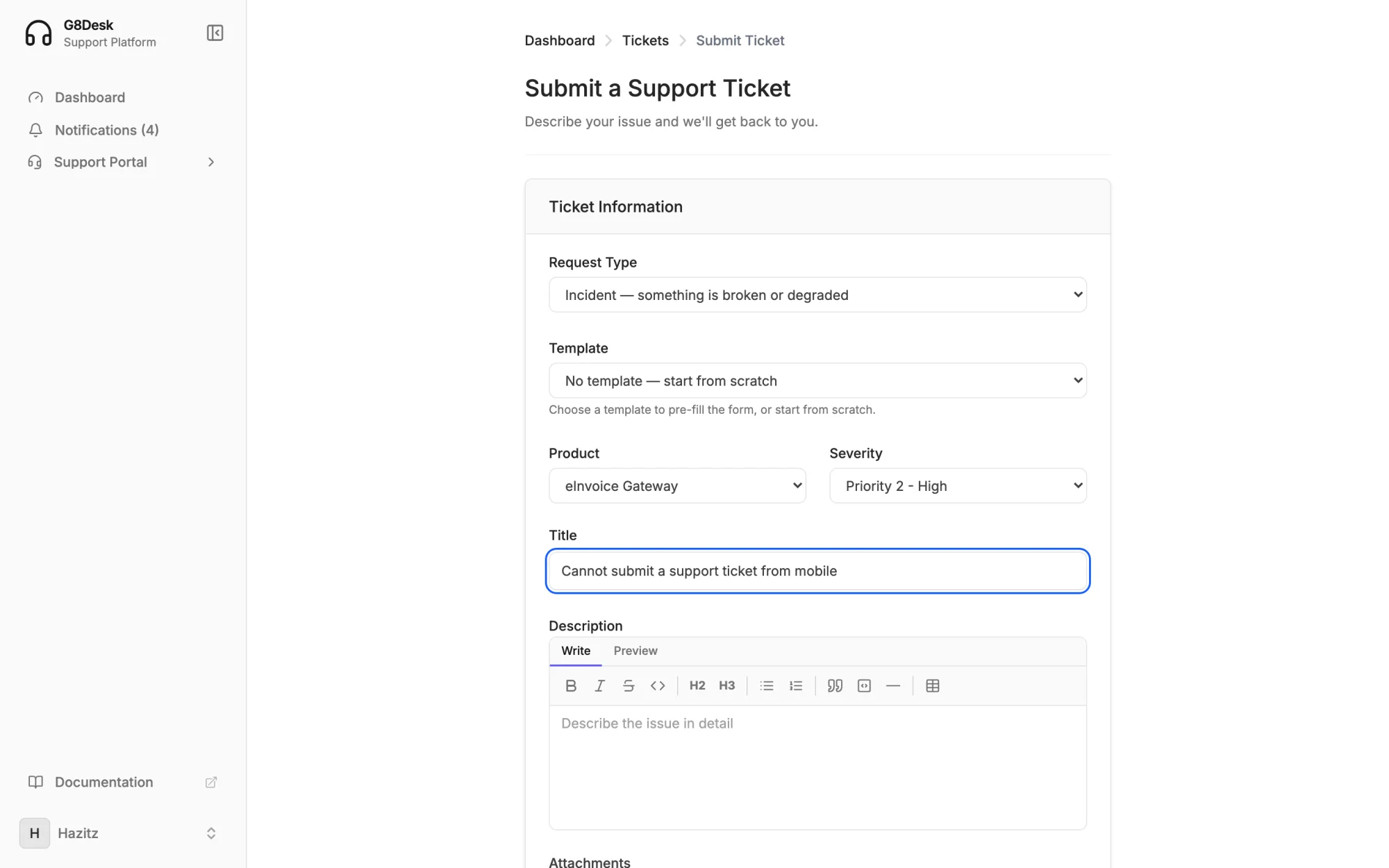
You return to the ticket list, and the new ticket is at the top.
Note: Administrators also see a Request Type field for raising change requests. See Raising a Change Request.
Templates
| Template | Title starts with | Severity set to |
|---|---|---|
| Bug Report | [Bug] |
Priority 2 - High |
| Feature Request | [Feature] |
Priority 4 - Low |
| Access Request | [Access] |
Priority 3 - Medium |
| General Inquiry | [Inquiry] |
Priority 4 - Low |
You can change anything a template fills in before you submit.
Choosing a severity
| Severity | Use it when |
|---|---|
| Priority 1 - Critical | Complete outage or critical business impact. Needs an immediate response. |
| Priority 2 - High | A major feature is degraded for many users or business processes. |
| Priority 3 - Medium | A minor feature issue with a workaround. |
| Priority 4 - Low | A cosmetic issue, question or feature request with no business impact. |
Higher severities get shorter SLA deadlines, so choose honestly. The support team can change the severity if needed.
Writing a good ticket
- One problem per ticket.
- Steps to reproduce, what you expected and what happened.
- Exact error messages, and screenshots as attachments.
- When it started, and who is affected.
Improve with AI
If your provider has enabled it, an Improve with AI button appears under the description. It suggests a clearer description, a severity, a product and questions worth answering. Click Accept to apply the suggestions or Dismiss to ignore them. You can use it up to three times per ticket form.
What happens next
- The ticket gets a reference such as
DESK-2026-00001. - Response and resolution deadlines are set from your contract's SLA tier and the severity.
- You receive a confirmation, and the ticket thread shows an automatic acknowledgement with the expected response time.
Follow progress in Tracking Your Tickets.