

Users, Roles & Audit Trail
- Ops Admin
User accounts, roles and the audit trail live in the Administration section. It is shown only to platform administrators, such as the superadmin created when G8Desk was installed; a standard Ops Admin does not see it.
Note: For day-to-day team changes you do not need Administration. Invite and manage your support team from Setup › Agents, and client users from each organisation's page.
Users
Go to Administration › Identity › Users.
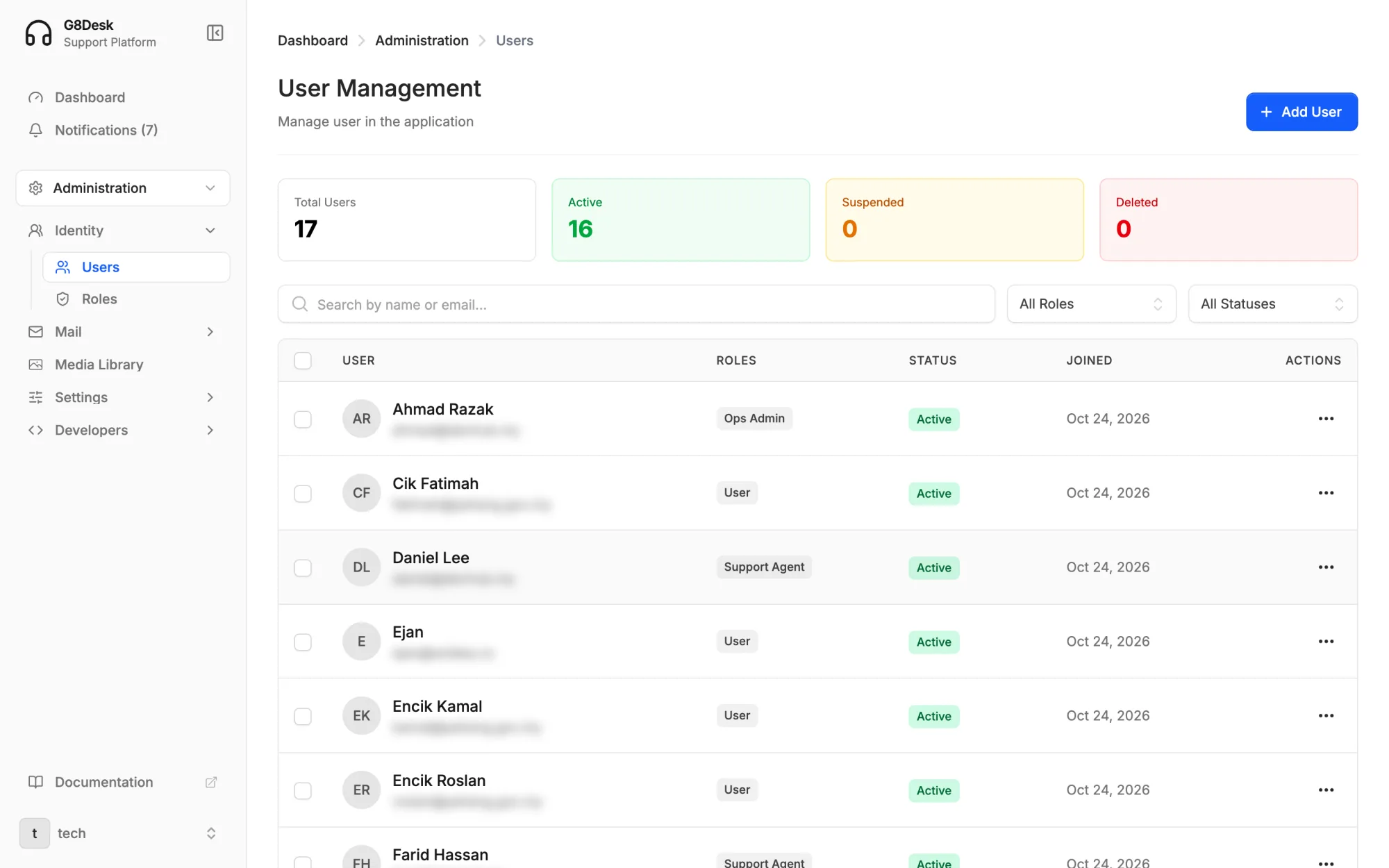
The cards at the top count total, active, suspended and deleted users. Search by name or email, and filter by role or status.
Adding a user
- Click Add User.
- Enter the Name and Email, and choose roles.
- Click Create User. The person receives a link to set their own password.
Tip: Add ops staff through Setup › Agents rather than here. An agent invitation adds them to your ops organisation and sets them up as a Support Agent; giving a role on this page does not.
Row actions
| Action | Effect |
|---|---|
| Edit | Change name or email. Changing the email resets its verification. You can also send a password setup link. |
| Manage Access | Add or remove roles, and grant direct permissions on top of those the roles give. |
| Send Password Reset | Emails a password reset link. |
| Resend Verification | Resends the email verification link. |
| Suspend / Activate | A suspended user cannot sign in until activated. |
| Delete / Restore | Deleted accounts can be restored later. |
| Impersonate | Sign in as the user to see what they see. Shown only when impersonation is enabled for the installation. Superadmins and suspended users cannot be impersonated. |
Tick several users to Assign role to all of them or Delete them together. Protected accounts are skipped by bulk delete.
Roles and permissions
Go to Administration › Identity › Roles.
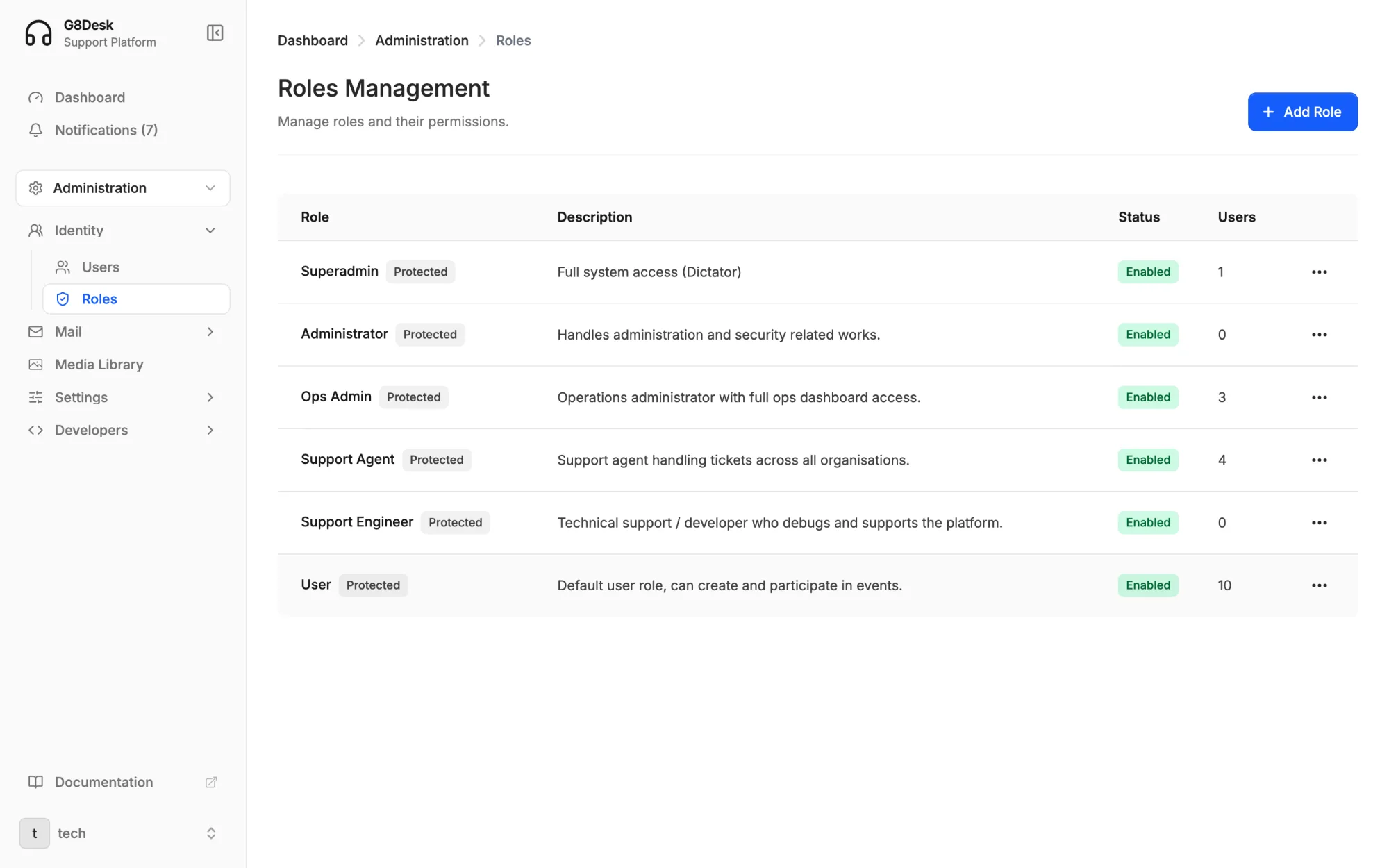
| Role | Purpose |
|---|---|
| Superadmin | Full system access. |
| Administrator | Administration and security work. |
| Ops Admin | Full Ops Dashboard access. |
| Support Agent | Handles tickets for assigned organisations. |
| Support Engineer | Technical support: read access across organisations, diagnostics, and drafting engineering issues. |
| User | Baseline role every account holds. |
The built-in roles are Protected: they cannot be deleted or disabled. You can add your own roles with Add Role, then edit, enable, disable or delete them from the row menu. A role that is assigned to users cannot be deleted, and a disabled role cannot be assigned.
Changing a role's permissions
Choose Manage Permissions on a role. Permissions are grouped by area (Admin, Analytics, Tickets and so on); tick or untick them and click Update Permissions.
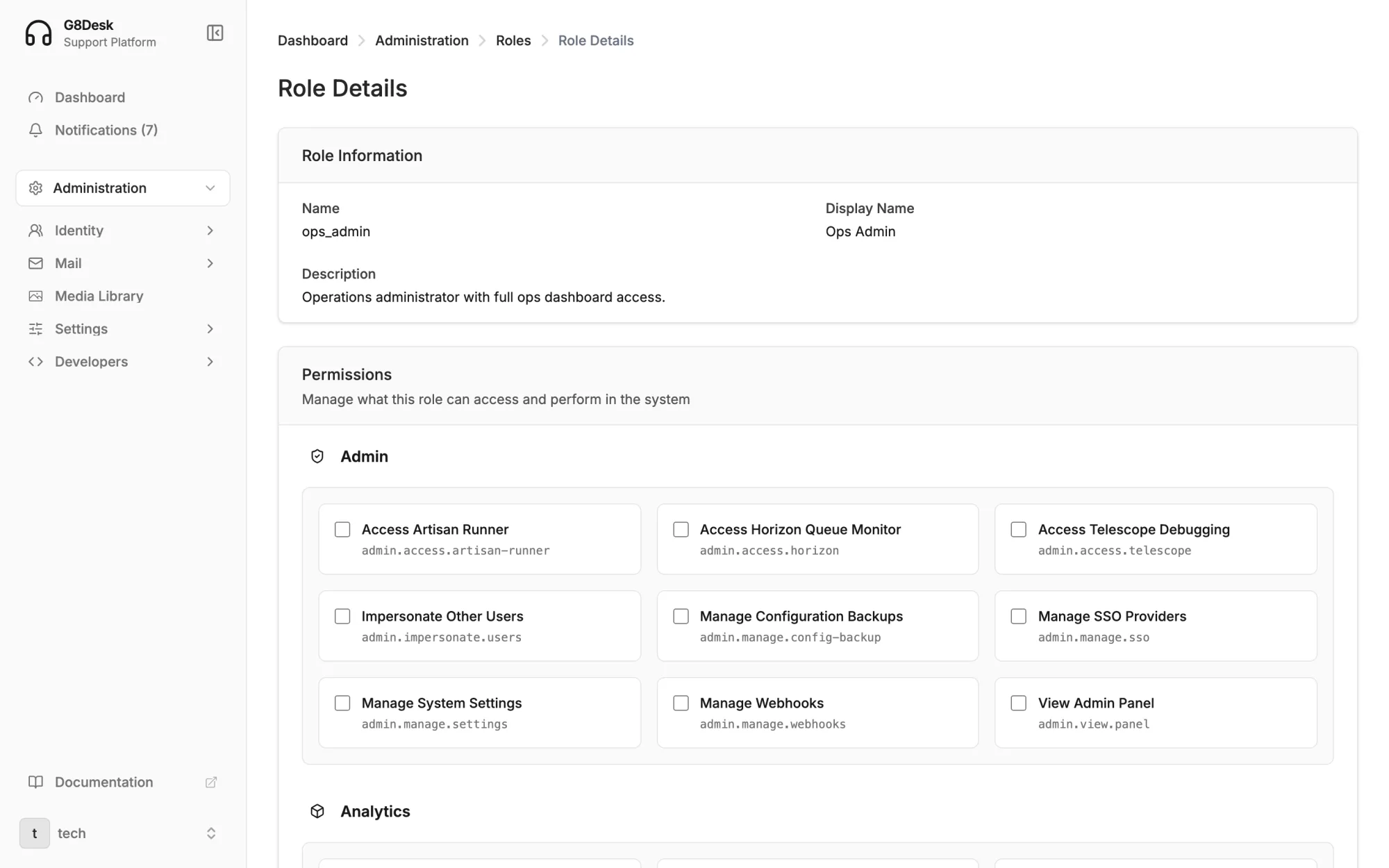
Note: The AI assistant (MCP) checks the same permissions as the web, so a permission change applies to both.
Audit trail
Go to Administration › Developers › Audit Trail.
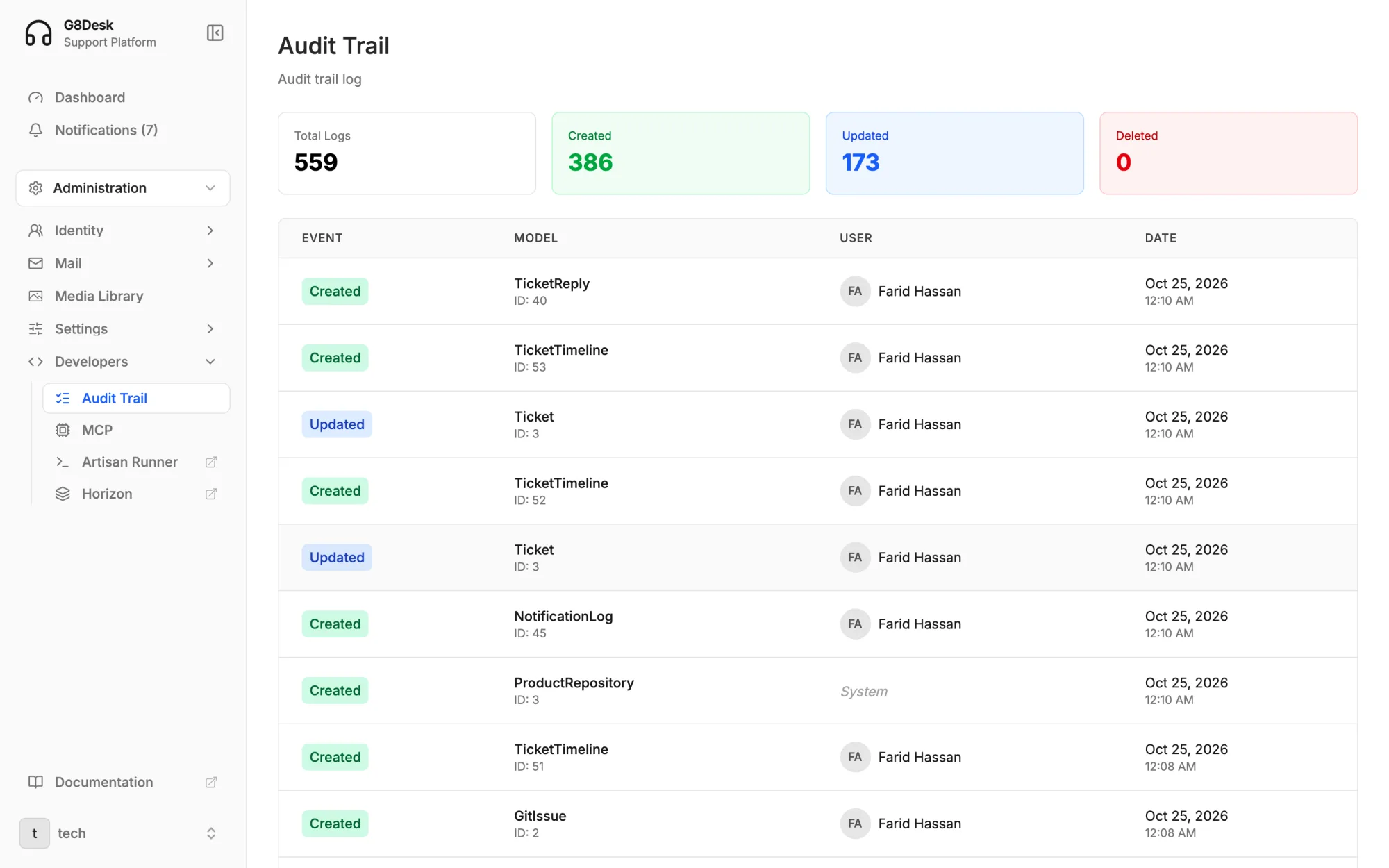
The audit trail records every change to audited records: the event (created, updated or deleted), the record type, the user who made the change (or System) and when. The newest events come first, 20 per page. Click a row to open its details.