

Replying, Editing and Reactions
- Client User
- Client Admin
Replying, Editing and Reactions
Talk to the support team in the ticket thread. Any member of your organisation can comment on any of its tickets.
Add a comment
- Open the ticket from Support Portal › Tickets.
- Type in the Leave a comment... box at the bottom of the thread.
- Optional: click Choose Files to attach files.
- Click Comment.
The comment appears in the thread and the support team is notified.
Note: Closed tickets don't show the comment box. Raise a new ticket and mention the old reference.
Tip: Posting the same text twice within a few seconds is ignored, so a double-click won't create a duplicate.
Edit or delete a comment
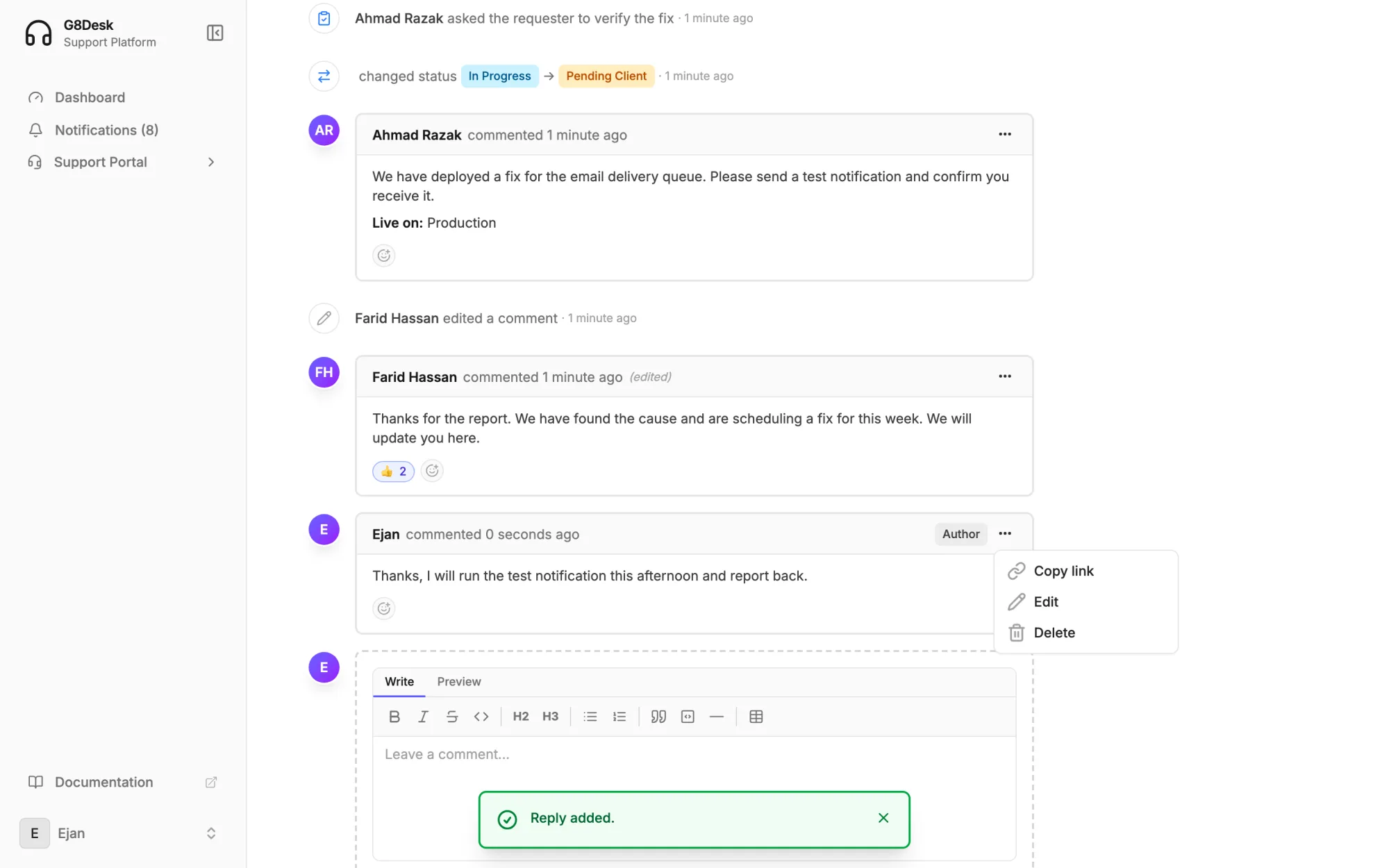
- Click the ⋯ menu on your comment.
- Choose Edit, change the text and click Save, or choose Delete and confirm.
| Who | Can edit or delete |
|---|---|
| Member | Their own comments, within 15 minutes of posting |
| Administrator | Any comment in their organisation's tickets, at any time |
| Anyone | Never automatic System messages |
Edited comments show (edited). Edits and deletions are recorded in the ticket's timeline.
Link to a comment
Click ⋯ › Copy link to copy a direct link to that comment.
React to a comment
- Click the smiley button under a comment.
- Pick an emoji: 👍 ❤️ 😂 😮 😢 🎉
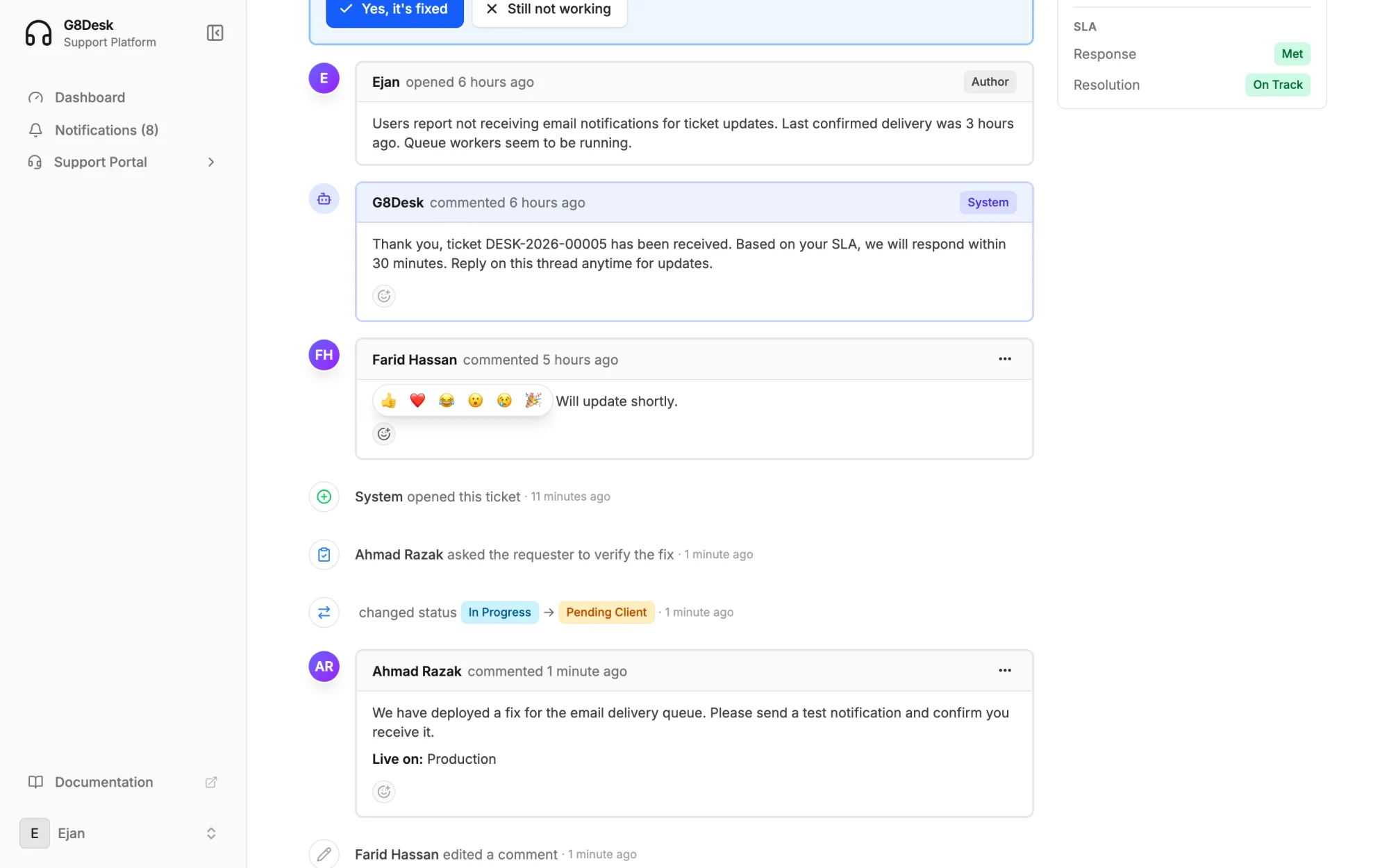
Click the same reaction again to remove it. Hover over a reaction to see who added it. Reactions don't send notifications.